Help and guides / Venue owners
Understand each tile on your dashboard, follow your busy nights, and find the table money you can claim, which is kept apart from event ticket sales.
Sign in to the Hoppers dashboard and select “Dashboard” in the menu on the left. On a phone, tap the menu icon at the top left first. Everything on this page is about the venue you have open.
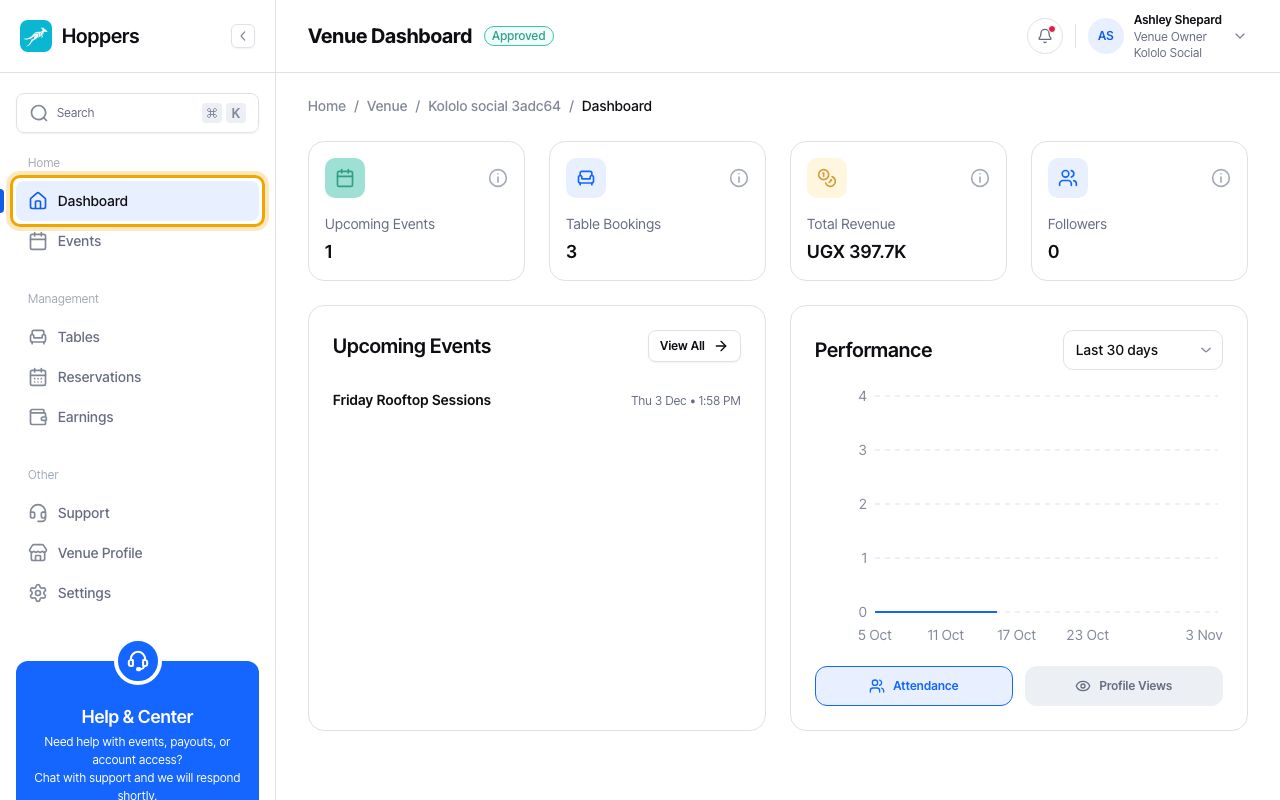
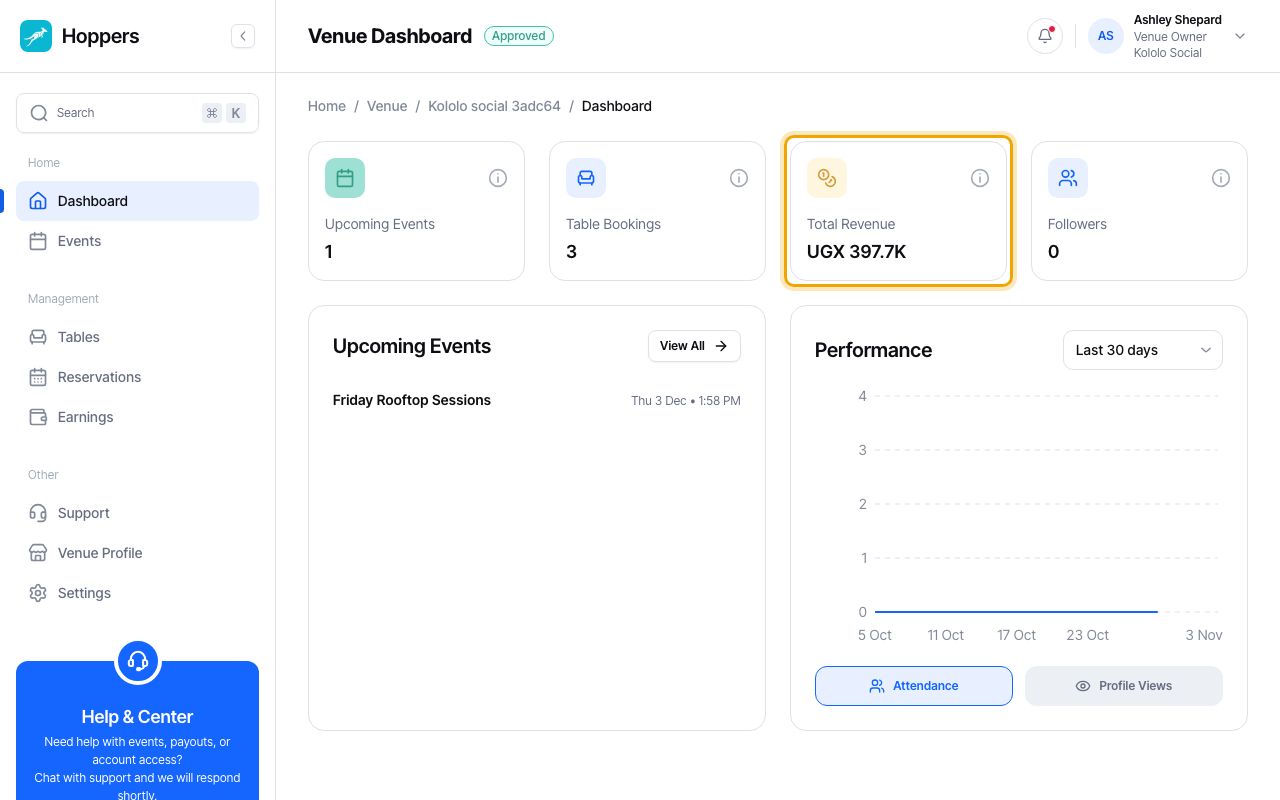
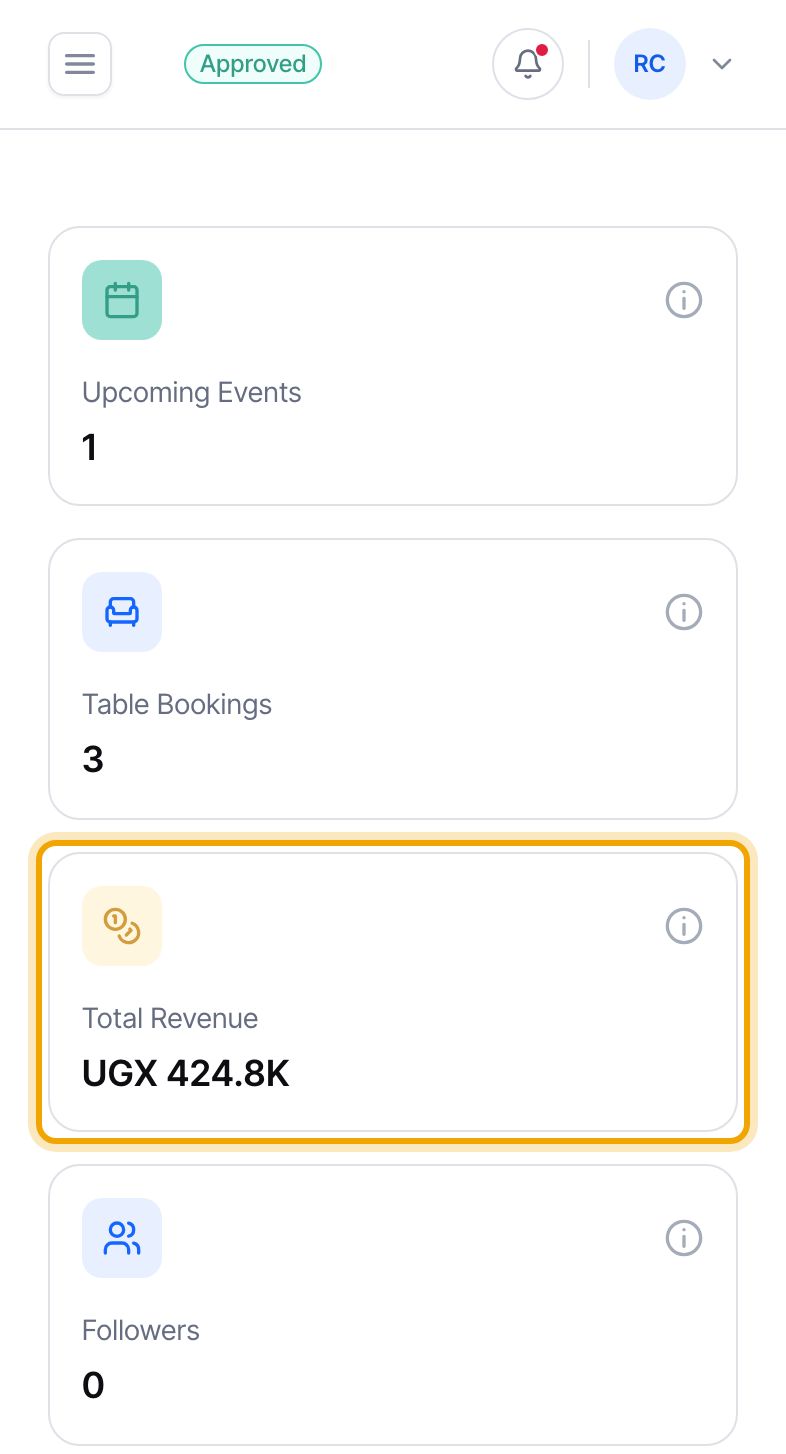
Four tiles sit at the top. “Upcoming Events” is how many published events at your venue have not started yet. “Table Bookings” counts table reservations that were confirmed, checked in or completed. “Total Revenue” is explained in the next step. “Followers” is how many people follow your venue in the app.
Cancelled reservations, no-shows and unpaid holds are not counted in “Table Bookings”. Hover over the small icon on a tile to read what it counts.
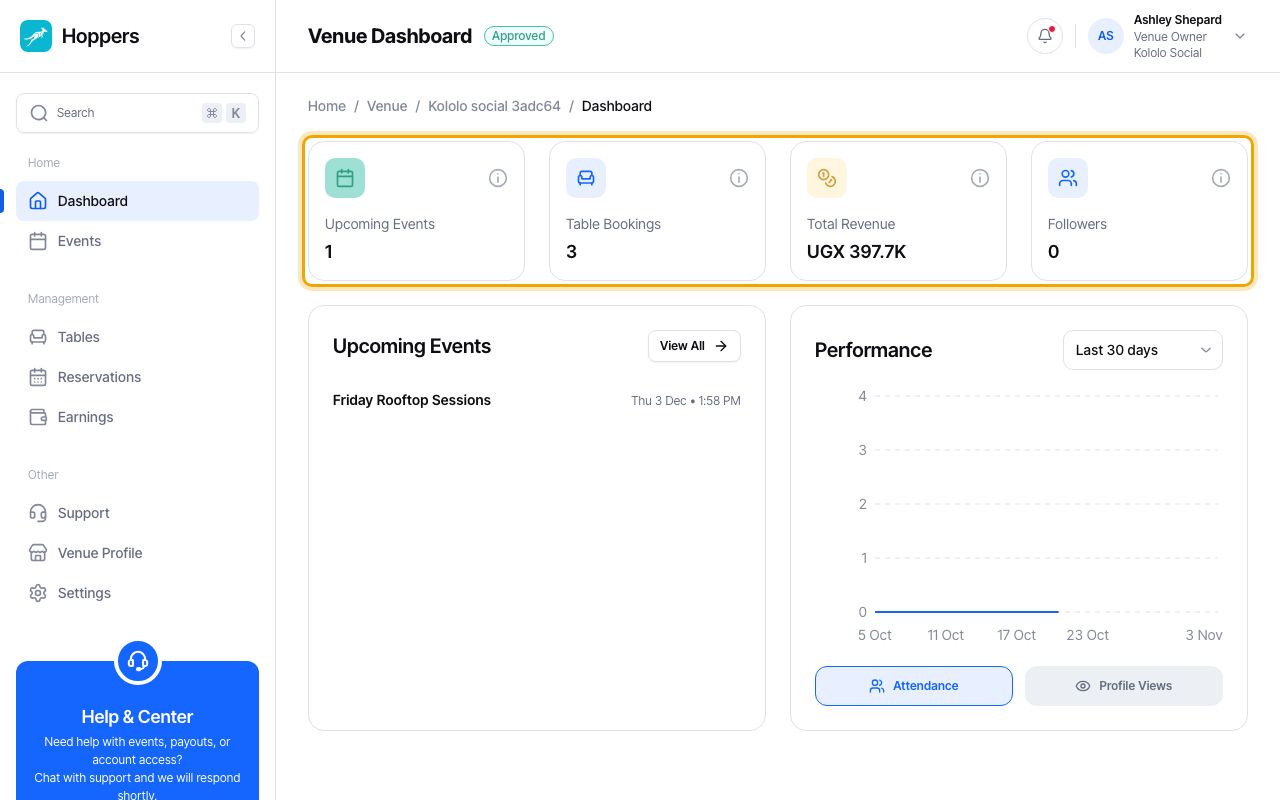
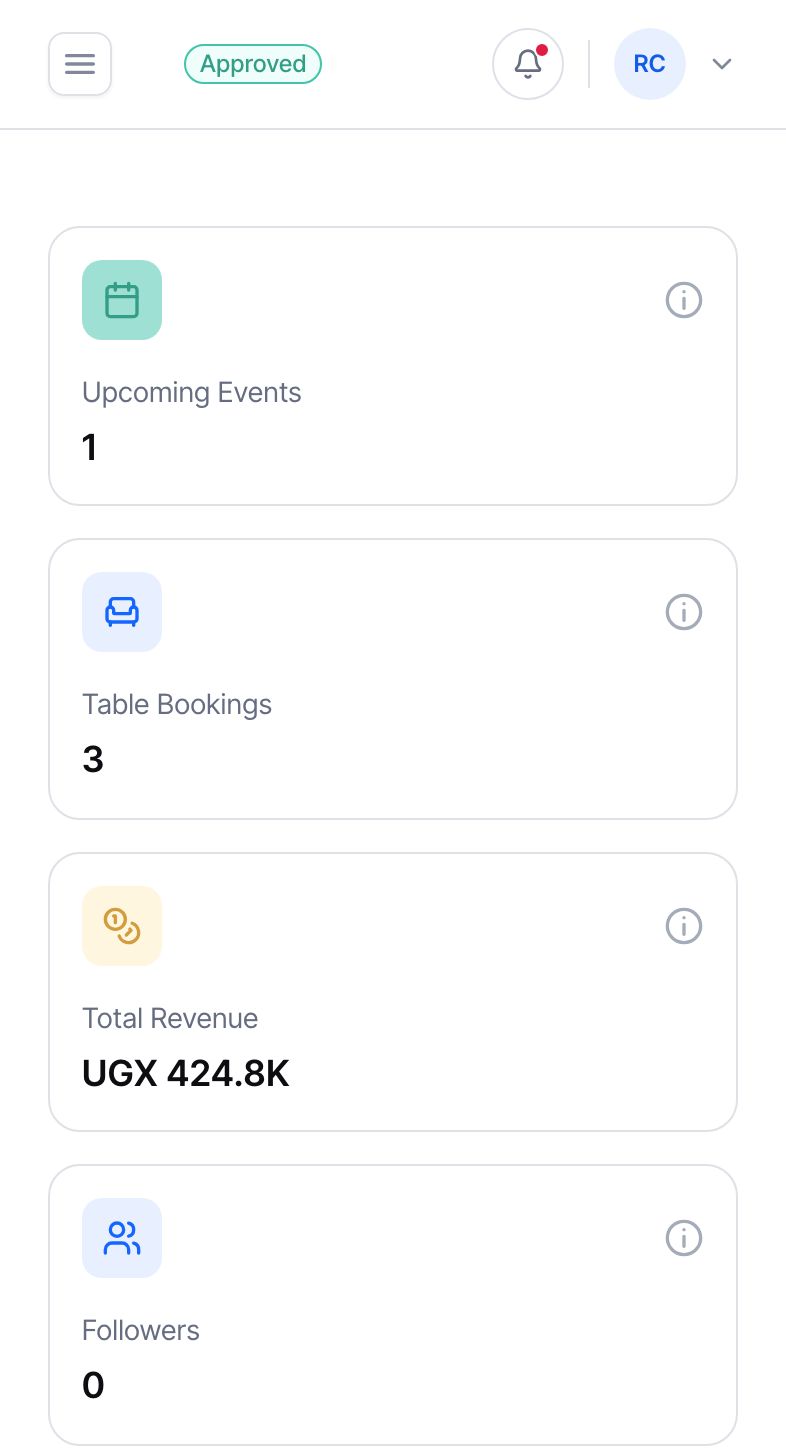
“Total Revenue” adds two kinds of money: tickets sold for events held at your venue, and your table reservations after the fees charged to your venue. Ticket money belongs to each event’s organizer, not to your venue, so do not count all of this tile as your income. Large amounts are shortened, for example UGX 8.4M.
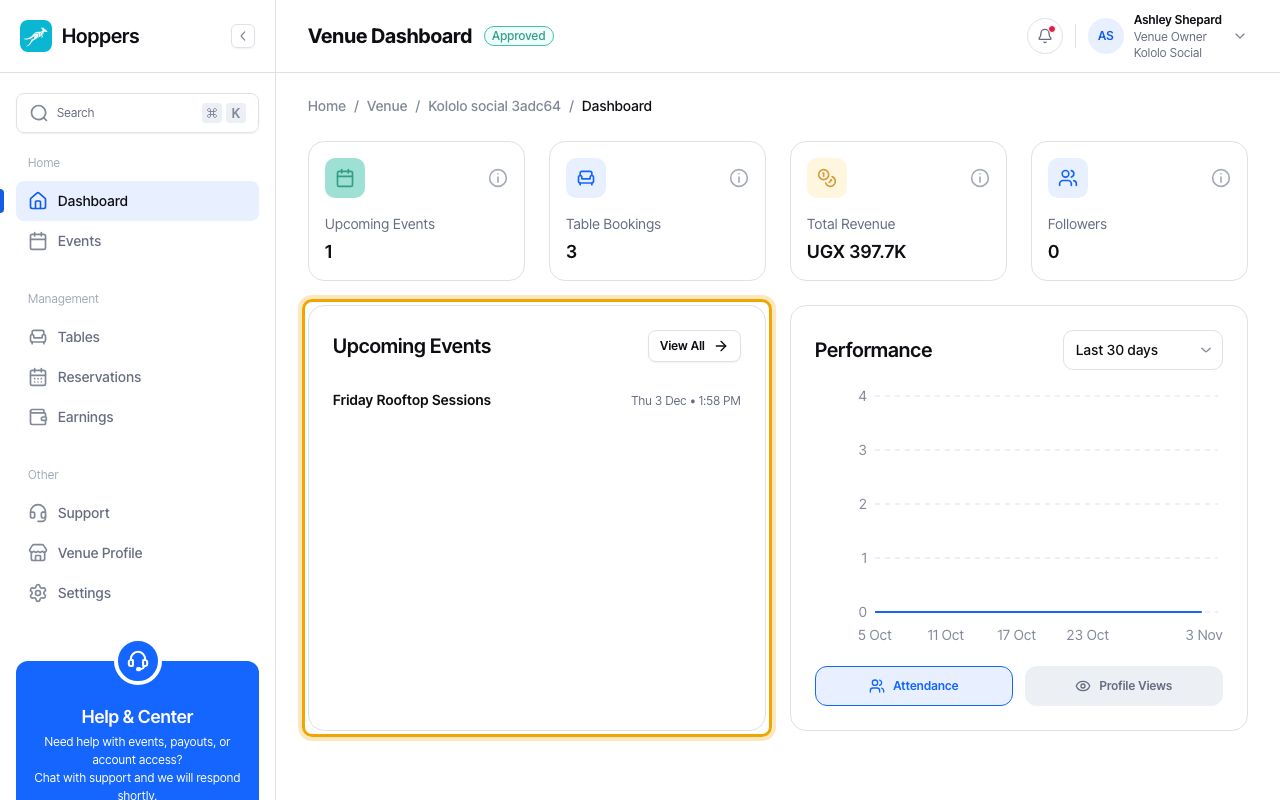
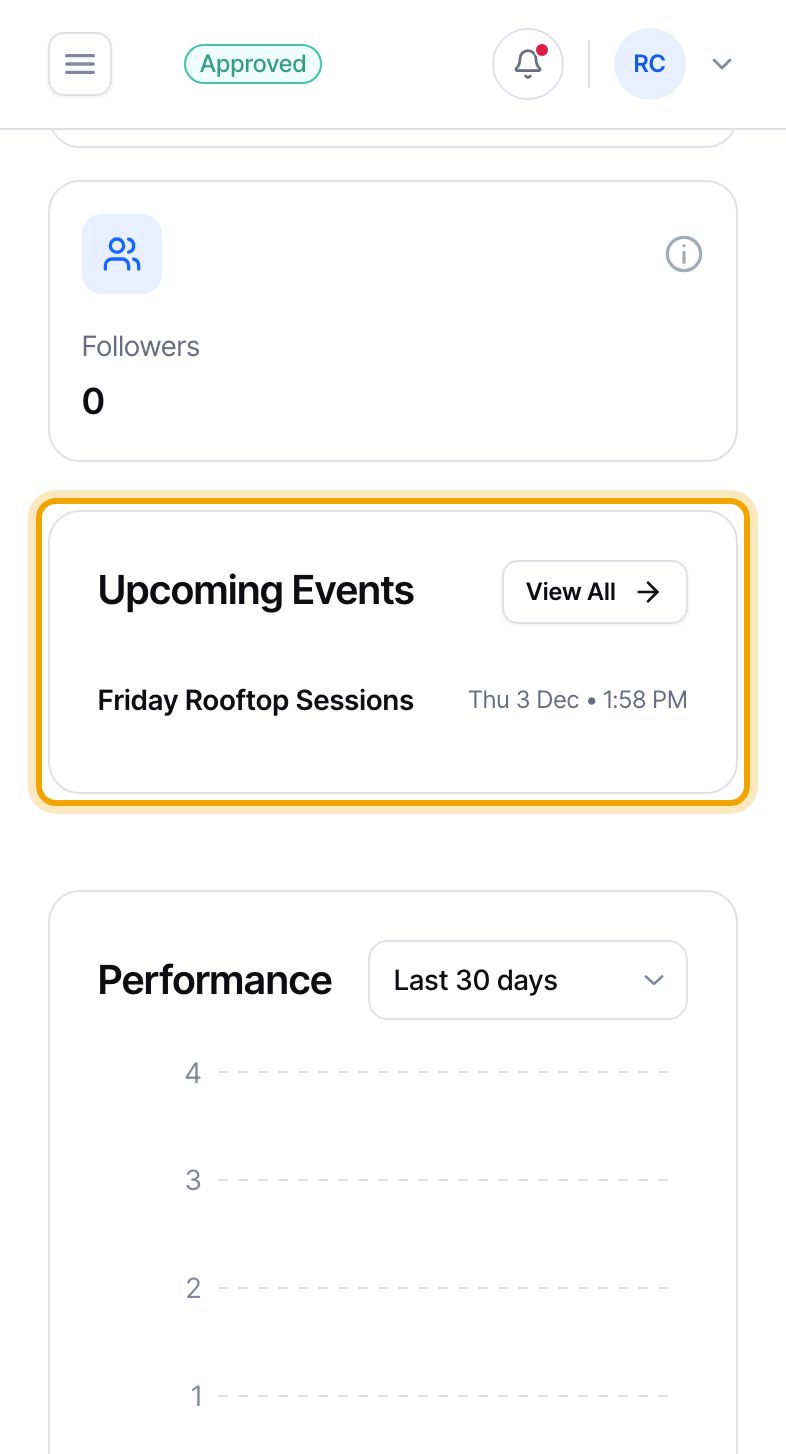
The “Upcoming Events” card lists the next events at your venue with their date and time. Select “View All” to open your venue’s Events page.
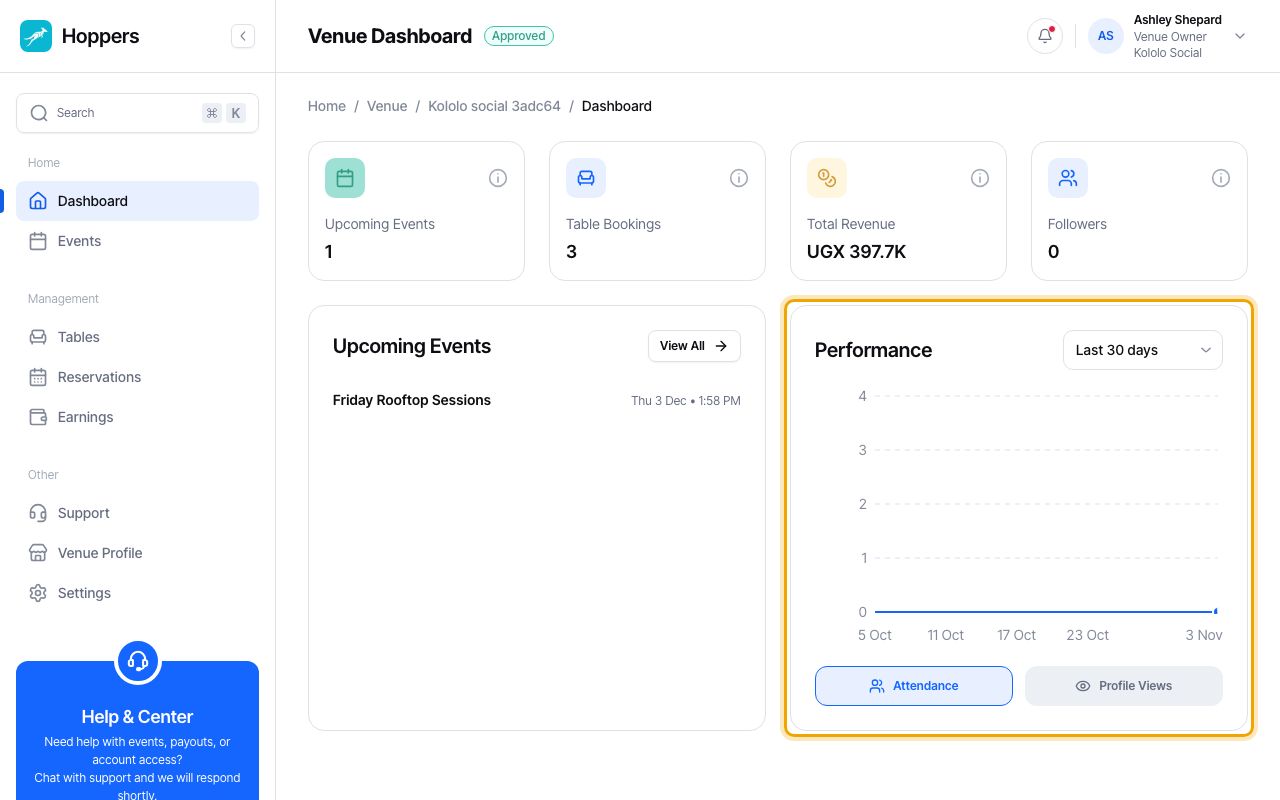
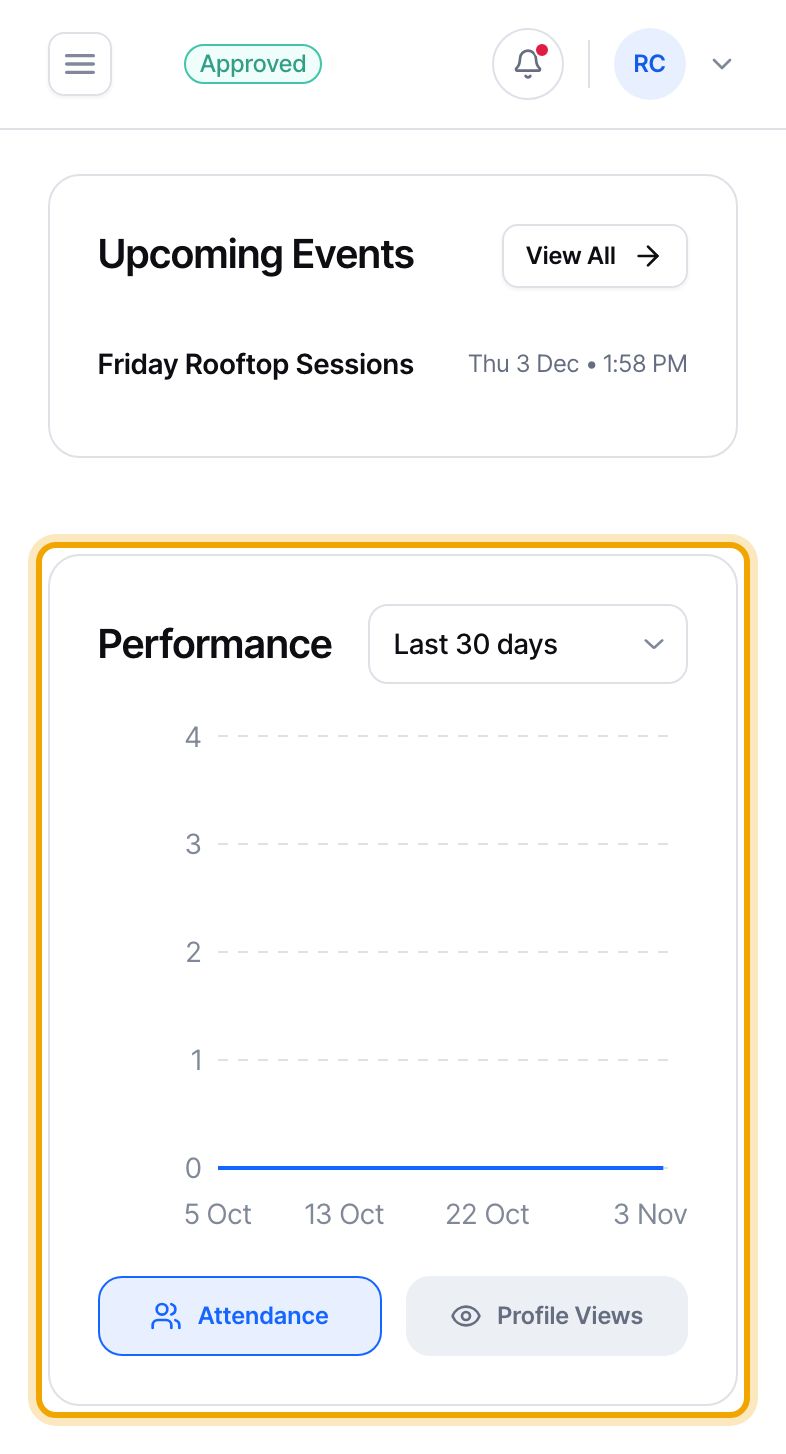
The “Performance” card draws one point per night. Choose “Attendance” for the most people inside your venue at once that night, or “Profile Views” for how many times your venue’s page was opened in the app. Pick “Last 7 days”, “Last 30 days” or “Last 90 days” at the top of the card.
A night runs from 6am to 6am the next morning, so guests who arrive after midnight count towards the night they came out for.
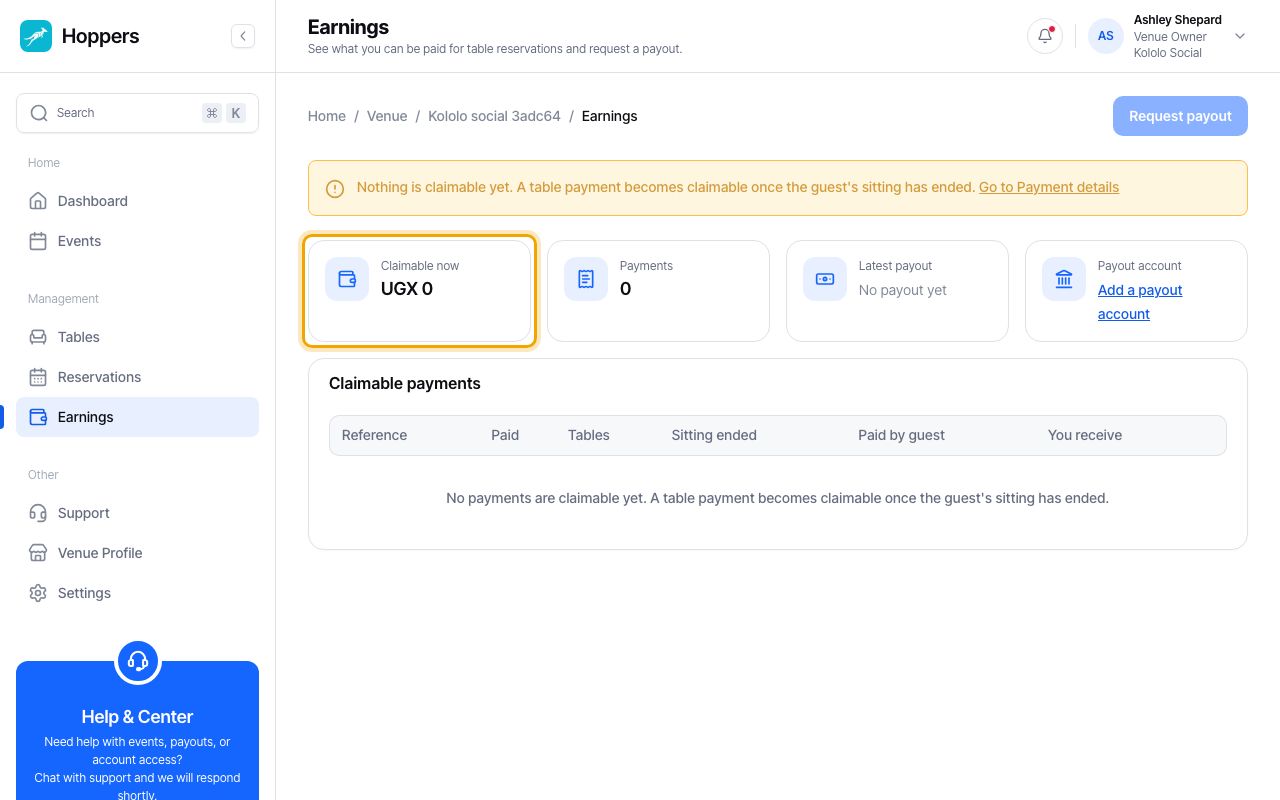
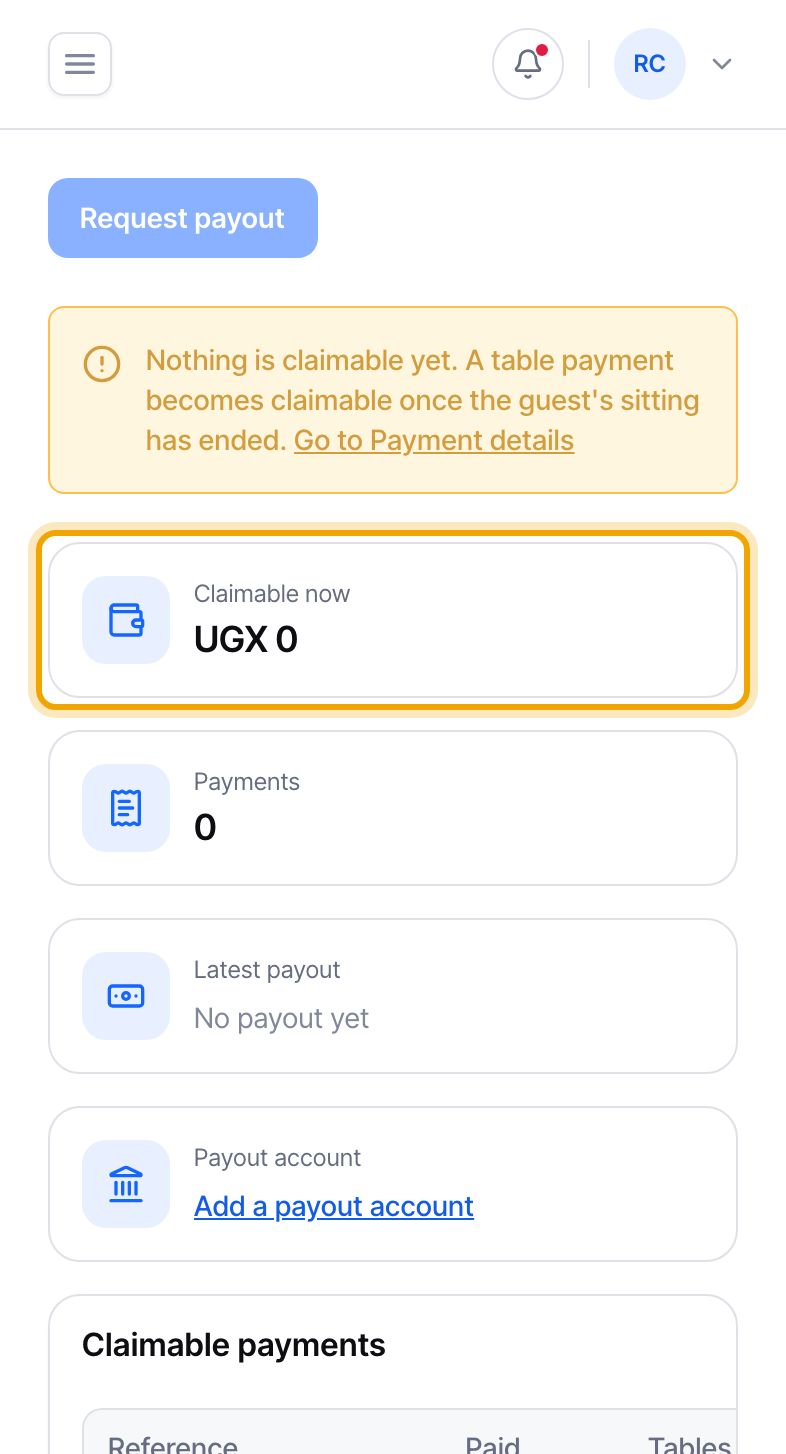
Select “Earnings” in the menu. “Claimable now” is the table reservation money you can be paid today, after fees. A payment becomes claimable once the guest’s sitting has ended. The page also shows the number of “Payments”, your “Latest payout” and your “Payout account”. When there is money to claim, select “Request payout”.
If “Request payout” is greyed out, the message above the tiles says why, for example that nothing is claimable yet or that you still need to add a payout account.
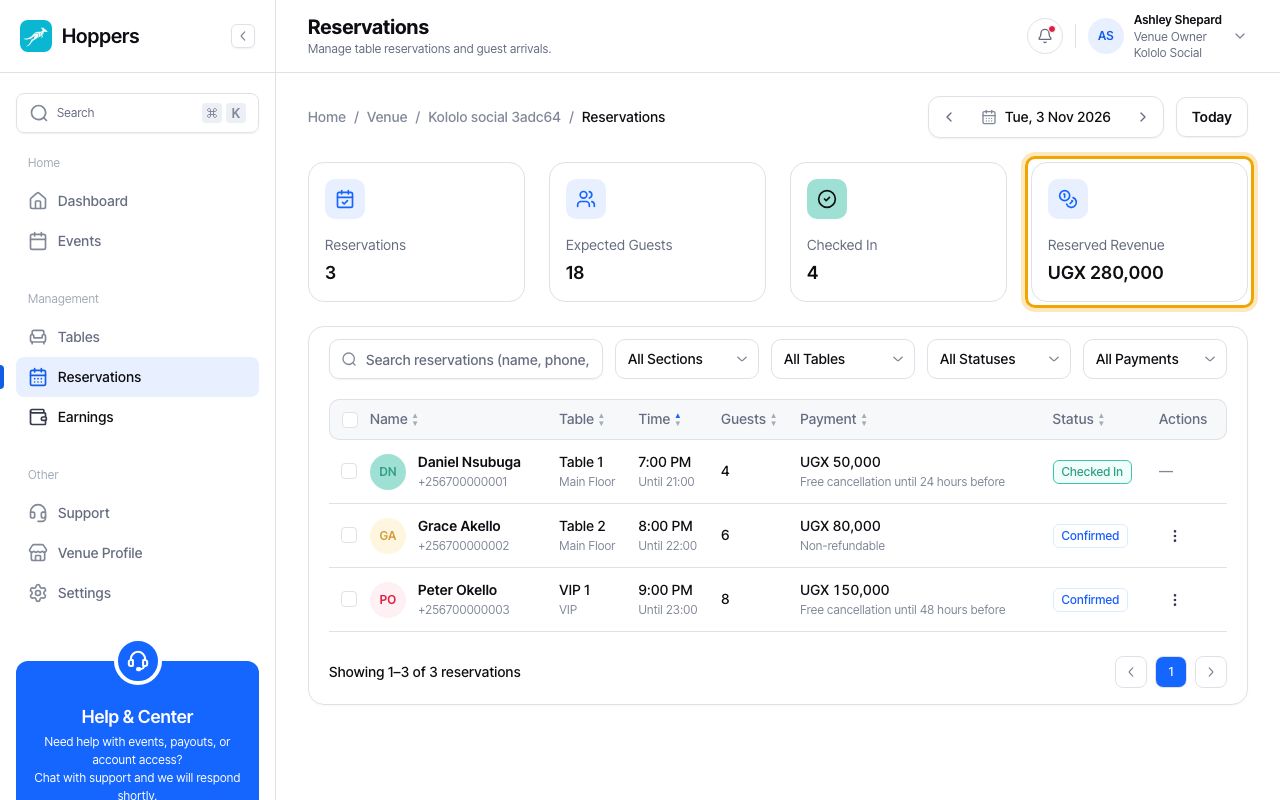
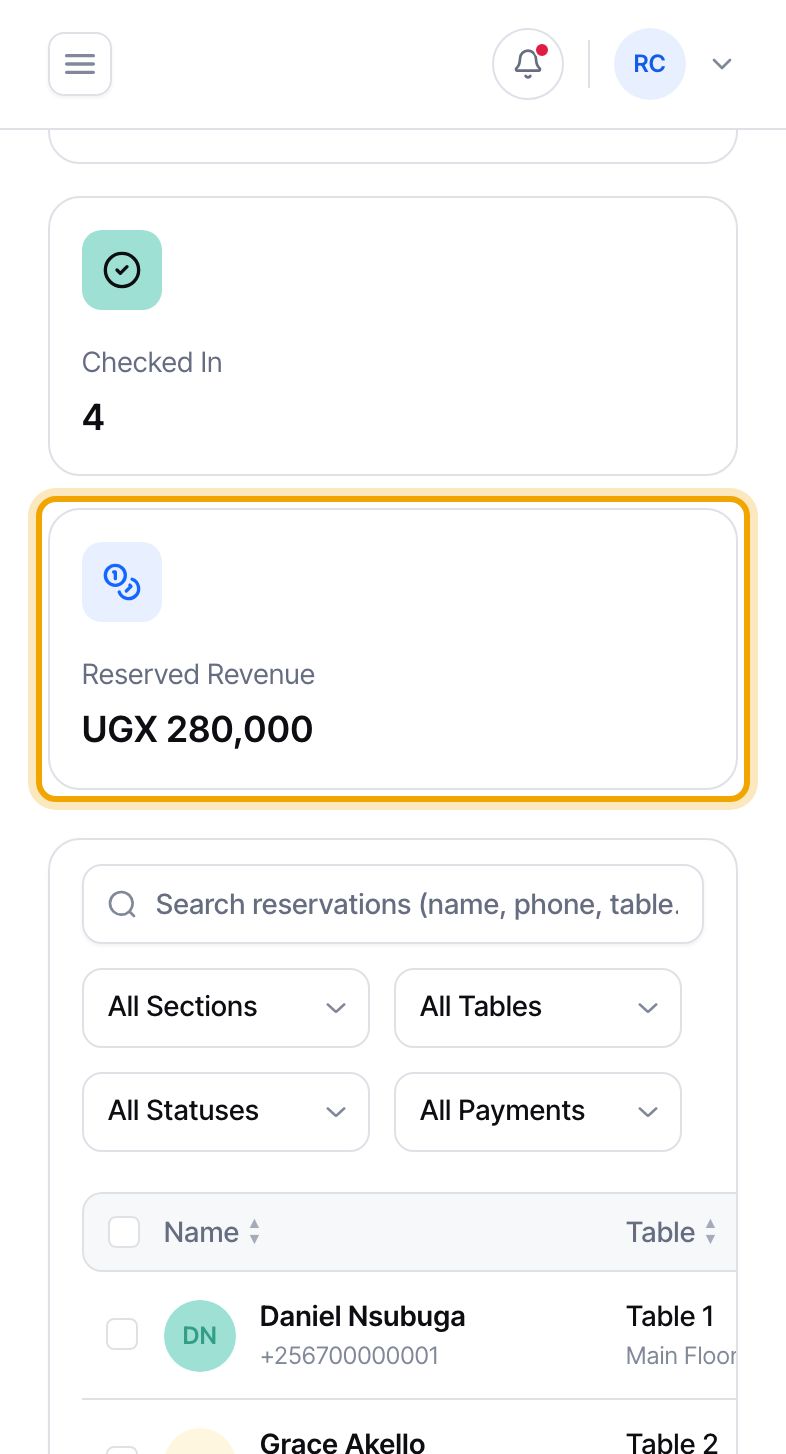
To look at one day, open “Reservations”. The “Reserved Revenue” tile adds up the reservation fees on that day’s bookings, leaving out cancelled ones. It shows what guests paid, before fees come out.
A booking still waiting for payment is counted too, so use this tile as a guide for the day and “Earnings” for what you are owed.
Event ticket money belongs to the organizer of the event, even when the event is held at your venue. Table reservation money is your venue’s, after the payment provider’s charge and Hoppers’ commission. Always read “Earnings” for your own income.
Payouts go to the mobile money or bank account you add in Settings, under “Payment details”. Request one from “Earnings” with “Request payout”, and we will let you know when it is on its way.
