Hoppers
VenuesList your eventGet the app
Hoppers

Discover, plan and experience the best events across Uganda.

Get it onGoogle Play
Download on theApp Store

Discover

  • Browse events
  • This weekend
  • Free events
  • Places to go out
  • Categories

For organizers

  • Sell tickets
  • Pricing
  • Create account
  • Sign in

For venues

  • List your venue
  • Create account
  • Sign in

Company

  • About
  • Contact
  • FAQ
  • Help
  • Privacy
  • Terms

Cities

  • Arua
  • Entebbe
  • Fort Portal
  • Gulu
  • Hoima
  • Jinja
  • Kampala
  • Lira
  • Masaka
  • Mbale
  • Mbarara
  • MTN MoMo
  • Airtel Money
  • Visa
  • Mastercard
  • Instagram
  • TikTok
  • Snapchat

© 2026 Hoppers Ltd. All rights reserved.

  1. 1Get set up

    • Create your organizer account
    • Get your organizer profile verified
    • Set up your payout account
  2. 2Create your event

    • Create your event
    • Set up tickets and prices
    • Submit your event for approval
  3. 3Sell

    • Track your sales
  4. 4Event day

    • Scan tickets at the door
  5. 5Get paid

    • How organizer fees work
    • Understand your earnings
    • Request a payout
    • Refunds and cancellations

Help and guides / Organizers

Create your organizer account

Sign up as an event organizer, confirm your email with a code, and open your organizer dashboard.

  1. 1

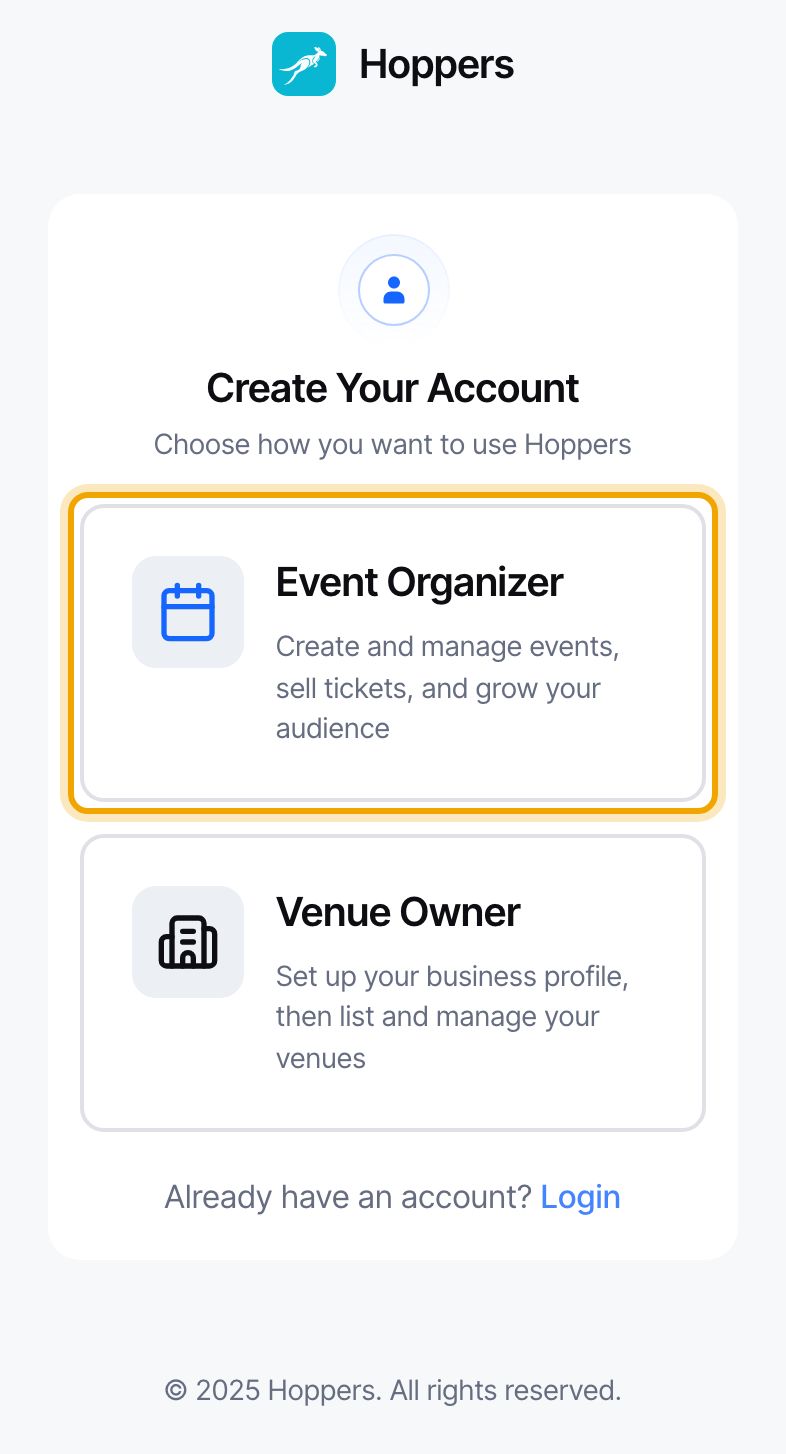
    Choose Event Organizer

    Open the Hoppers dashboard sign-in page and select “Register” under the form. On “Create Your Account”, select “Event Organizer”.

    On the Hoppers website, “Create account” under “For organizers” at the bottom of any page takes you straight to the next step.
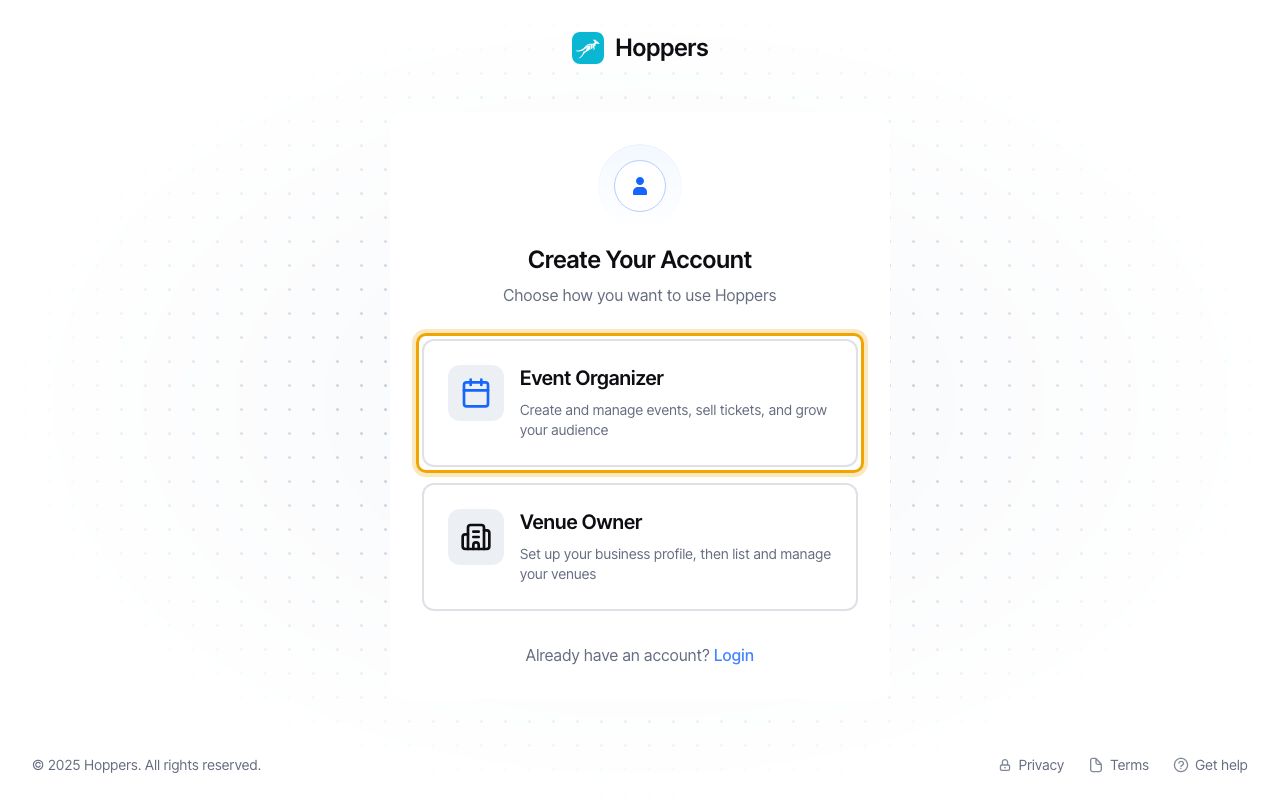
    Choose Event Organizer: Hoppers dashboard on a computer
    Choose Event Organizer: Hoppers dashboard on a phone
  2. 2

    Fill in your details

    Enter your “First Name”, “Last Name” and “Business Name”, the name attendees will see on your events. Add your “Email Address” and your “Phone Number”, typed without the leading zero, for example 771234567.
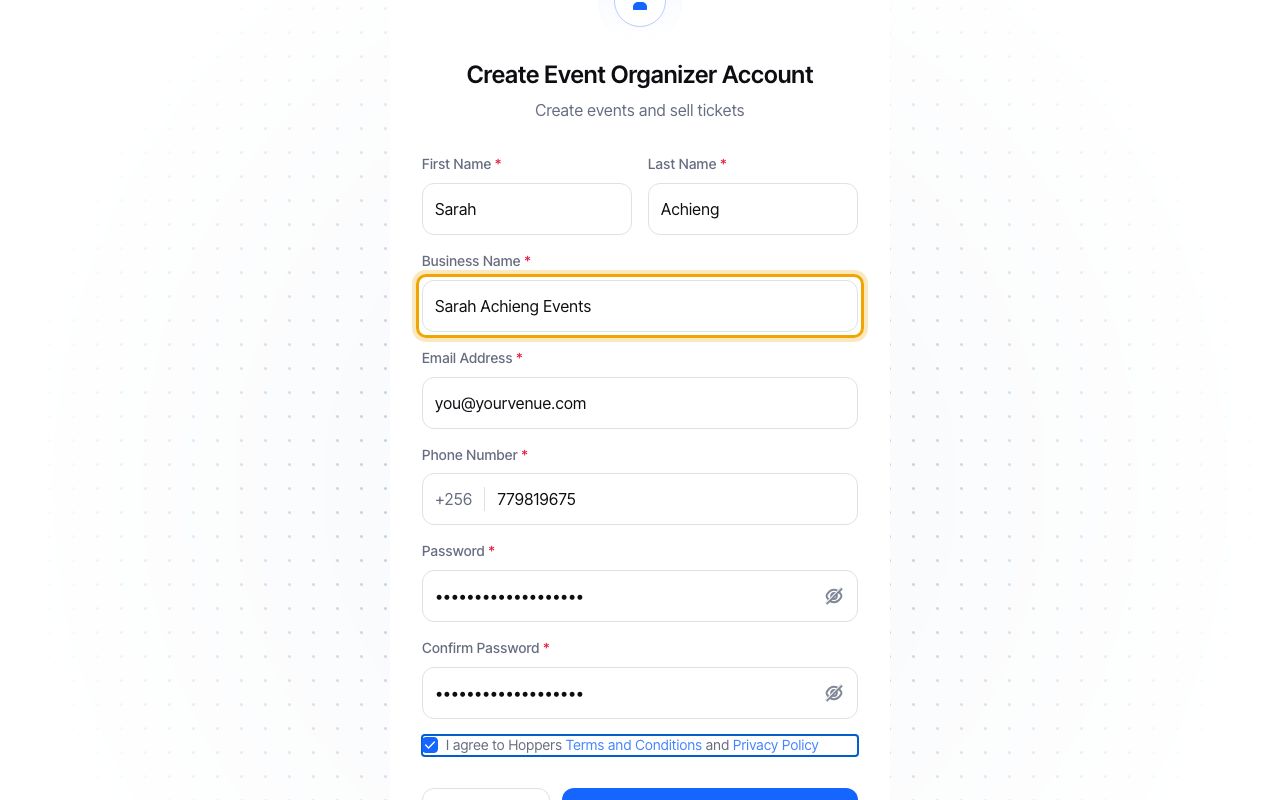
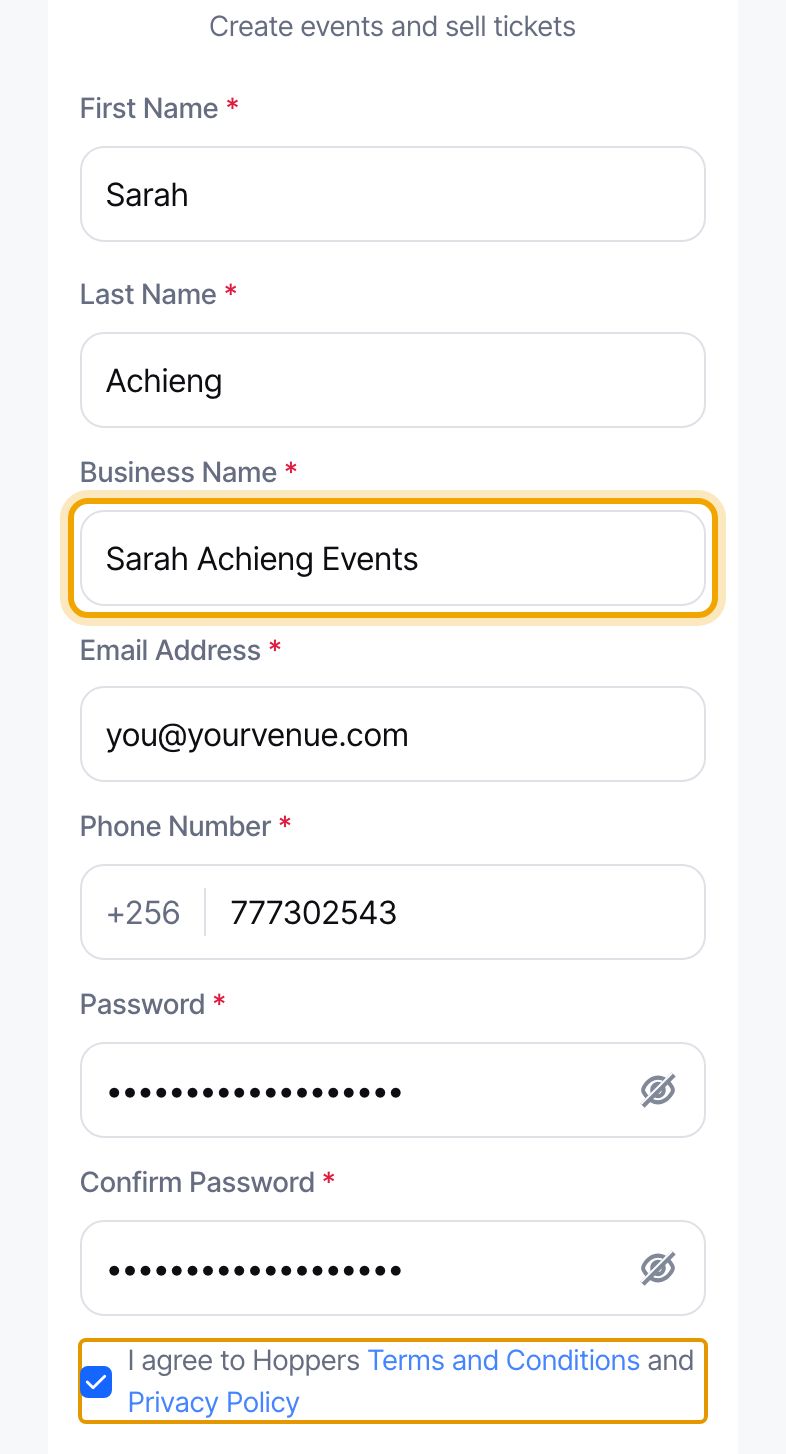
    Fill in your details: Hoppers dashboard on a computer
    Fill in your details: Hoppers dashboard on a phone
  3. 3

    Choose a password

    Choose a “Password” of at least 8 characters and type it again under “Confirm Password”. Tick the box to agree to the Terms and Conditions and the Privacy Policy, then select “Create Account”.

    You can also sign up with Google: tick the box first, then use the Google button under “or continue with”.
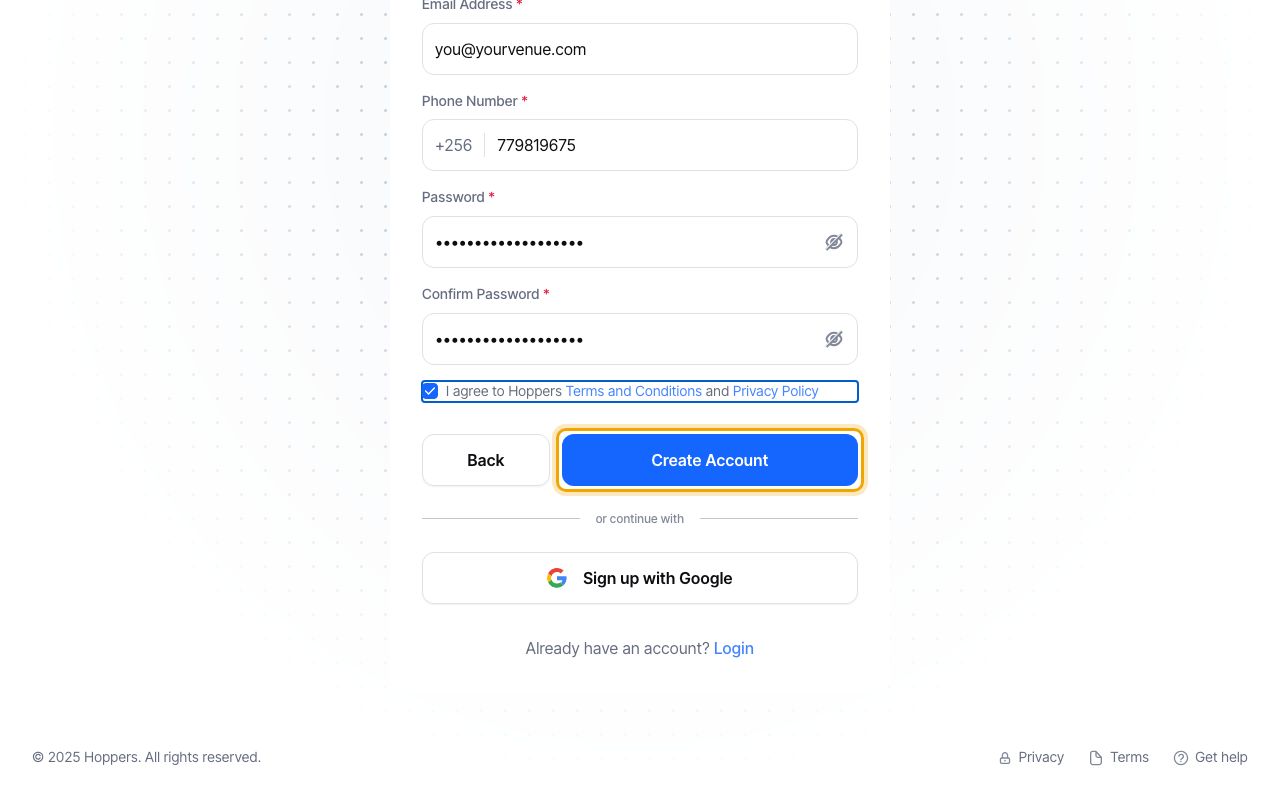
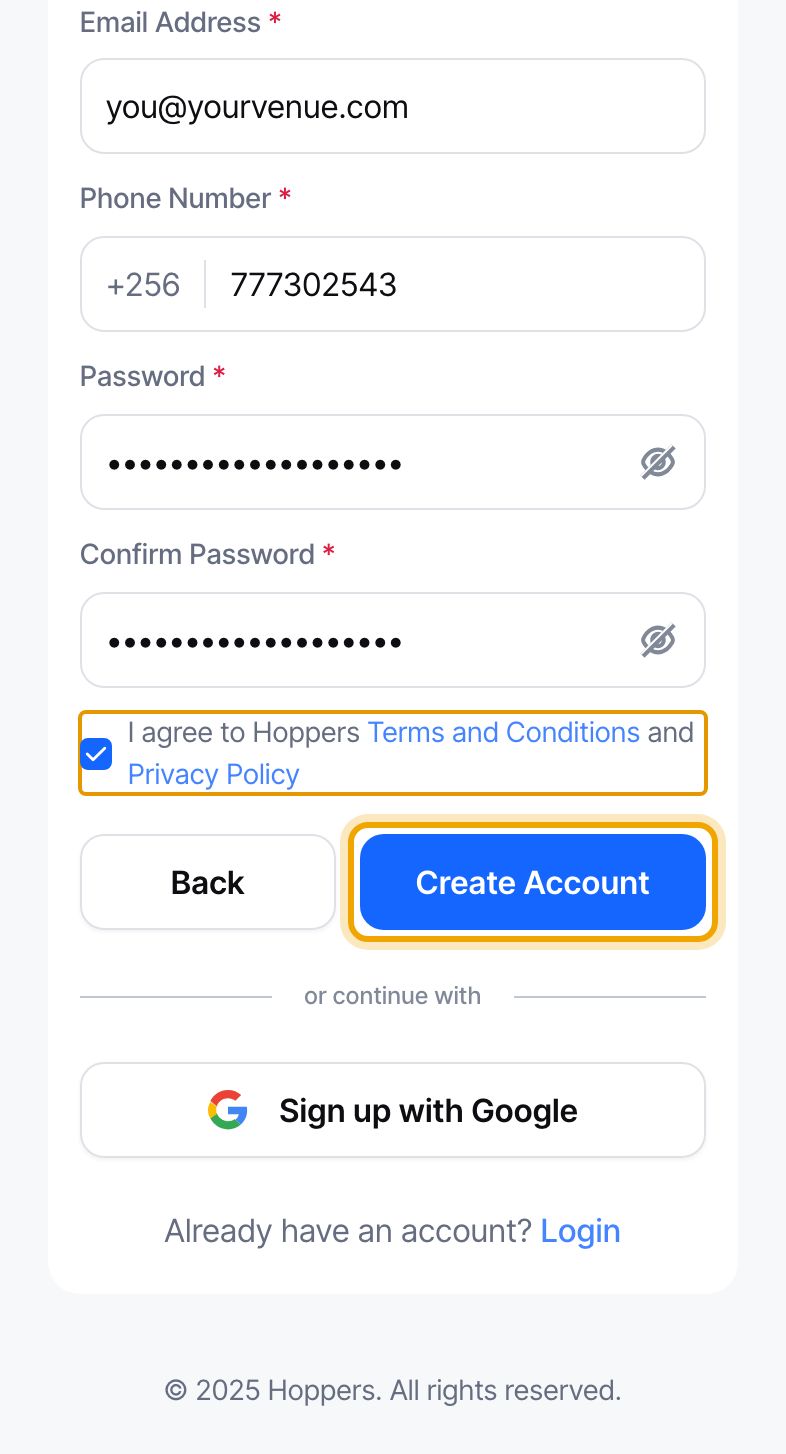
    Choose a password: Hoppers dashboard on a computer
    Choose a password: Hoppers dashboard on a phone
  4. 4

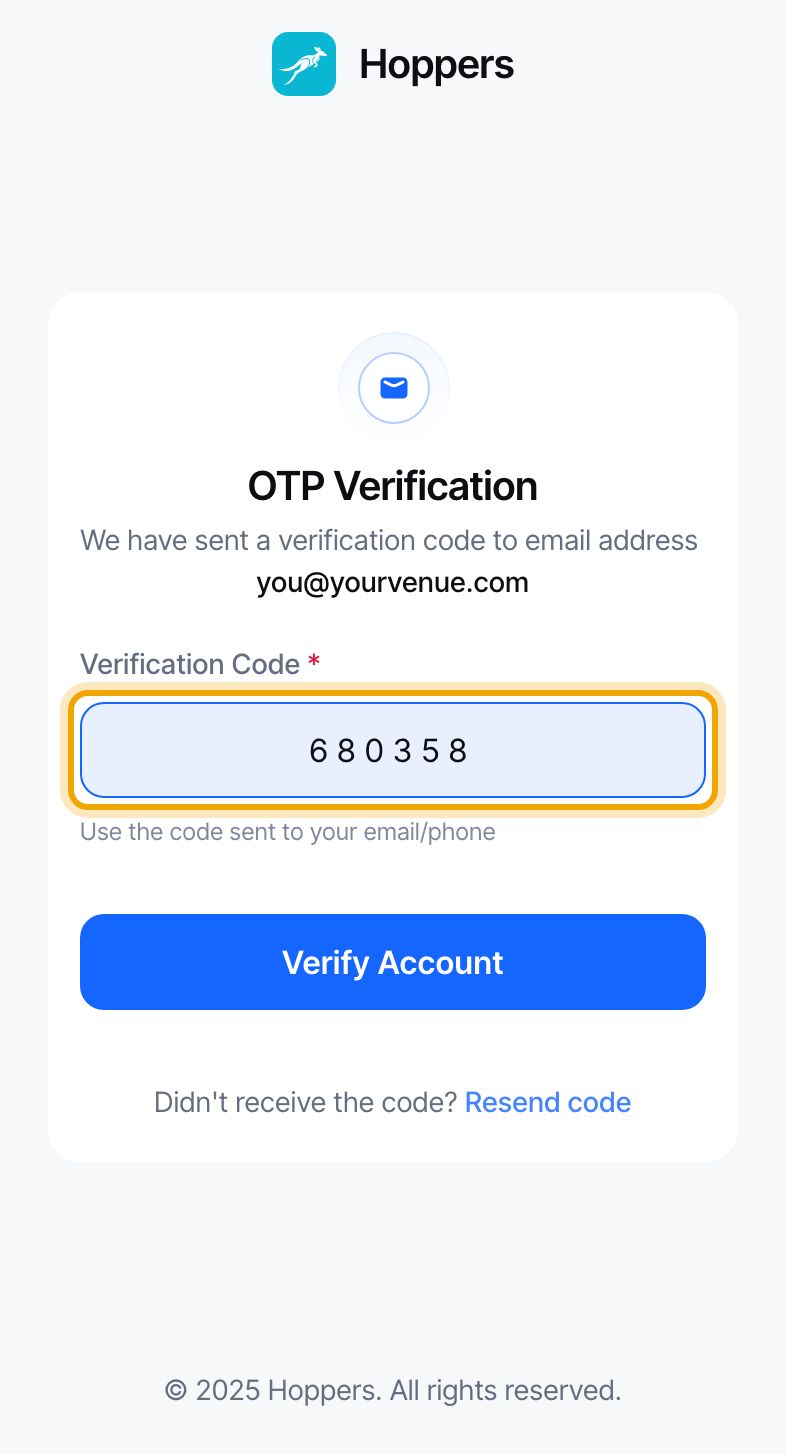
    Enter the code we email you

    We send a 6-digit code to your email address. On “OTP Verification”, type it into “Verification Code” and select “Verify Account”.

    No code after a few minutes? Check your spam folder, or select “Resend code”.
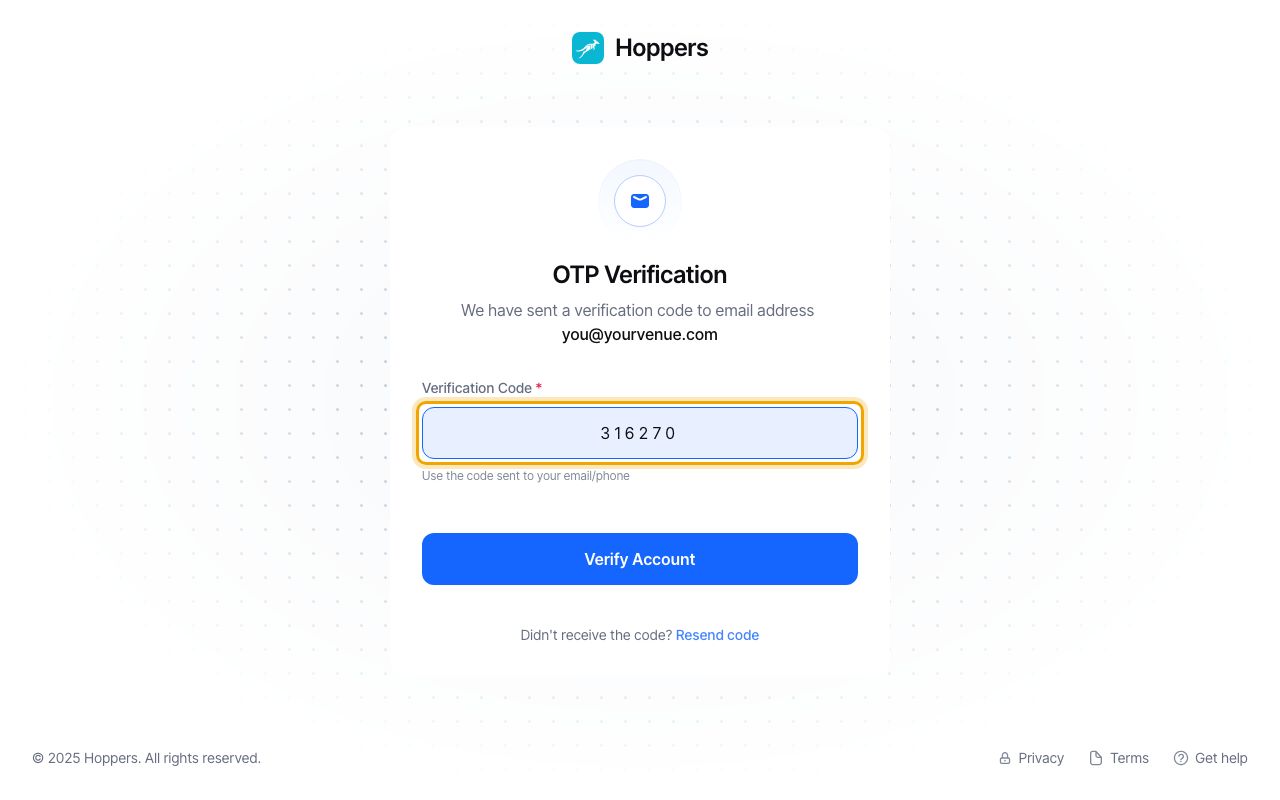
    Enter the code we email you: Hoppers dashboard on a computer
    Enter the code we email you: Hoppers dashboard on a phone
  5. 5

    Open your organizer portal

    Your account is ready. On the next page, the “Event Organizer” card shows “Setup incomplete” until your profile is verified. Select “Enter Portal”.
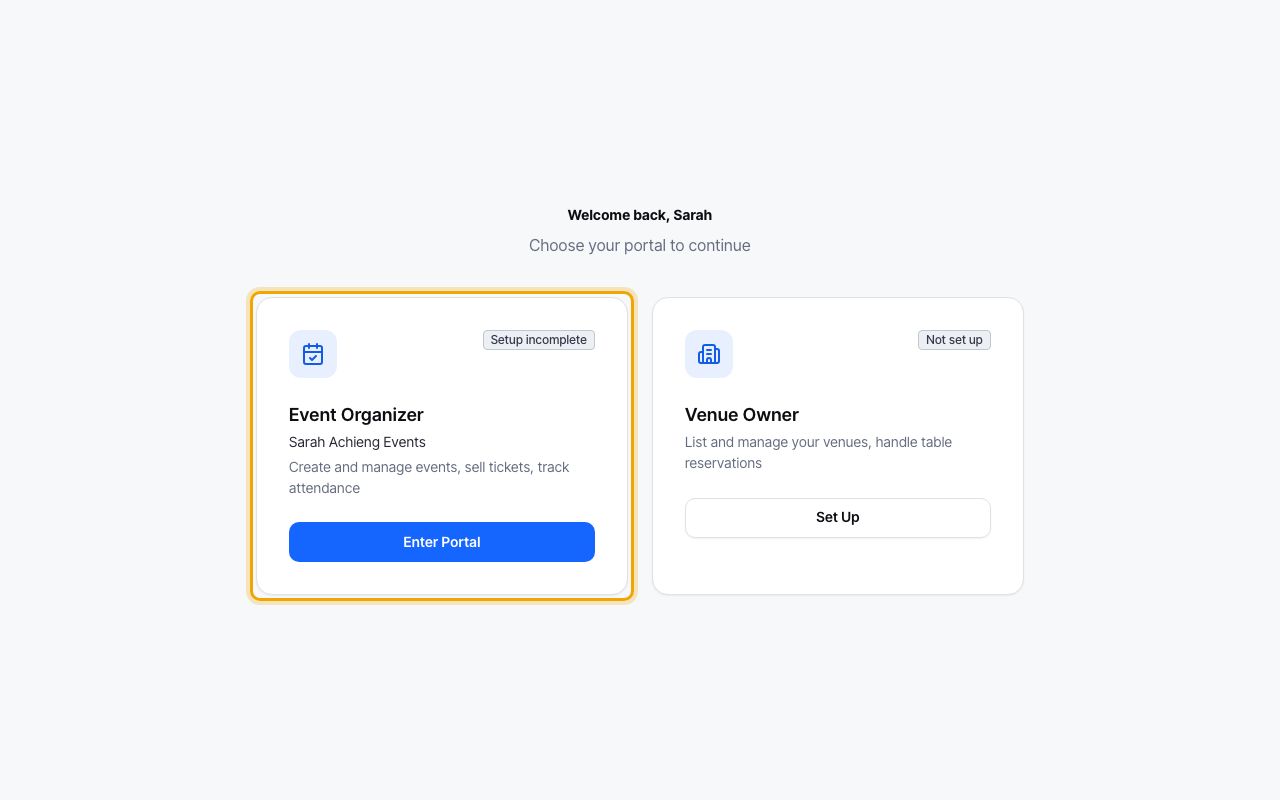
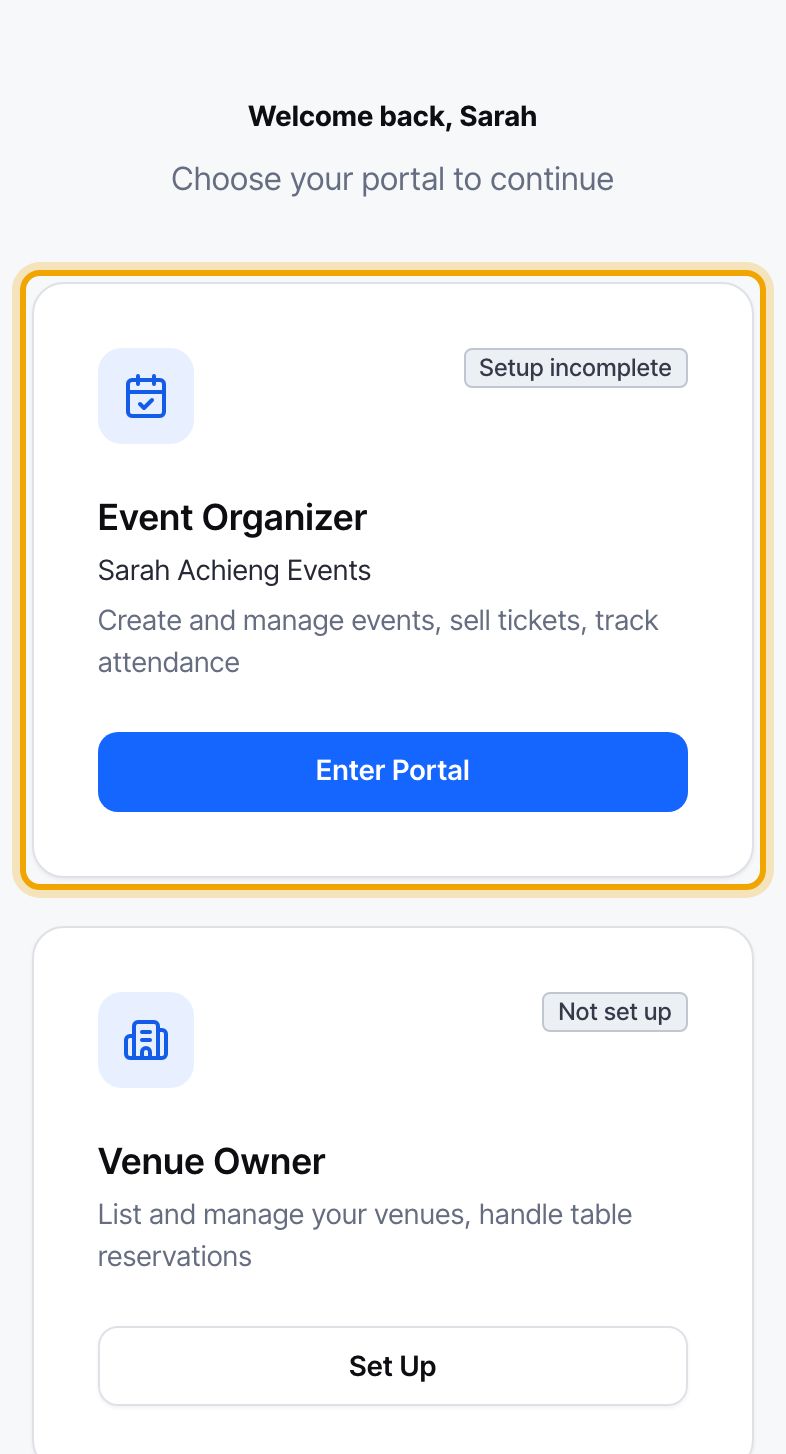
    Open your organizer portal: Hoppers dashboard on a computer
    Open your organizer portal: Hoppers dashboard on a phone
  6. 6

    Start on your dashboard

    Your dashboard shows “Finish your profile to get verified” with a list of what is still needed. You can create events straight away, but you need a verified account to send one for approval. Our guide “Get your organizer profile verified” shows how.
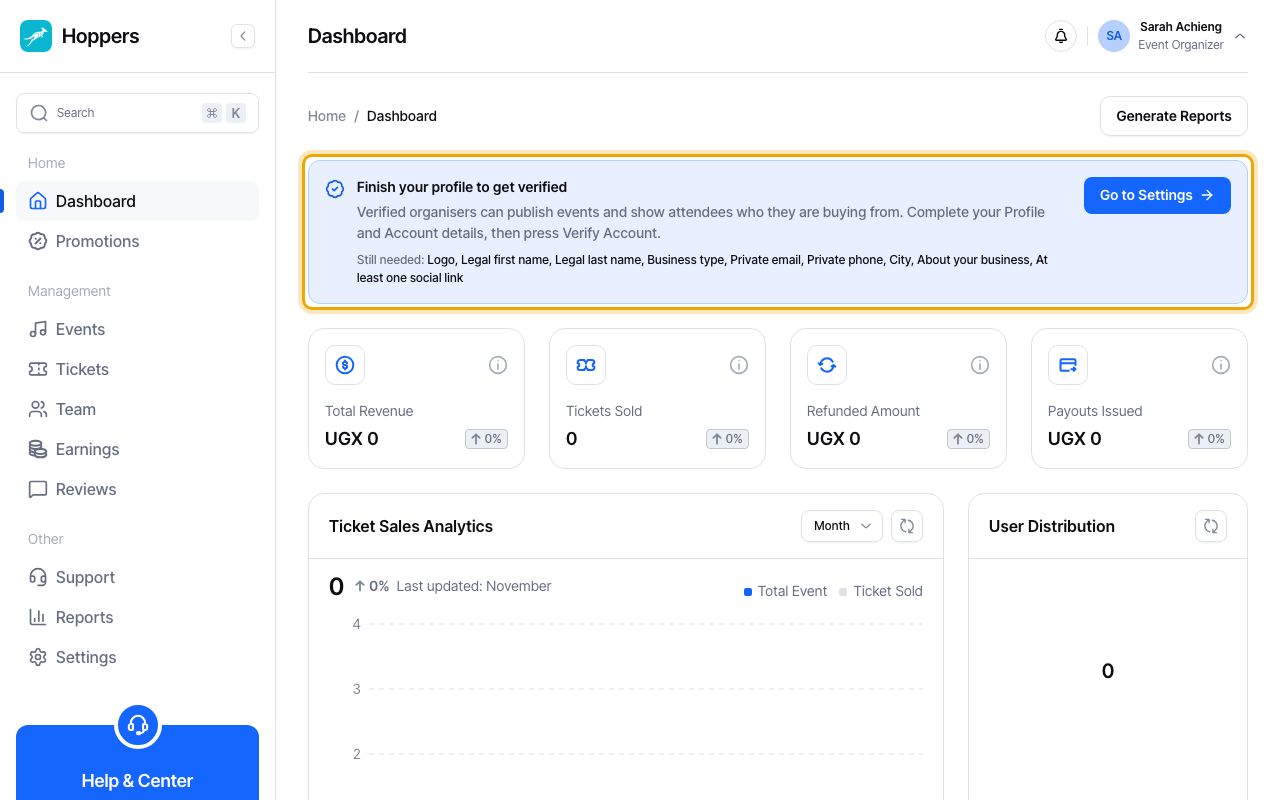
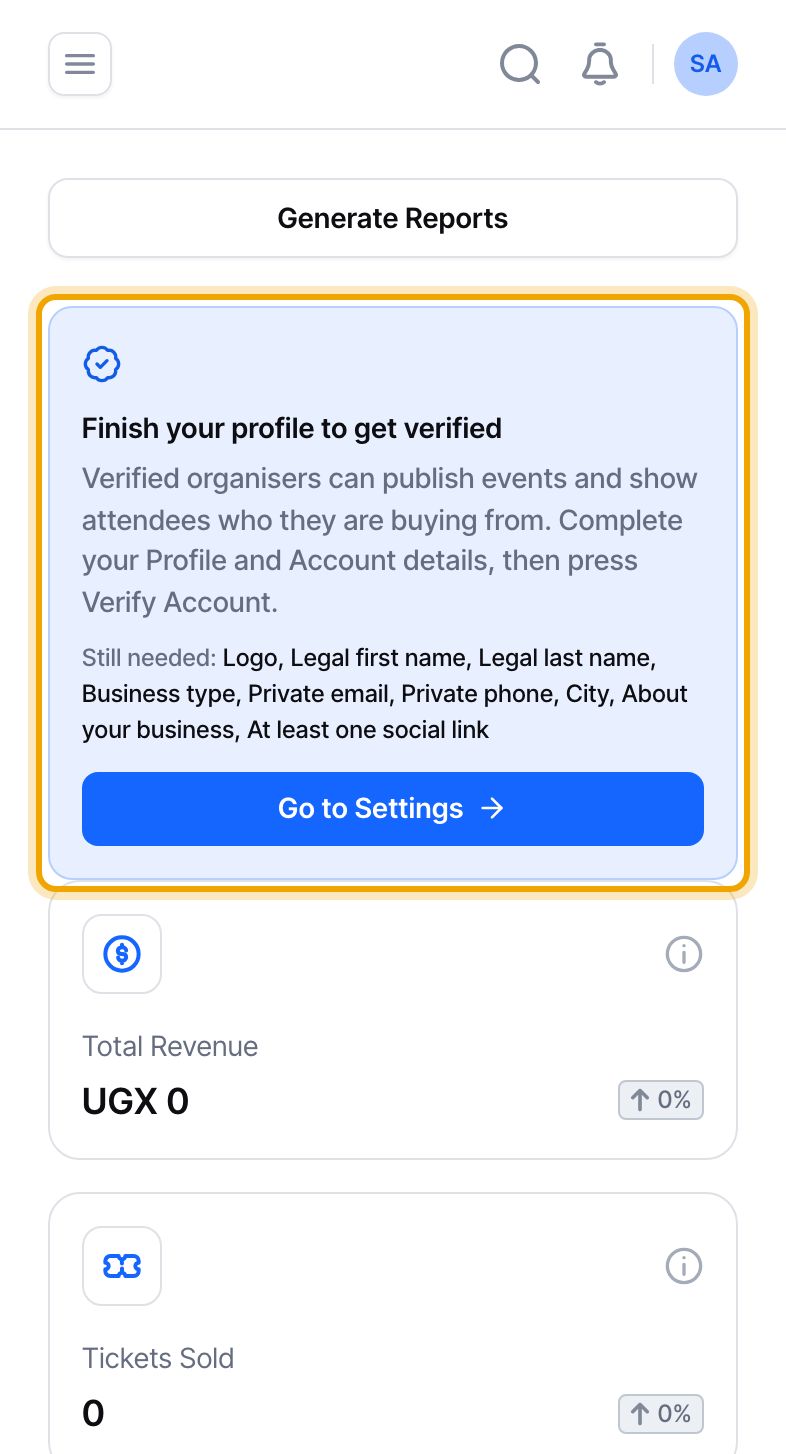
    Start on your dashboard: Hoppers dashboard on a computer
    Start on your dashboard: Hoppers dashboard on a phone
Next Get your organizer profile verified