Ask Hoppers to send the earnings of a finished event to your payout account, then follow the request until the money is sent.
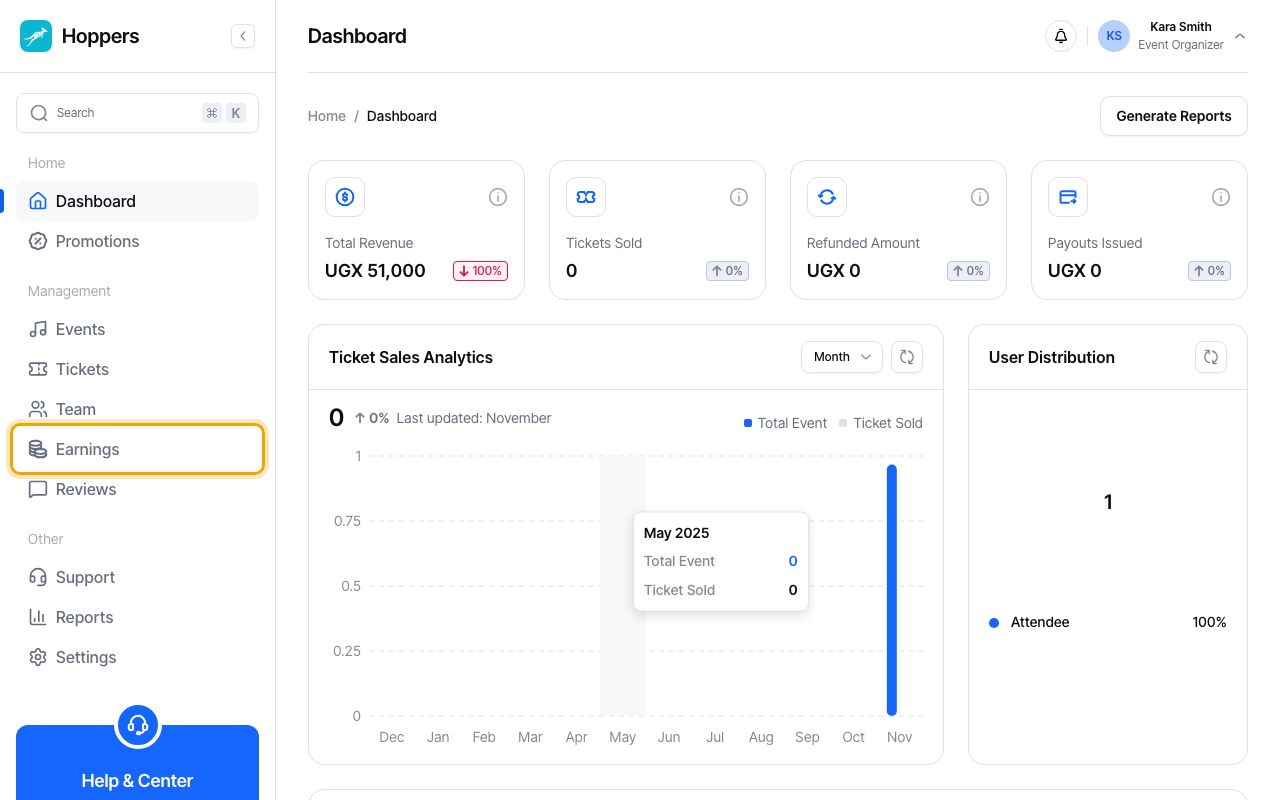
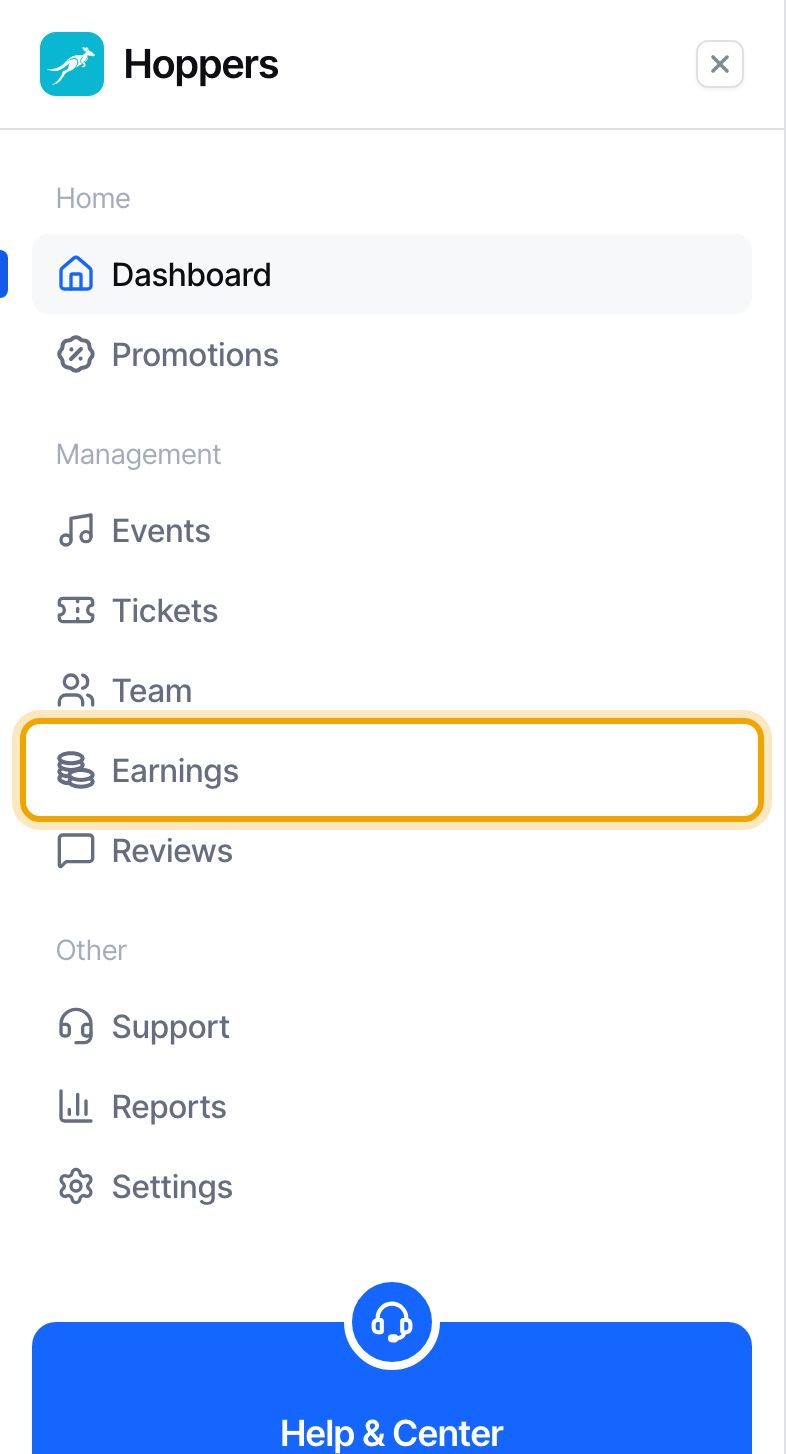
Select “Earnings” in the menu on the left. On a phone, tap the menu icon at the top left first. You need a payout account first (see the guide “Set up your payout account”) and an event that has finished.
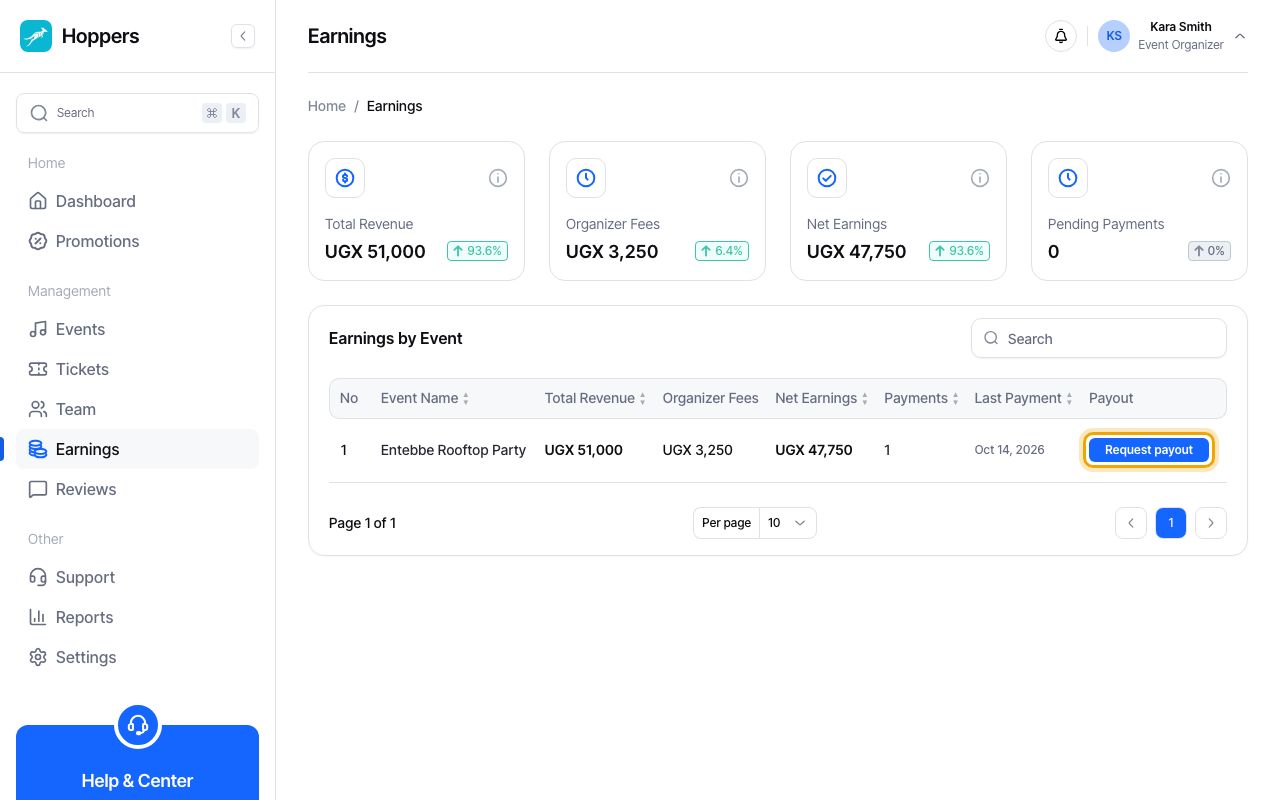
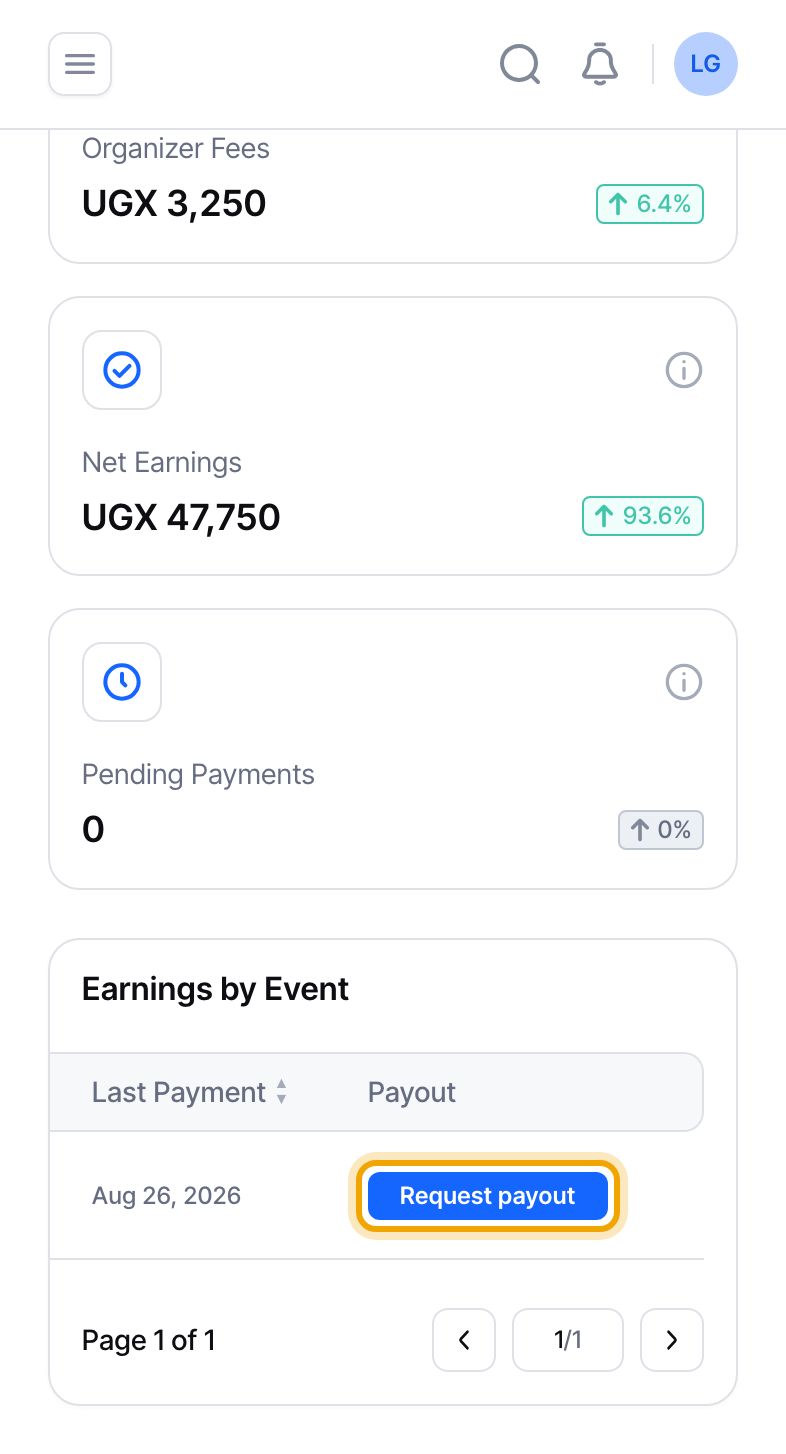
In the “Earnings by Event” table, find your event. When it has finished and its earnings are ready, the “Payout” column shows a “Request payout” button. If you see “Add payout account” instead, add an account in Settings first. A dash means the event has not finished yet. Select “Request payout”.
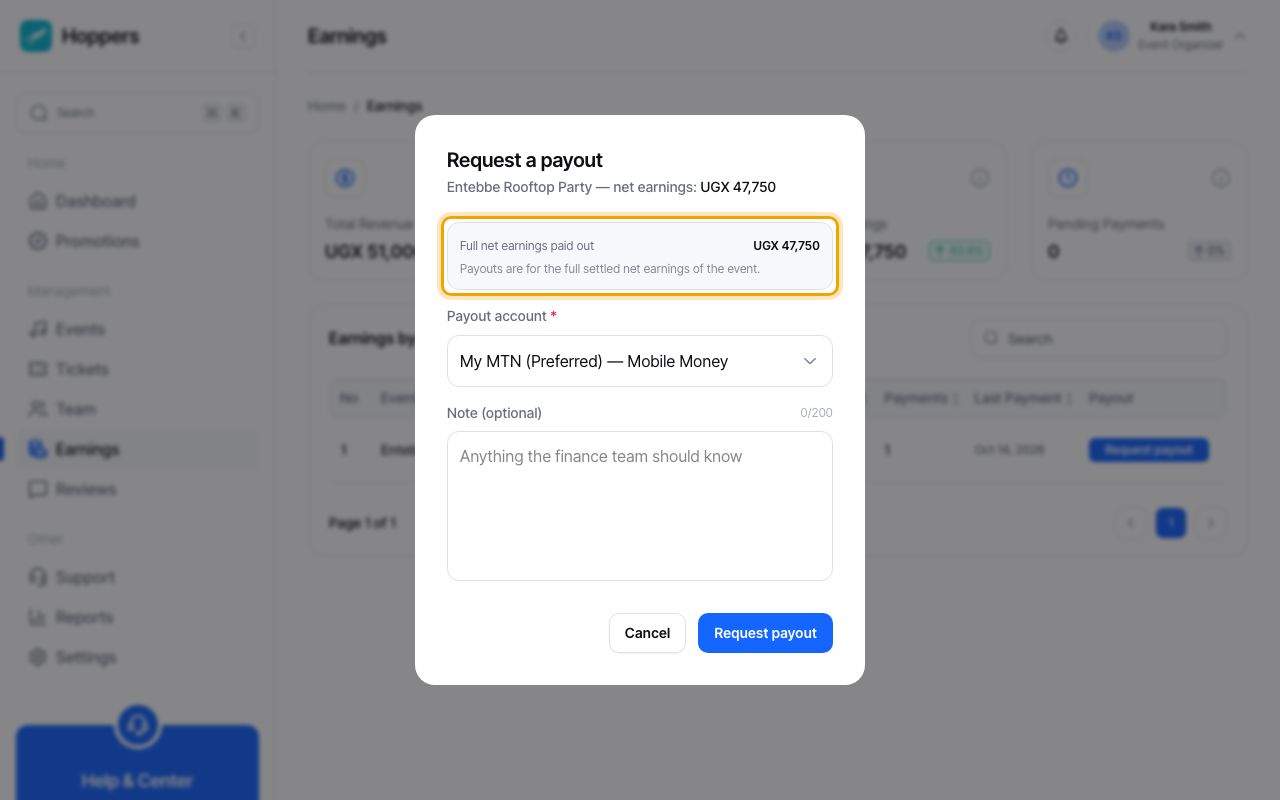
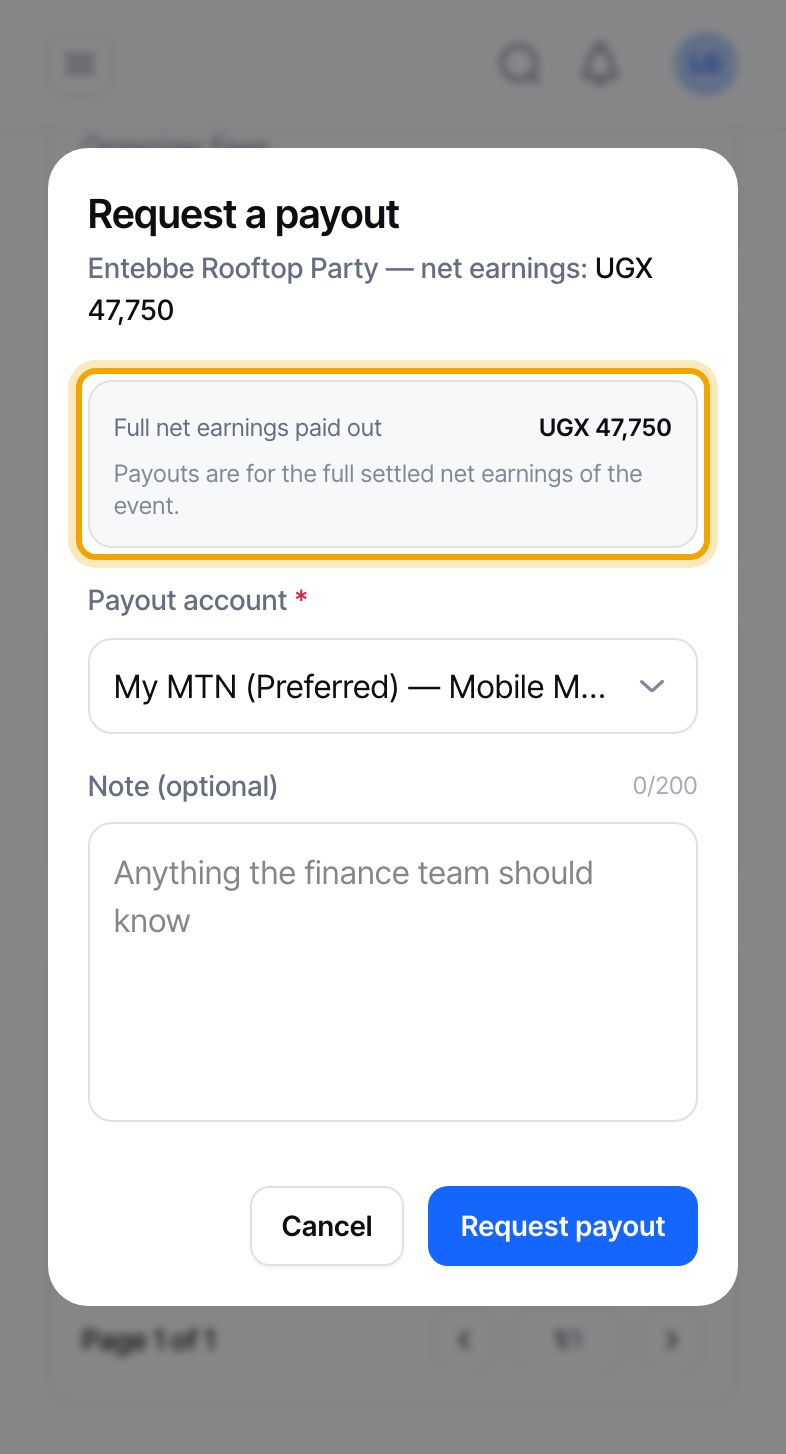
A window called “Request a payout” opens with the event name and its net earnings. “Full net earnings paid out” is what you are asking for. You cannot type a different amount: a request always covers the whole of the event’s earnings. In our example that is UGX 47,750.
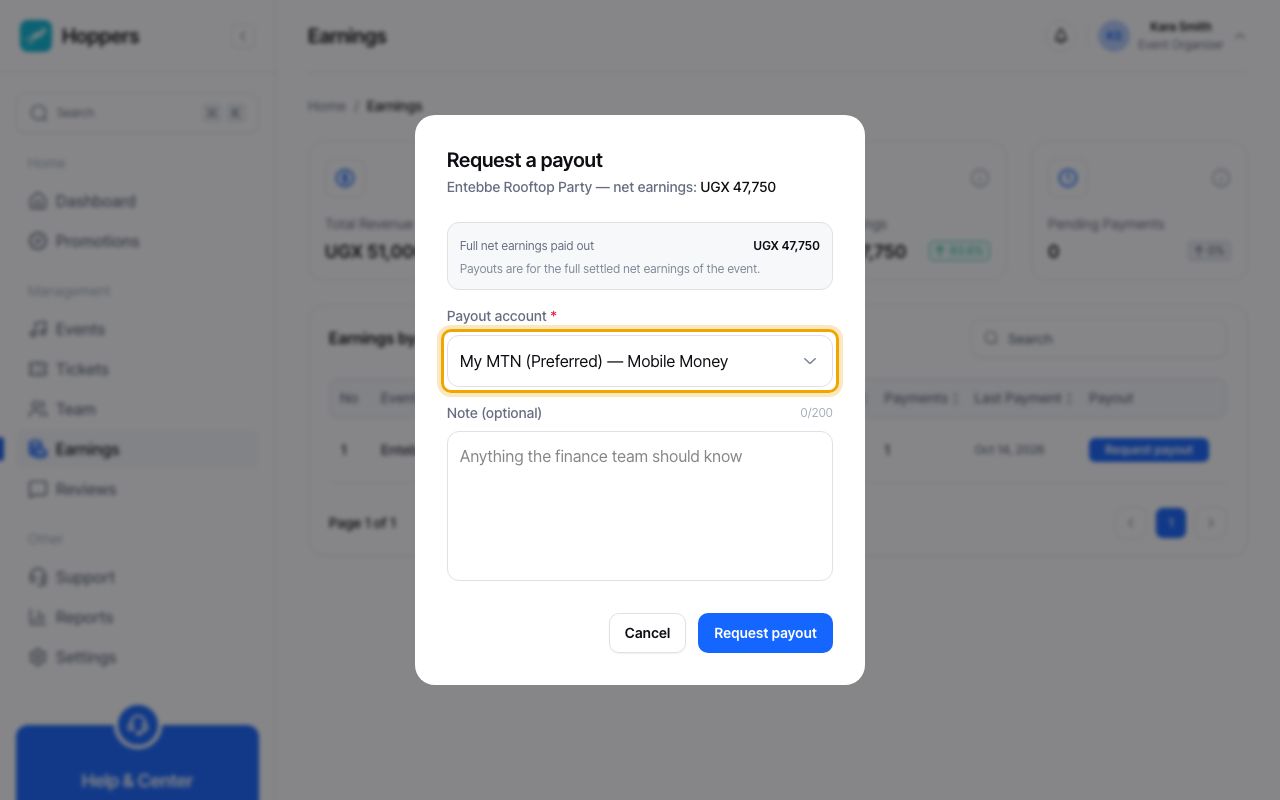
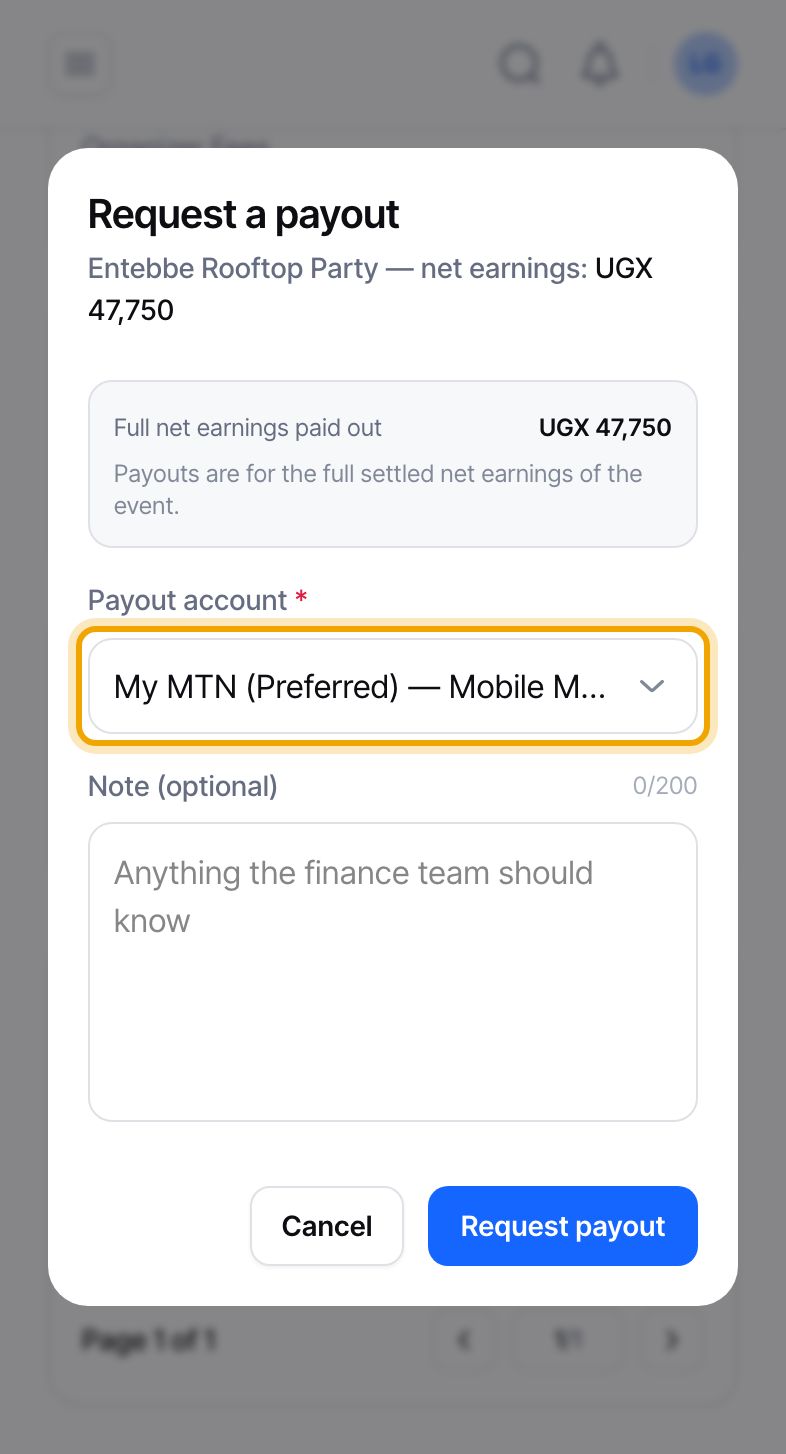
“Payout account” starts with your preferred account. To use another one, open the list and pick it. Each entry shows its label and whether it is Mobile Money or Bank Transfer.
“Note (optional)” is for anything the Hoppers team should know. You can leave it empty.
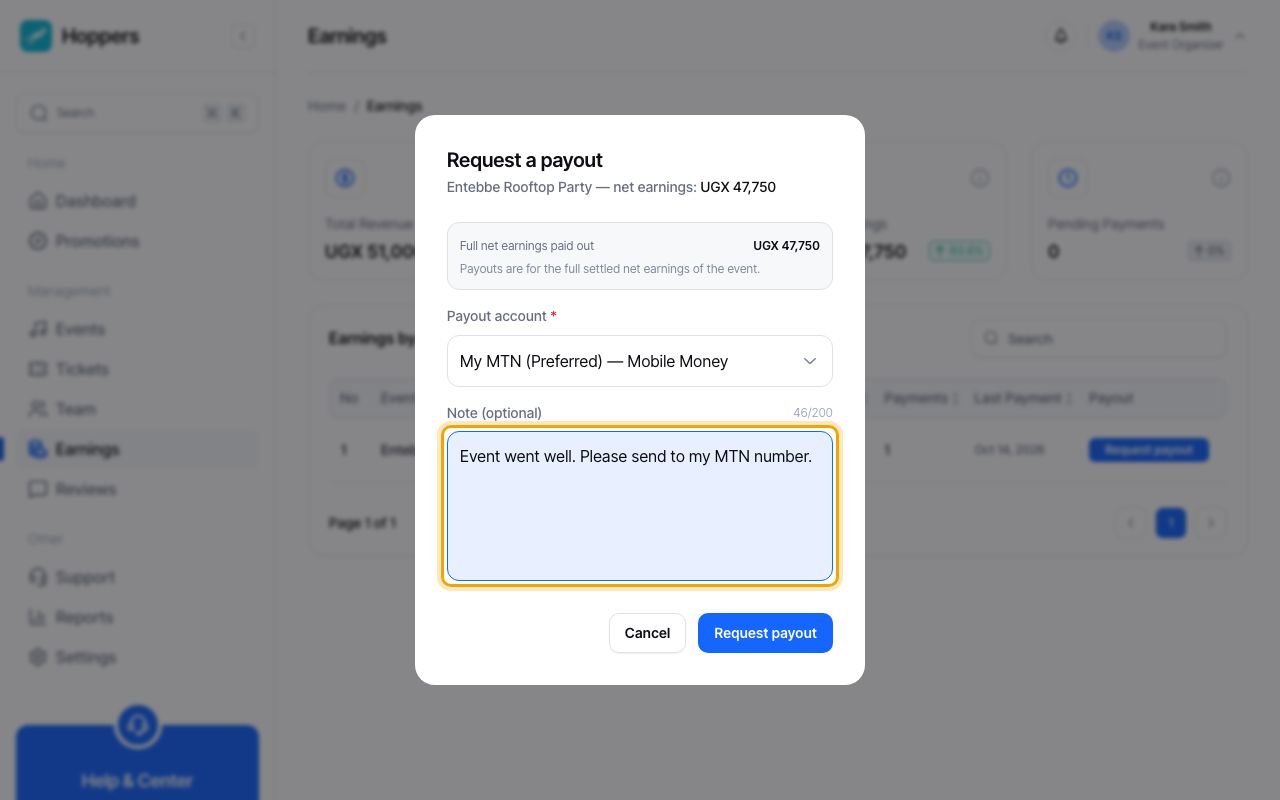
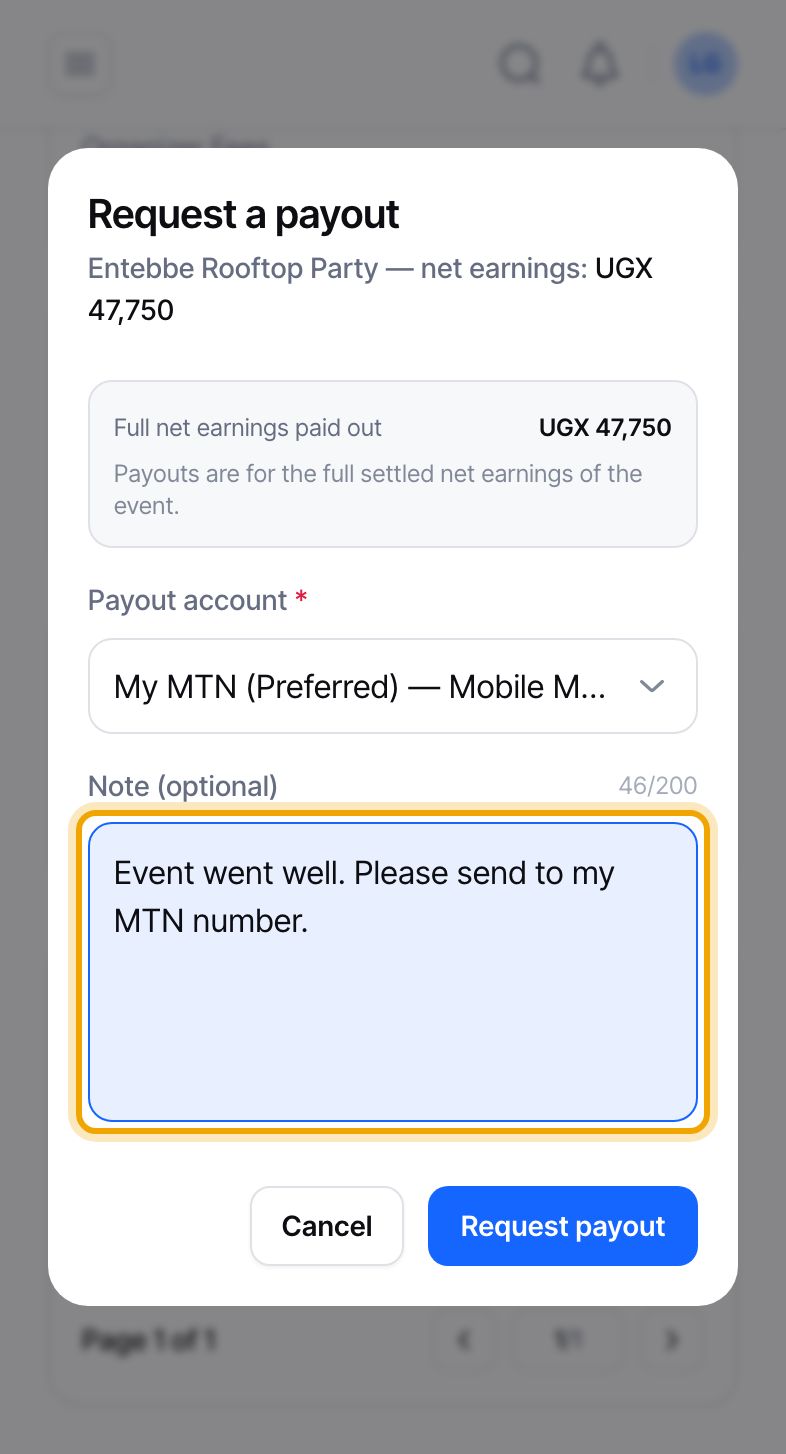
Select “Request payout” in the window. The window closes and the event’s “Payout” column shows “Pending”. Your request now waits for the Hoppers team to review it.
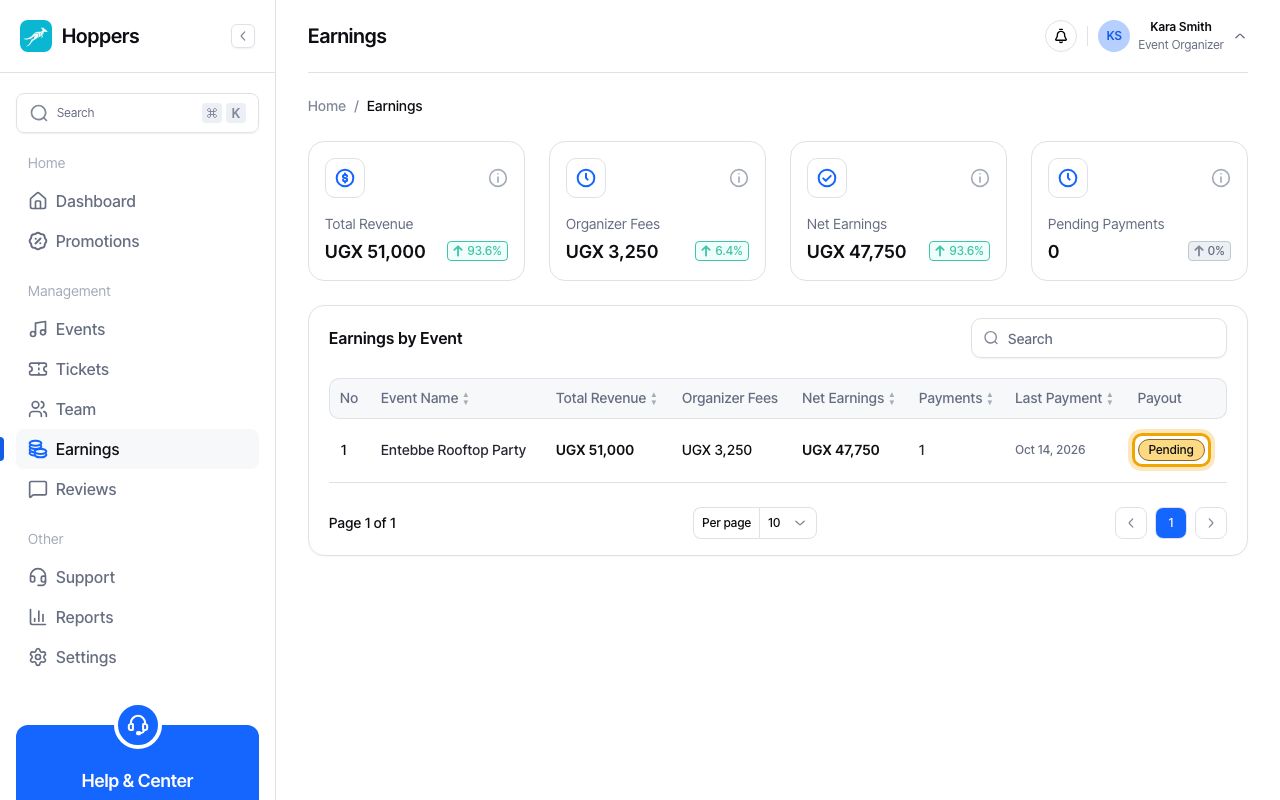
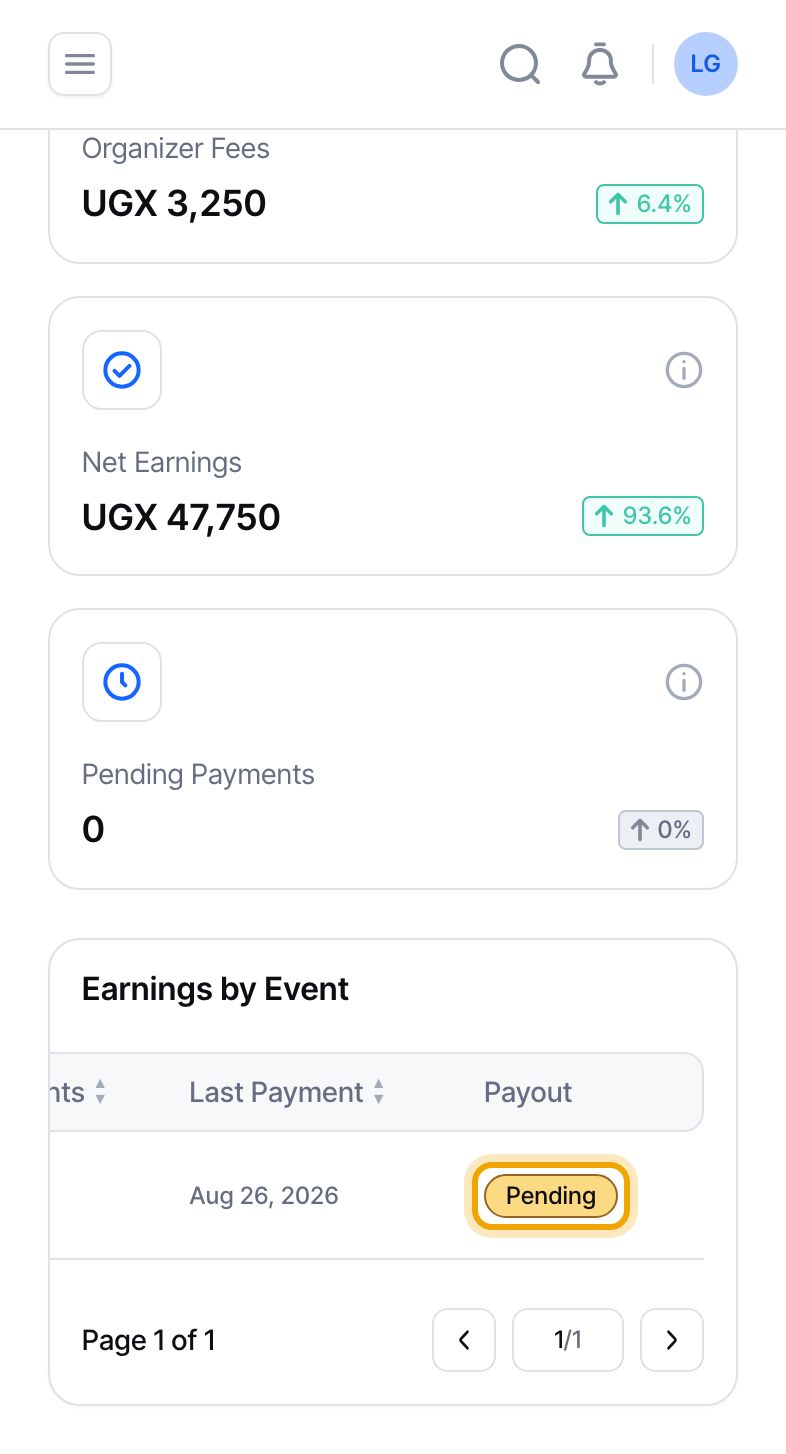
Select the event in the Earnings table. The “Payout” panel shows the “Status” of your request. While it says “Pending” you can select “Cancel request” and request again later. “Net available” drops to UGX 0 and “Already paid” shows the amount as soon as you request, because that money is now set aside for this request.
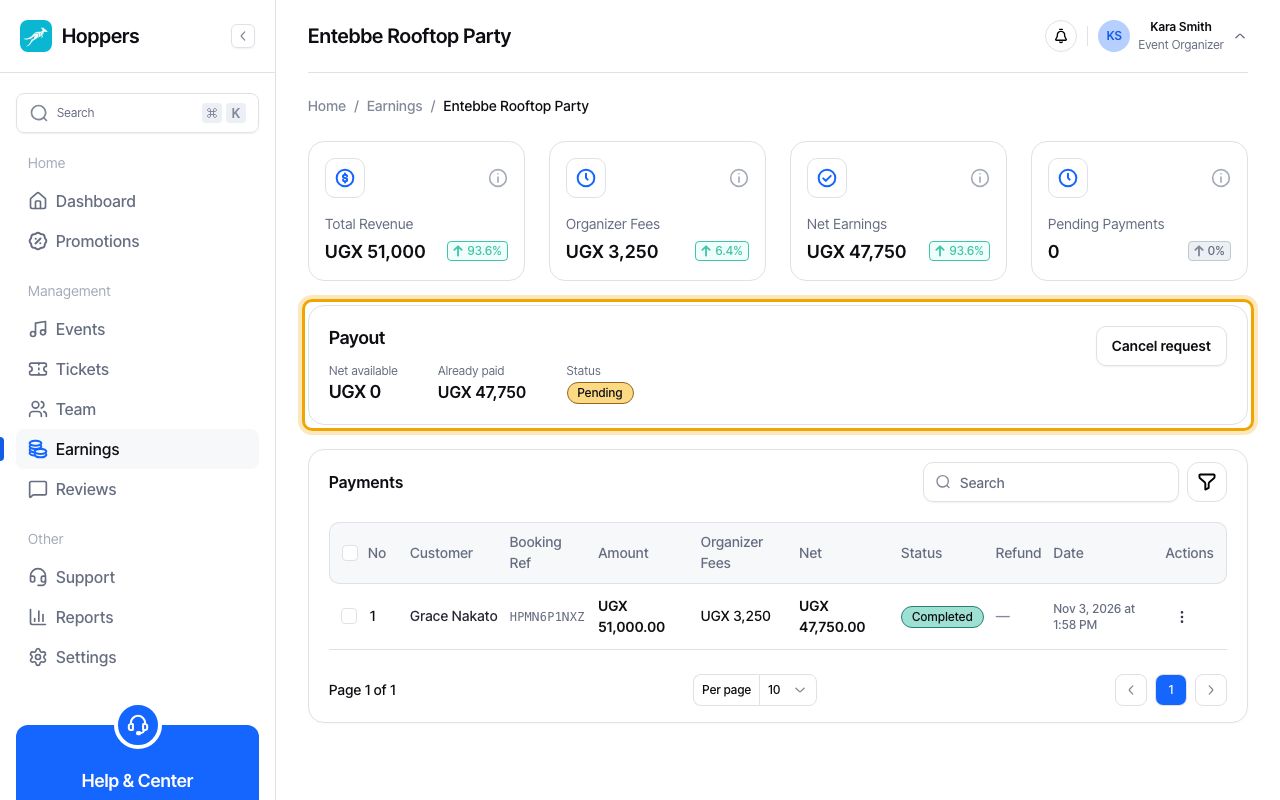
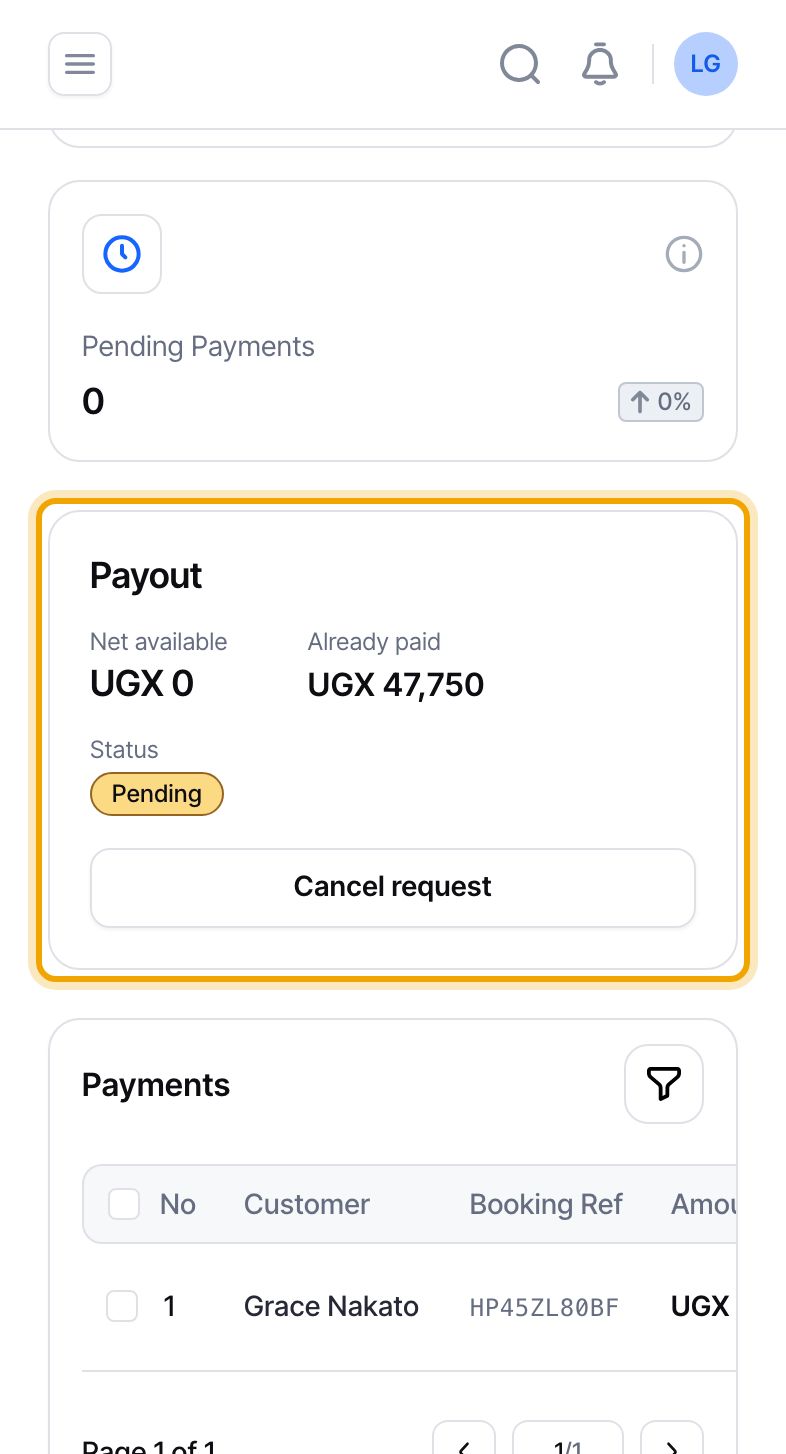
To be paid you need three things: a payout account saved in Settings, an event that has finished, and earnings that have settled. Then select “Request payout” on that event in the Earnings table. The request is always for the whole of that event’s net earnings. The Hoppers team reviews it, sends the money to your account and emails you when it is done.
Pending: your request is waiting for the Hoppers team. You can still cancel it. Approved: the team has approved it and it is waiting to be sent. Processing: the payment has been sent to the mobile money or bank provider and we are waiting for confirmation. Completed: the money has been sent to your payout account and we email you. It can take a short while to appear, depending on your provider. Rejected: the team did not approve the request. Failed: the provider could not complete the payment. Cancelled: you cancelled the request. Needs verification: an older status that only some earlier requests still show, meaning the team is checking whether the money was sent.
The status shows “Rejected”. Nothing is taken from your earnings: the amount is released and “Request payout” is available again for that event. The dashboard does not show the team’s reason, so email [email protected] to ask what to fix, such as your payout account details, and then request again.
“Failed” means the provider could not complete the payment. We email you. Your earnings are safe and remain yours to claim, and the Hoppers team looks into it.
A request is for the event’s full net earnings. When the team approves it, it decides who pays the transfer fee. If the fee is taken from your payout, you receive your net earnings minus that fee. The email we send when a payout is completed names the amount that was actually sent.
Only after the event is completed and its earnings are settled, and only one request can be active for an event at a time. If you already have a payout account when an event completes, Hoppers creates the request for you, so you may find a “Pending” request you did not make. After you have requested a payout for an event, its payments can no longer be refunded from the dashboard.
Hoppers does not publish a fixed time for review or for the money to arrive. For payout timing, email [email protected]. You can cancel a request yourself only while it is “Pending”. After that, contact support.
