See how many tickets each event has sold, how much money it has brought in, and how many tickets are left.
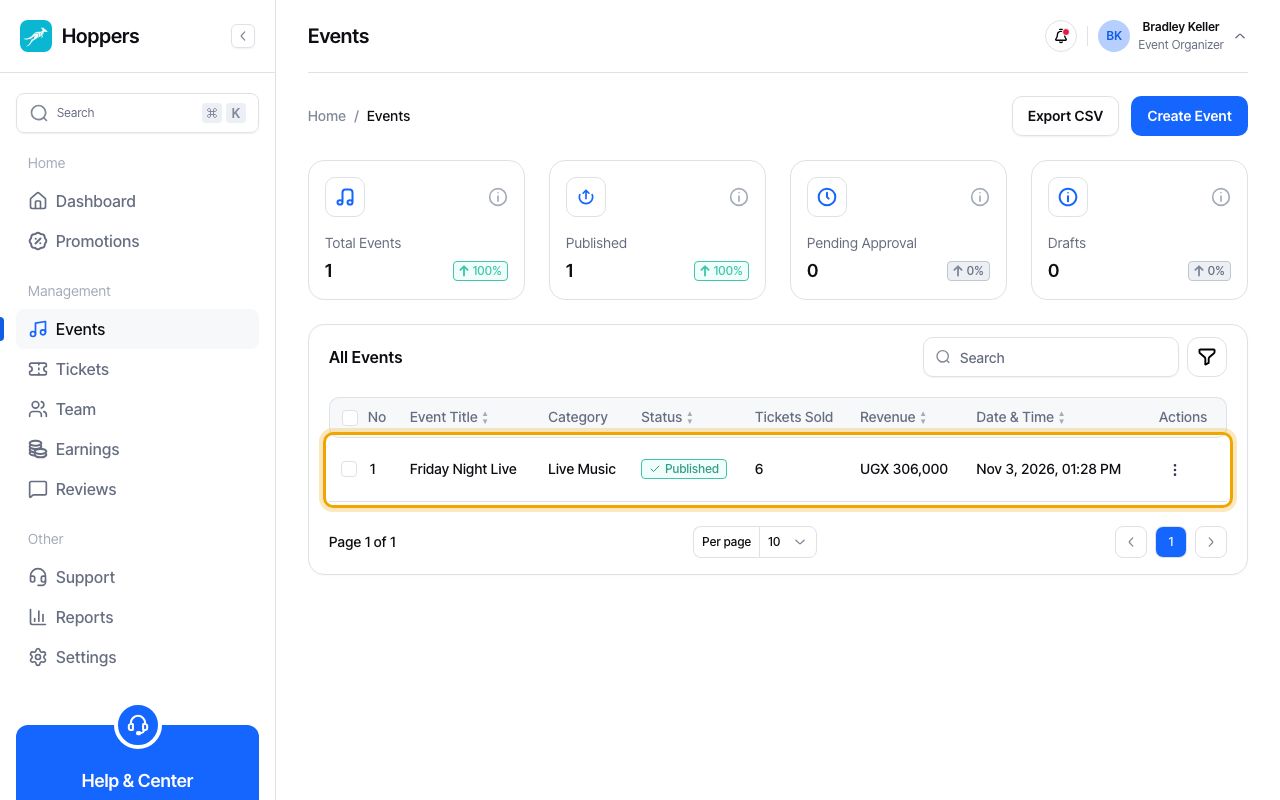
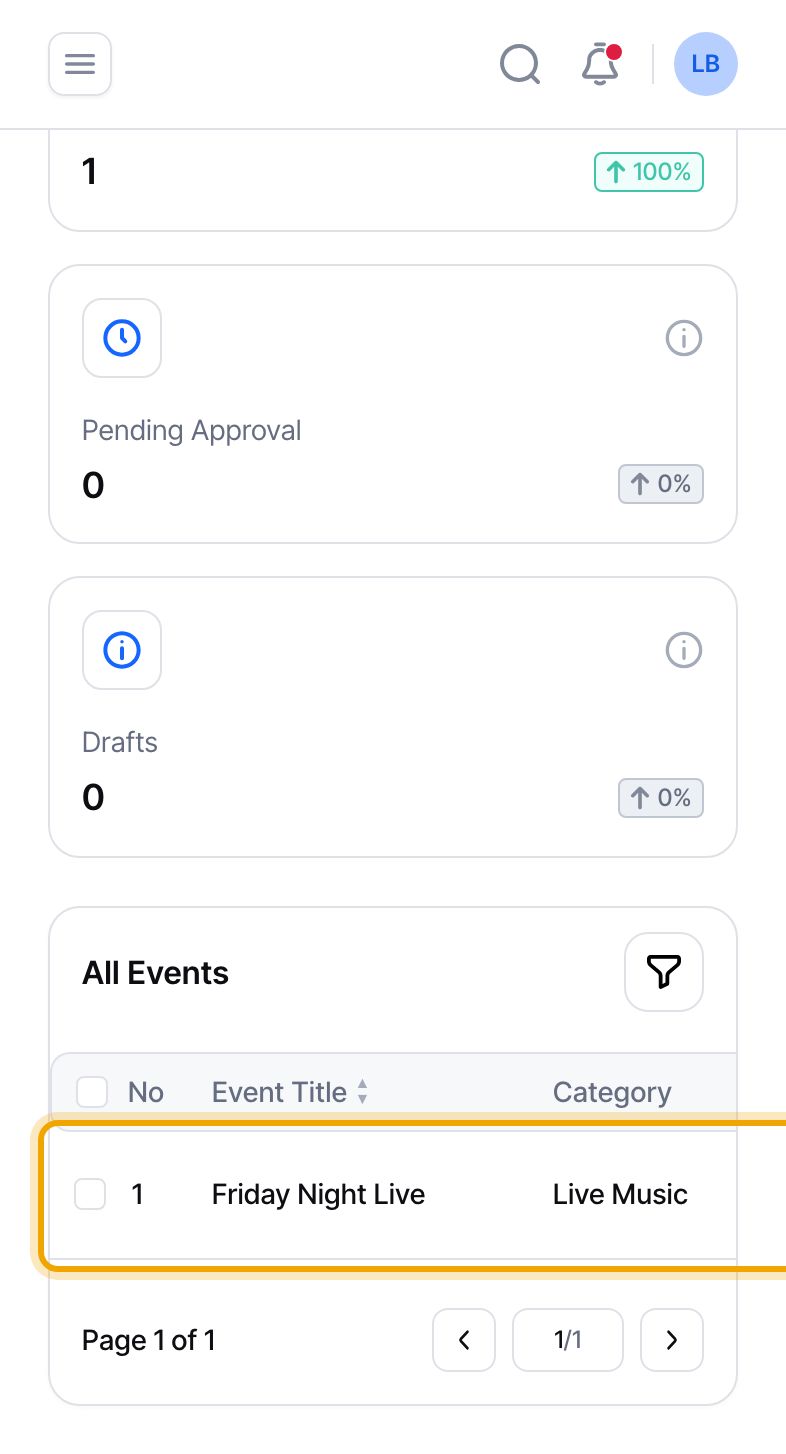
Select “Events” in the menu. On a phone, tap the menu icon at the top left first. The list shows every event with its “Status”, its “Tickets Sold” and its “Revenue”. Select an event’s title to open it.
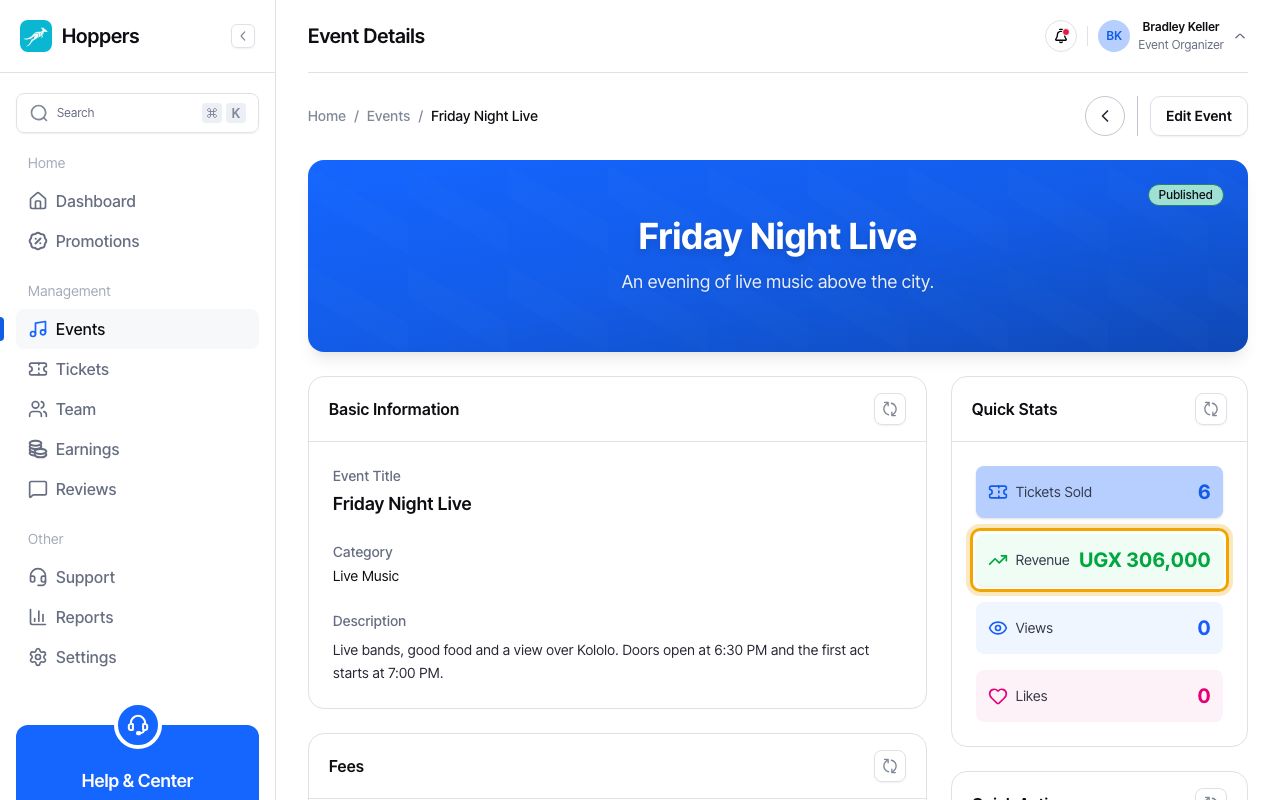
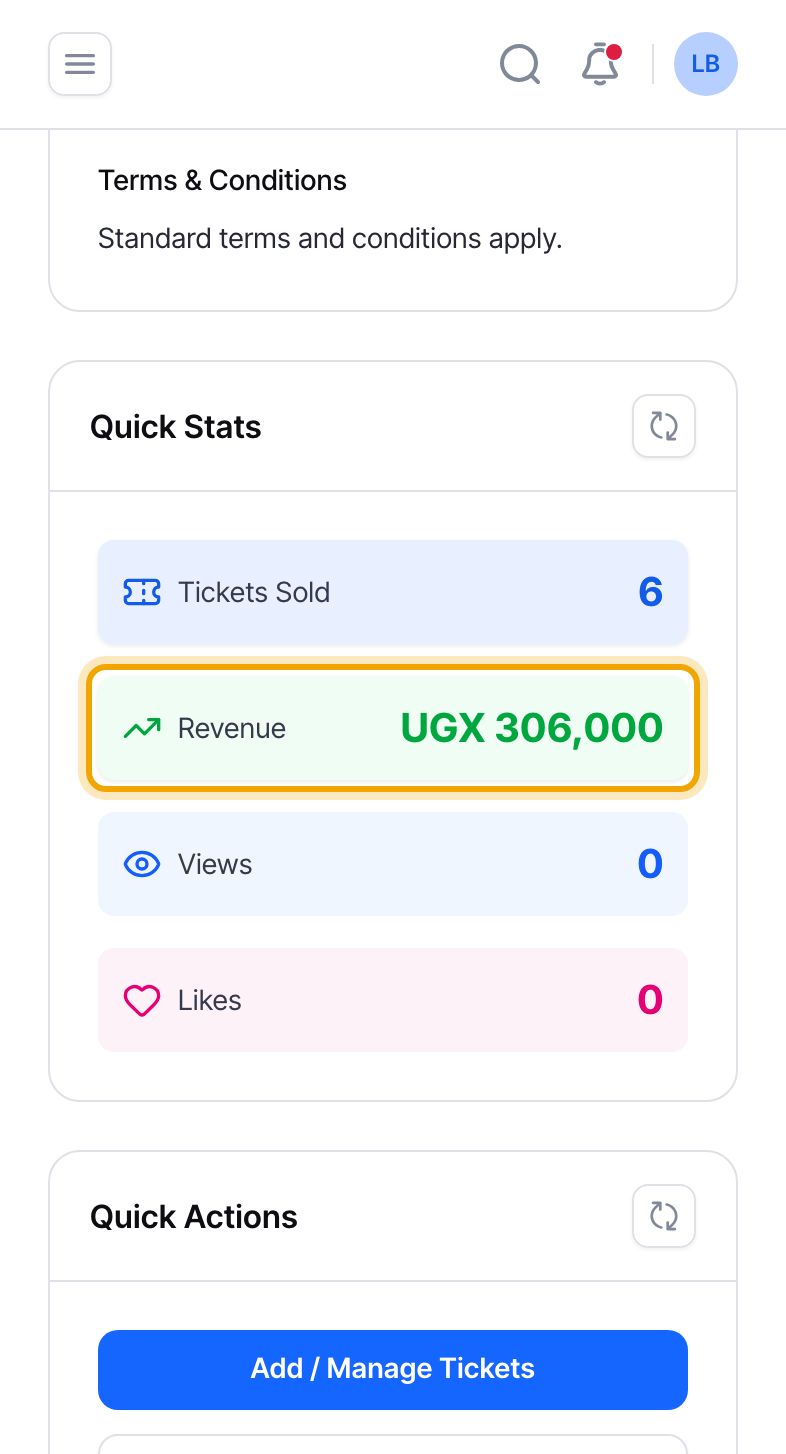
On the event page, the “Quick Stats” box shows the “Tickets Sold”, the “Revenue” from those sales, and how many people have viewed and liked the event. On a phone the box is below the event details.
Views and likes rising while sales stay flat can mean your price or your ticket types need a second look.
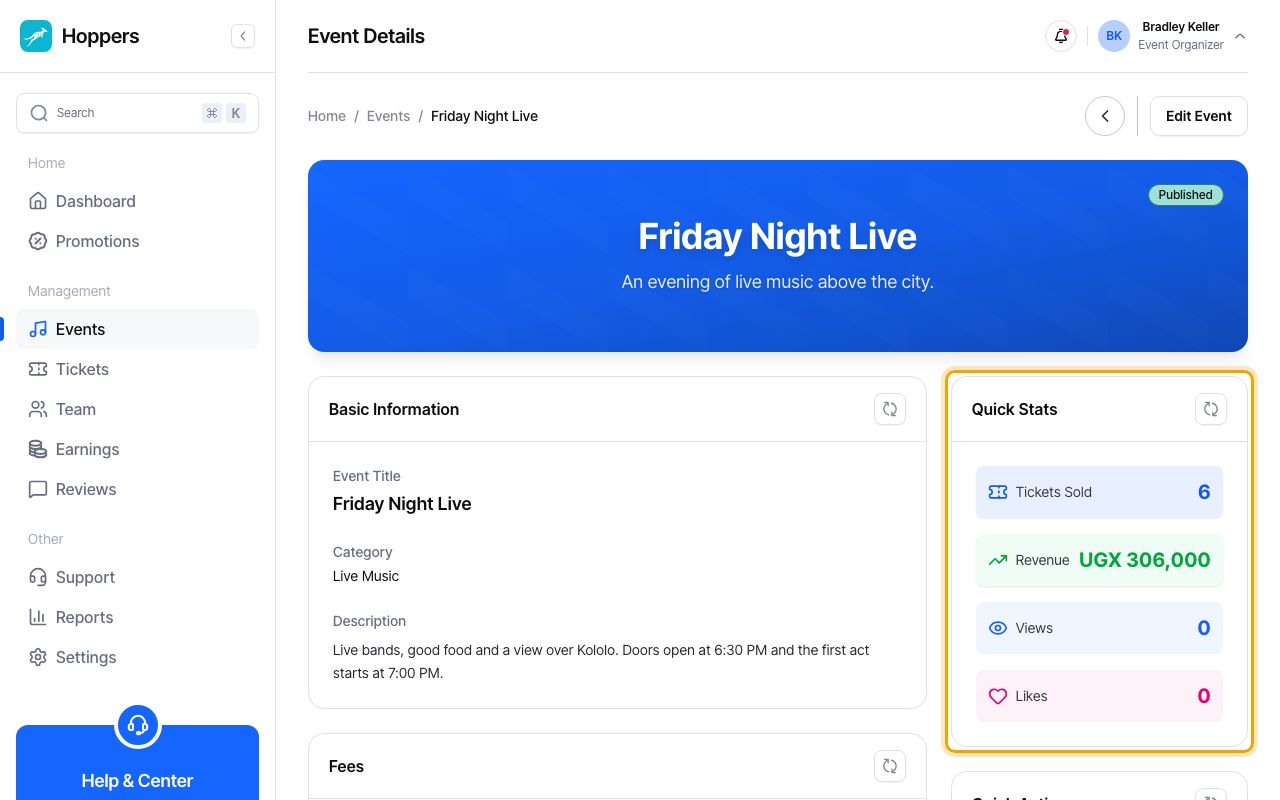
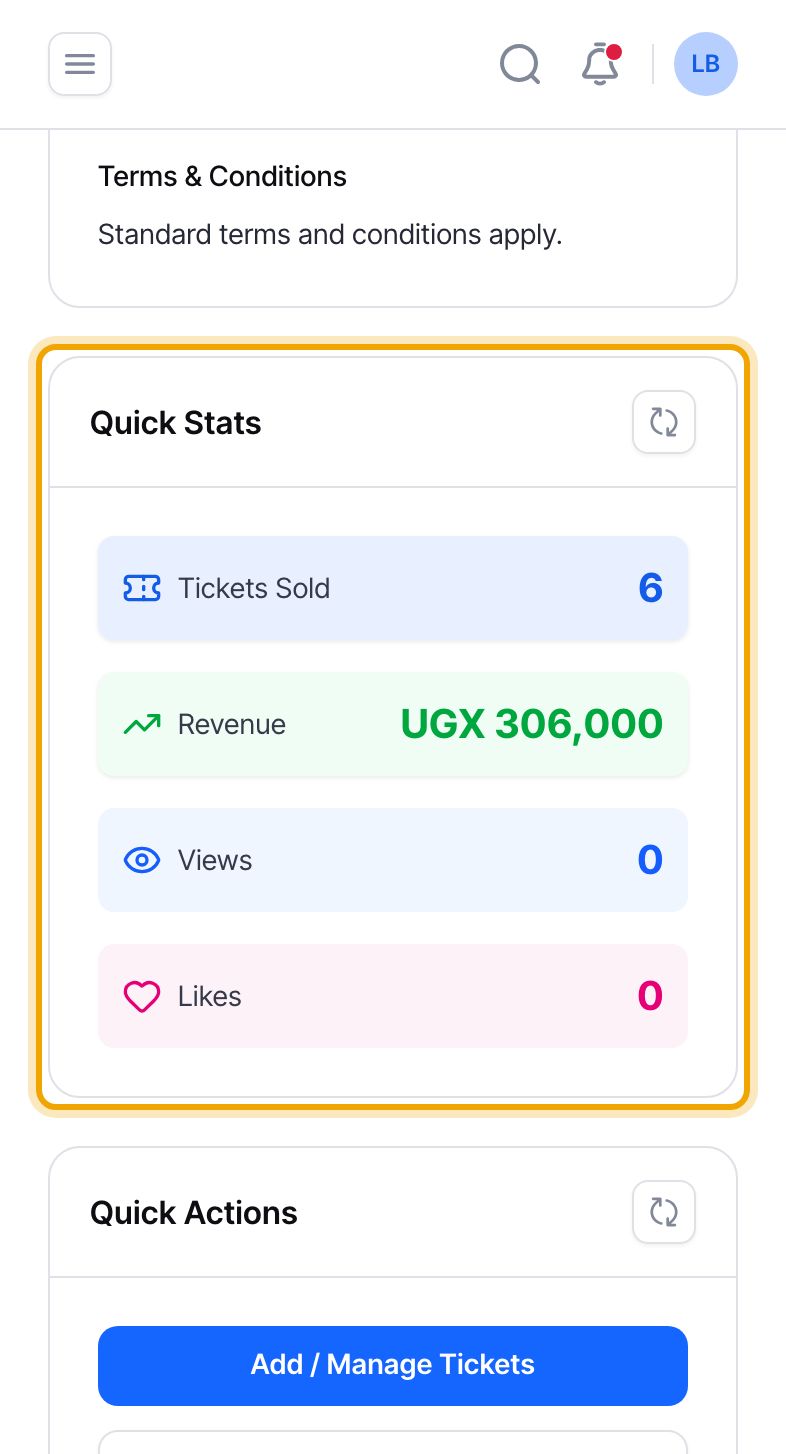
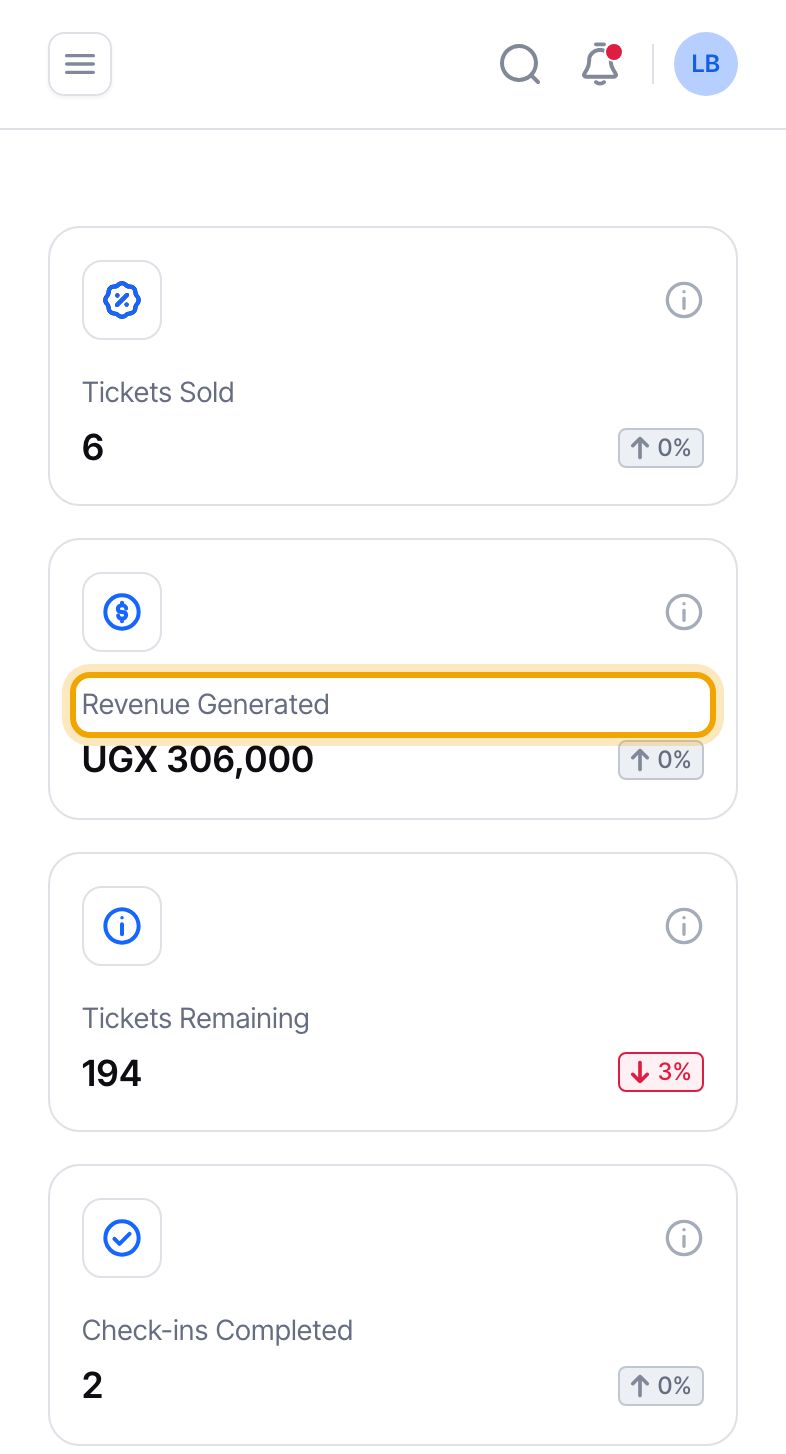
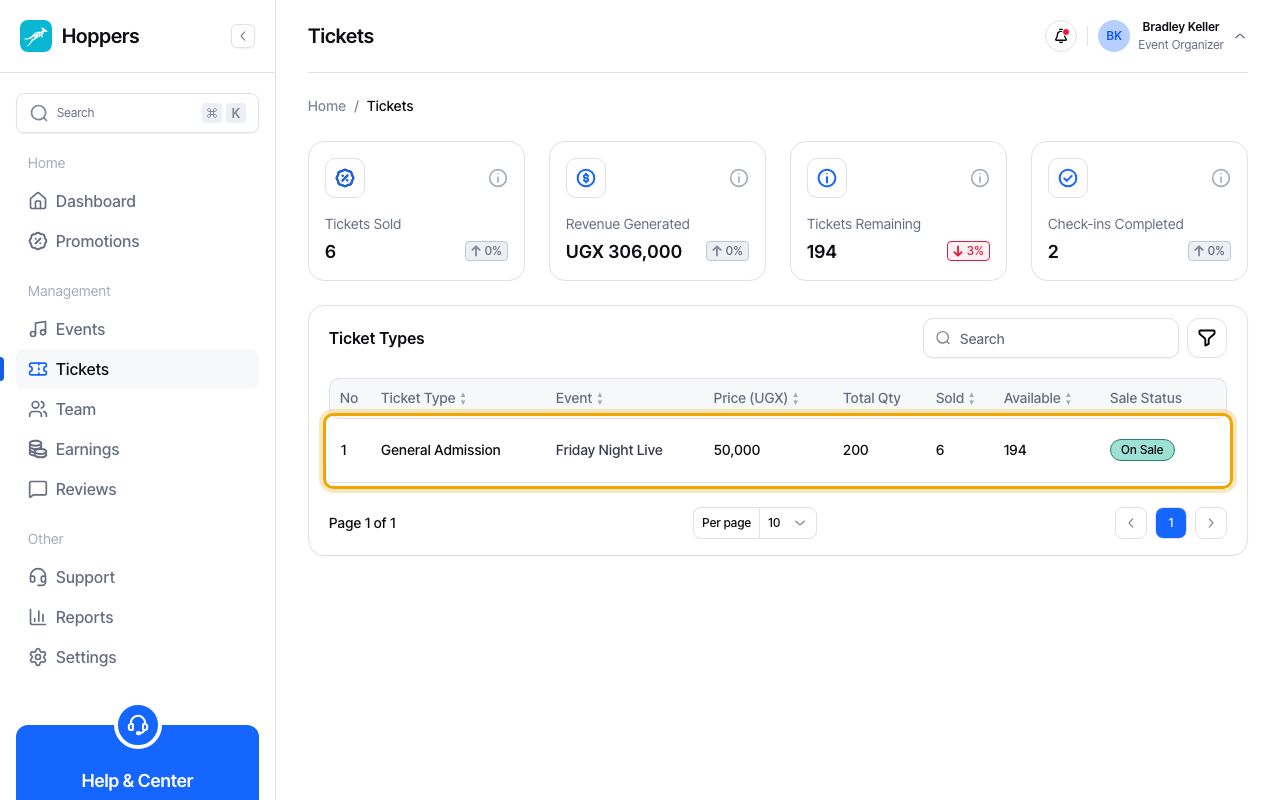
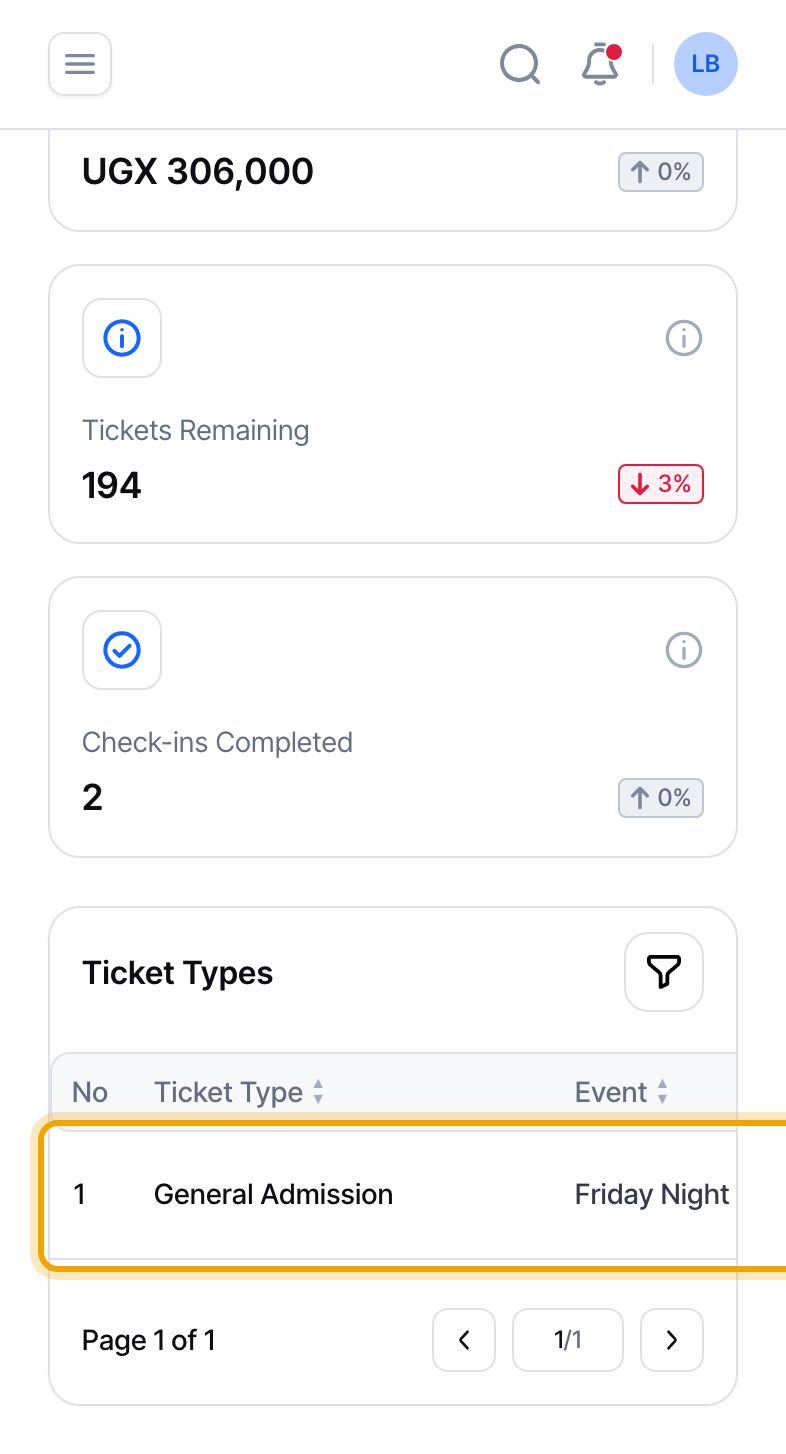
Select “Tickets Sold” in the Quick Stats box. The Tickets page opens, showing only this event. The three figures at the top, “Tickets Sold”, “Revenue Generated” and “Tickets Remaining”, add up all of your events.
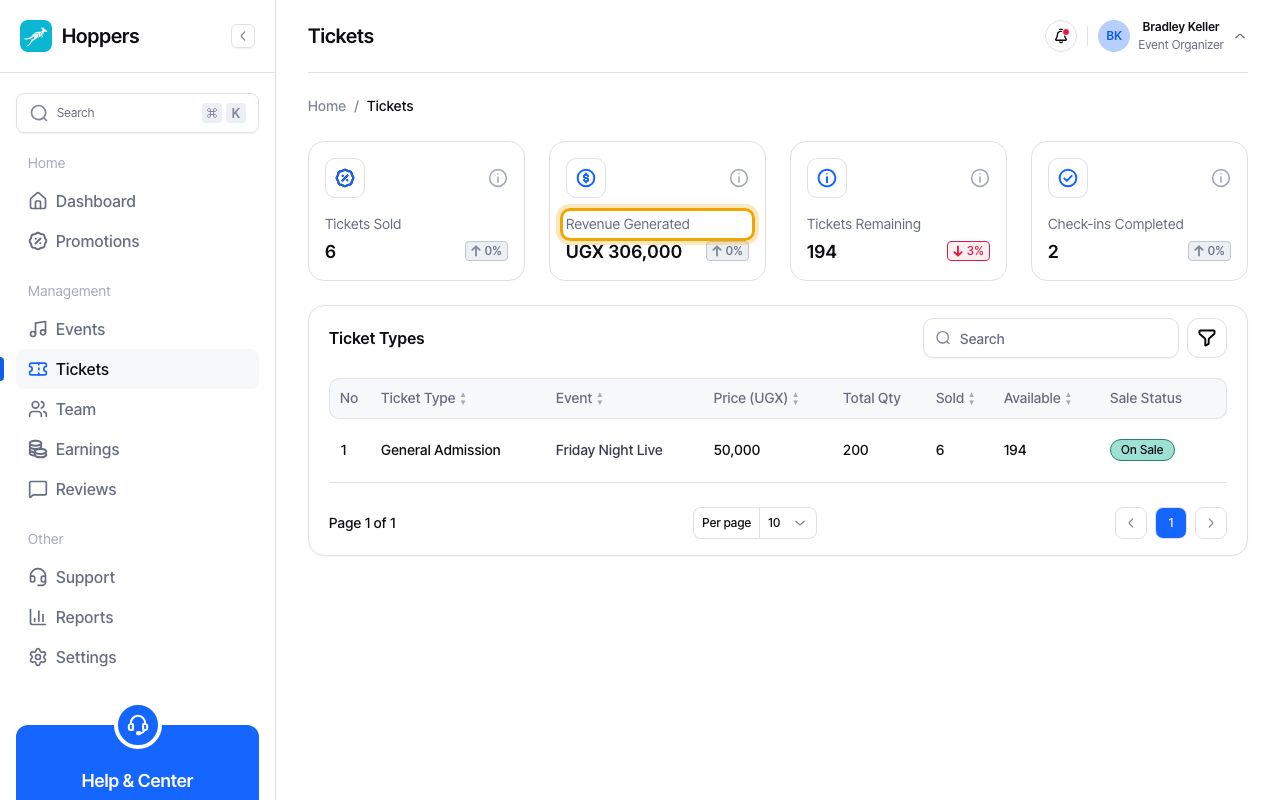
The “Ticket Types” table has one row per ticket type, with its price, the total quantity, how many are “Sold”, how many are still “Available”, and its “Sale Status”. Use it to spot a ticket type that is close to selling out.
To sell more of a ticket type, raise its quantity from “Add / Manage Tickets” on the event page. Our guide “Set up tickets and prices” shows how.
Back on the event page, select “Revenue” in the Quick Stats box to open the event’s earnings: what buyers paid, the fees, and what you receive. Our guide “Understand your earnings” explains every figure there.
“Revenue” is everything buyers paid, including the booking fee they pay on top of each ticket. It is not what you receive: your organizer fee and the booking fee come out of it first.