See what you earn from each ticket sold, how to read the Earnings page from the four summary figures down to a single payment, and where to go to be paid.
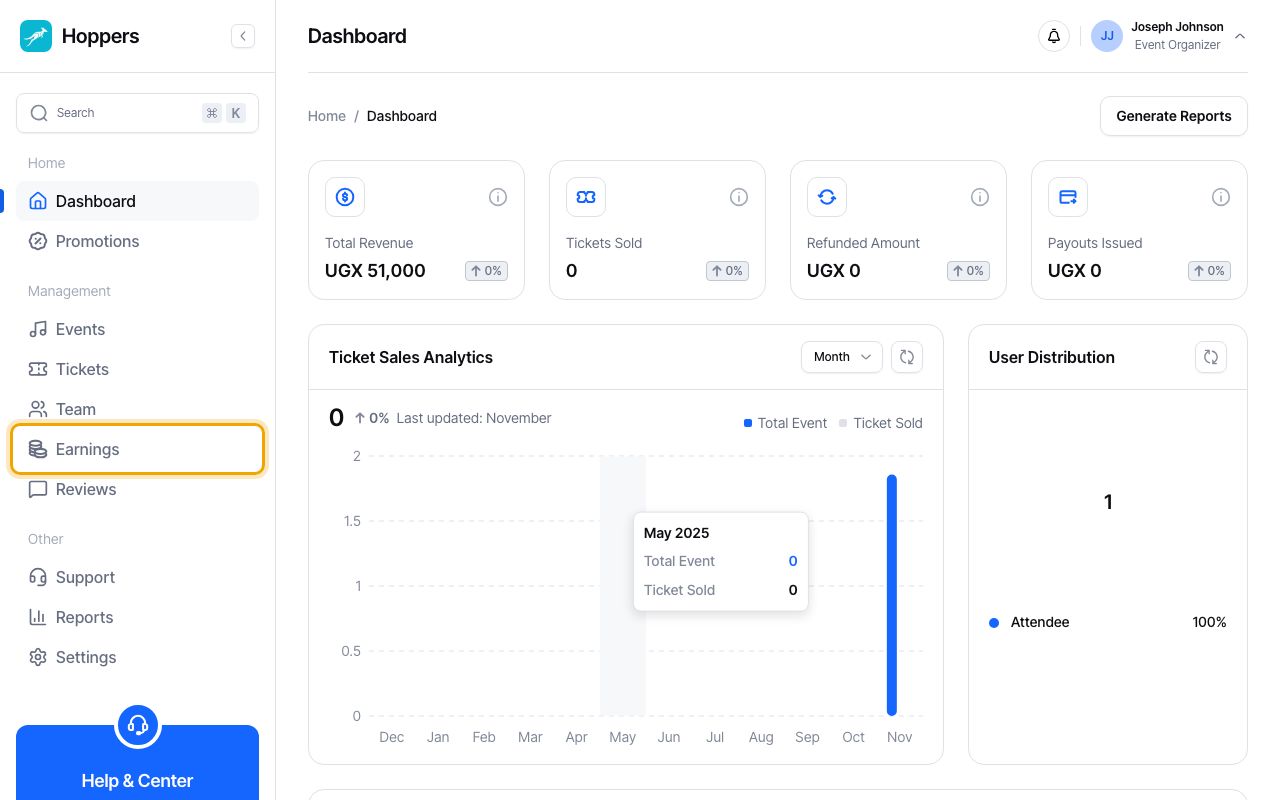
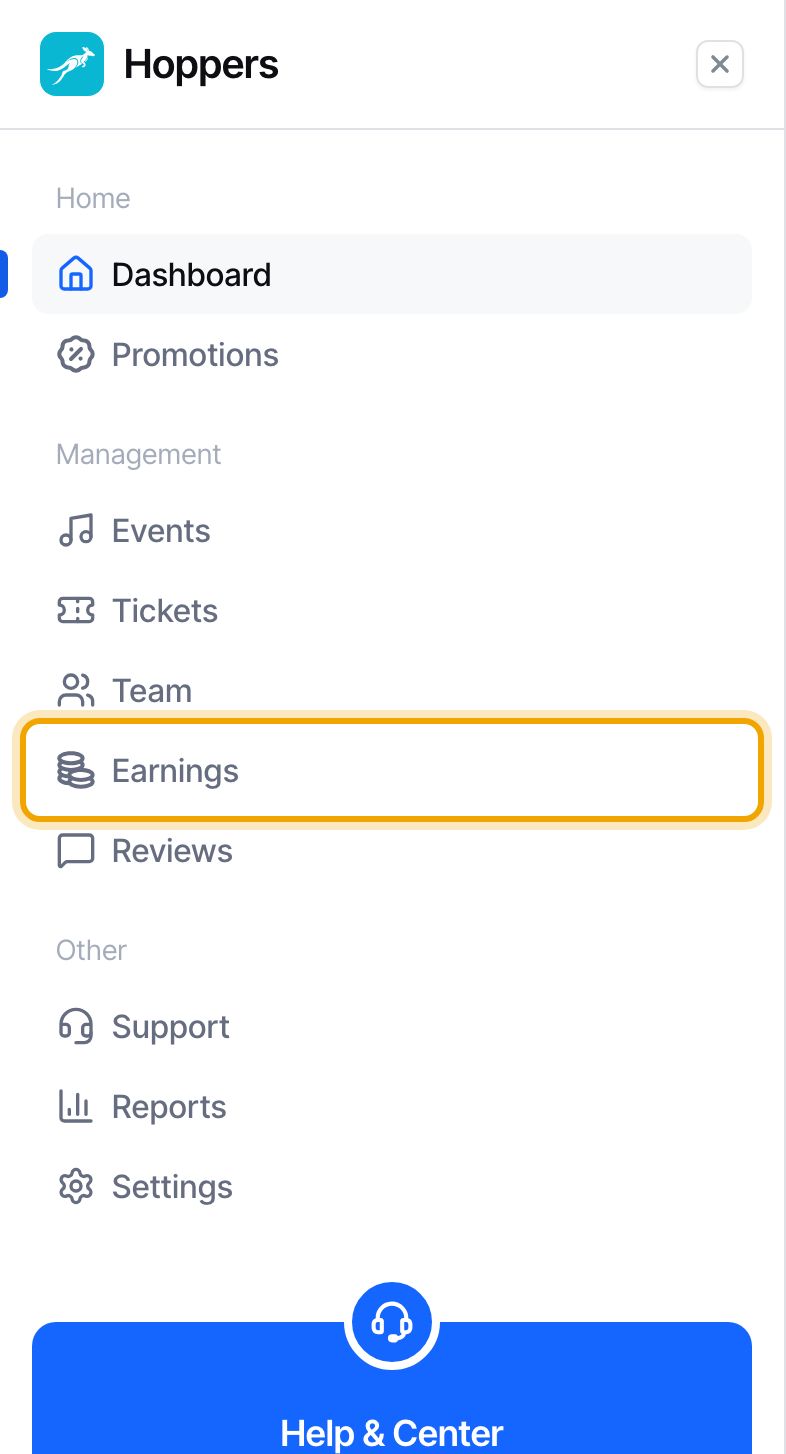
Select “Earnings” in the menu on the left. On a phone, tap the menu icon at the top left first. Four figures sit at the top of the page and the “Earnings by Event” table sits below them.
“Total Revenue” is what buyers paid for your completed payments, with anything refunded to a buyer taken off. It includes the booking fee the buyer paid on top of the ticket. In our example one buyer paid UGX 51,000: a UGX 50,000 ticket plus the UGX 1,000 booking fee. Payments that failed, are still processing or were refunded in full are not counted.
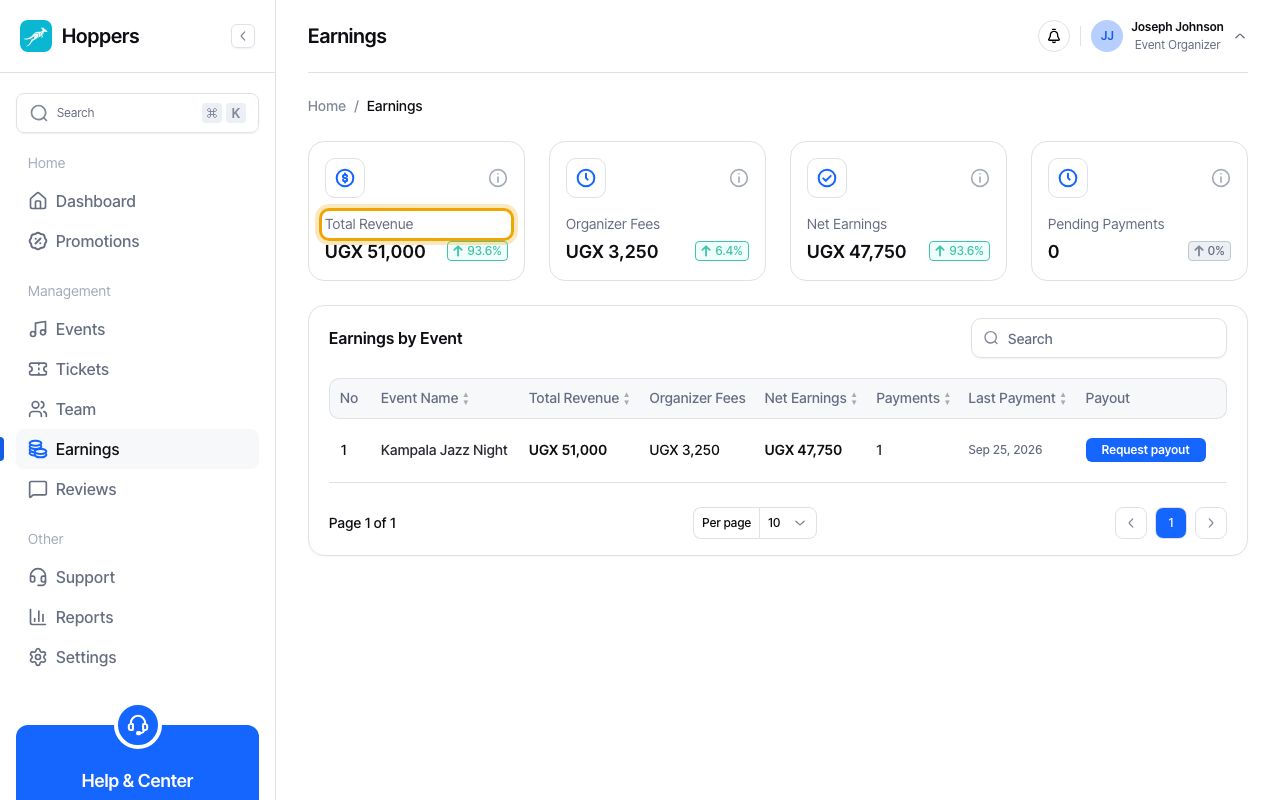
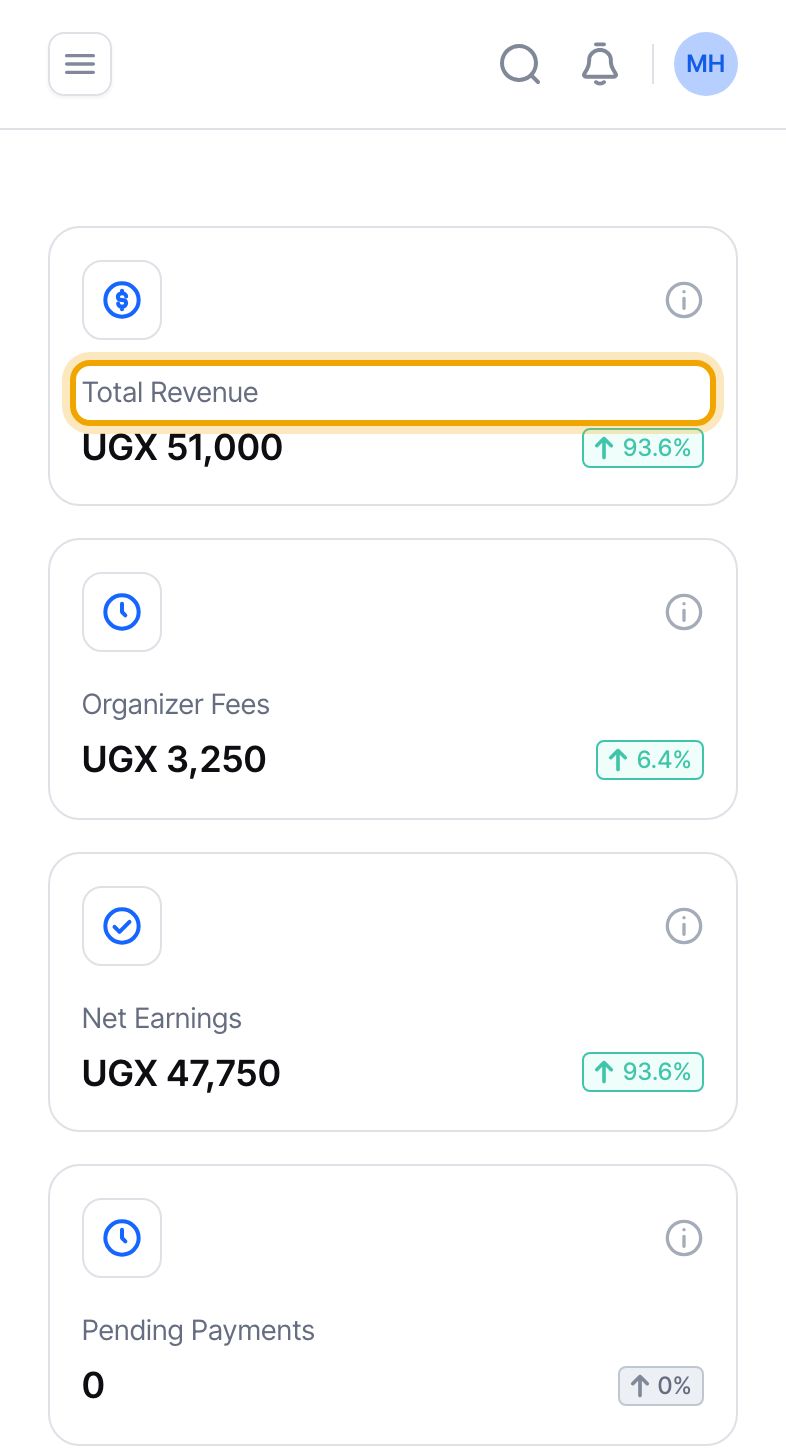
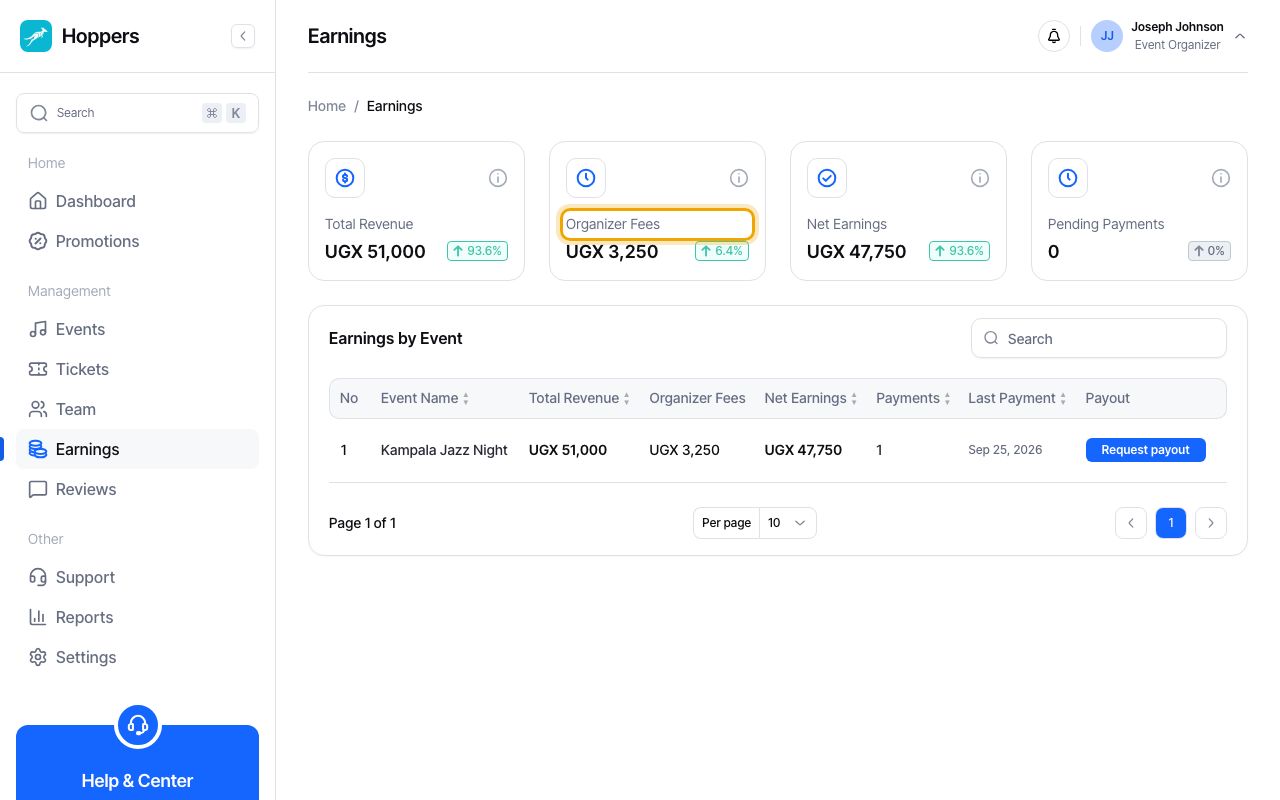
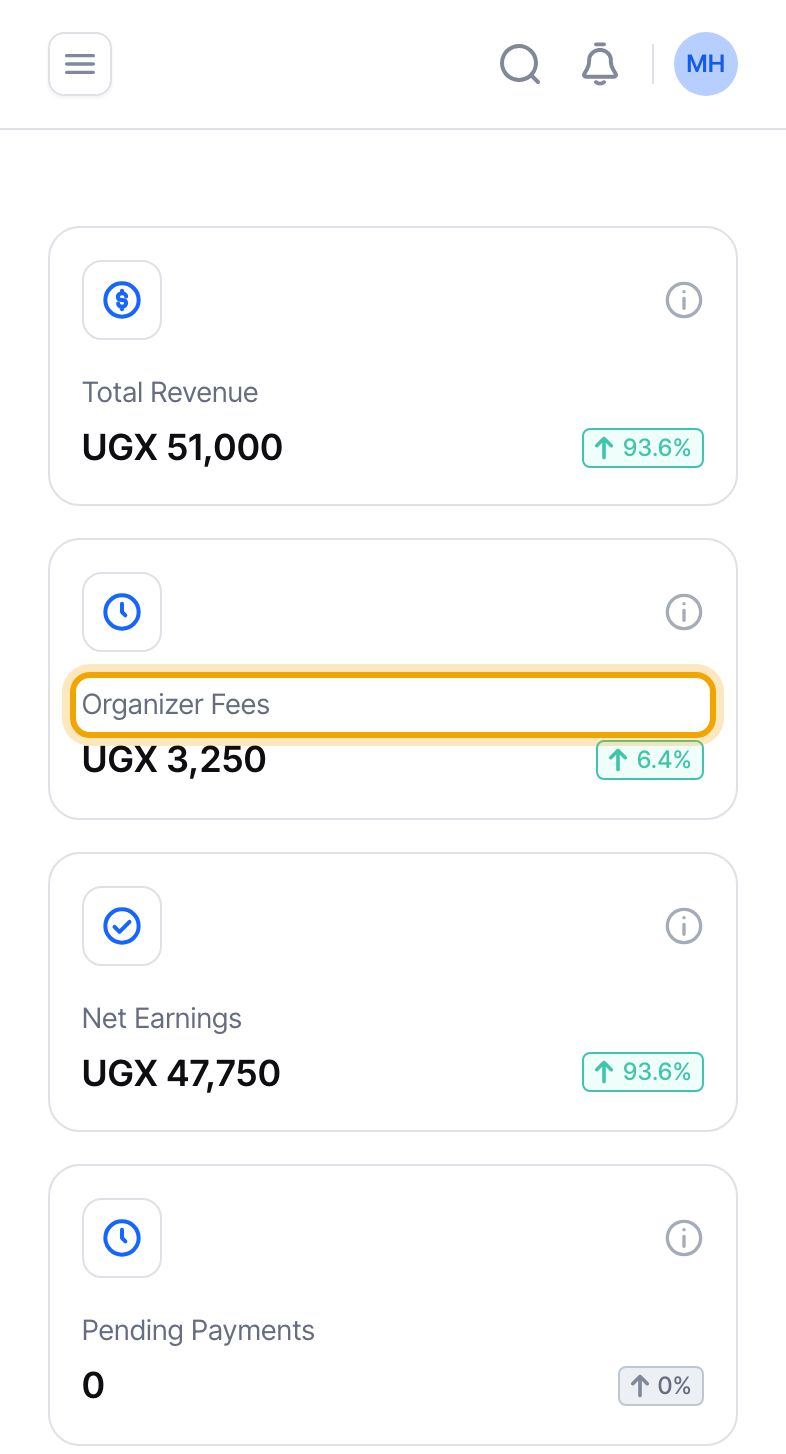
“Organizer Fees” is what Hoppers kept from those payments: the organizer fee (4.50% of the ticket price, which includes payment processing) and the booking fee. In our example that is UGX 2,250 plus UGX 1,000, which is UGX 3,250. If a payment is partly refunded, the commission on the refunded part is taken off this figure.
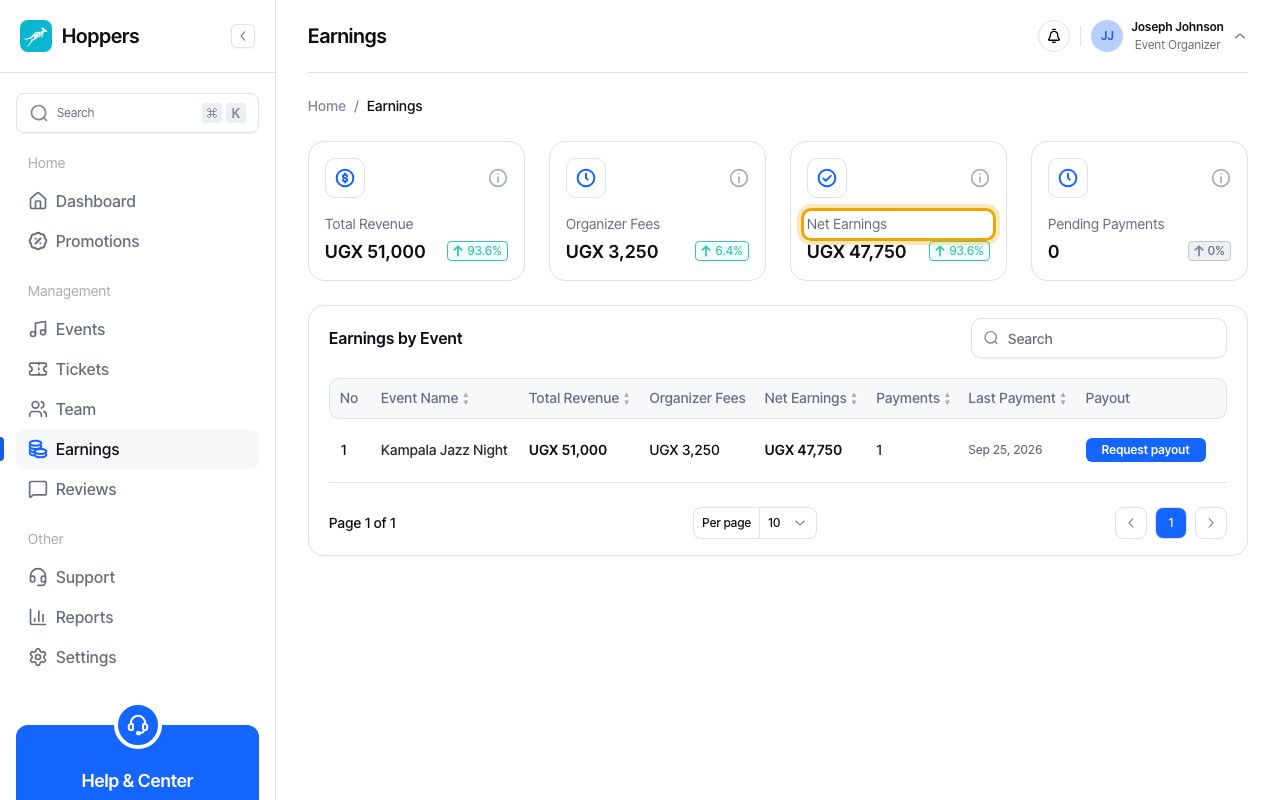
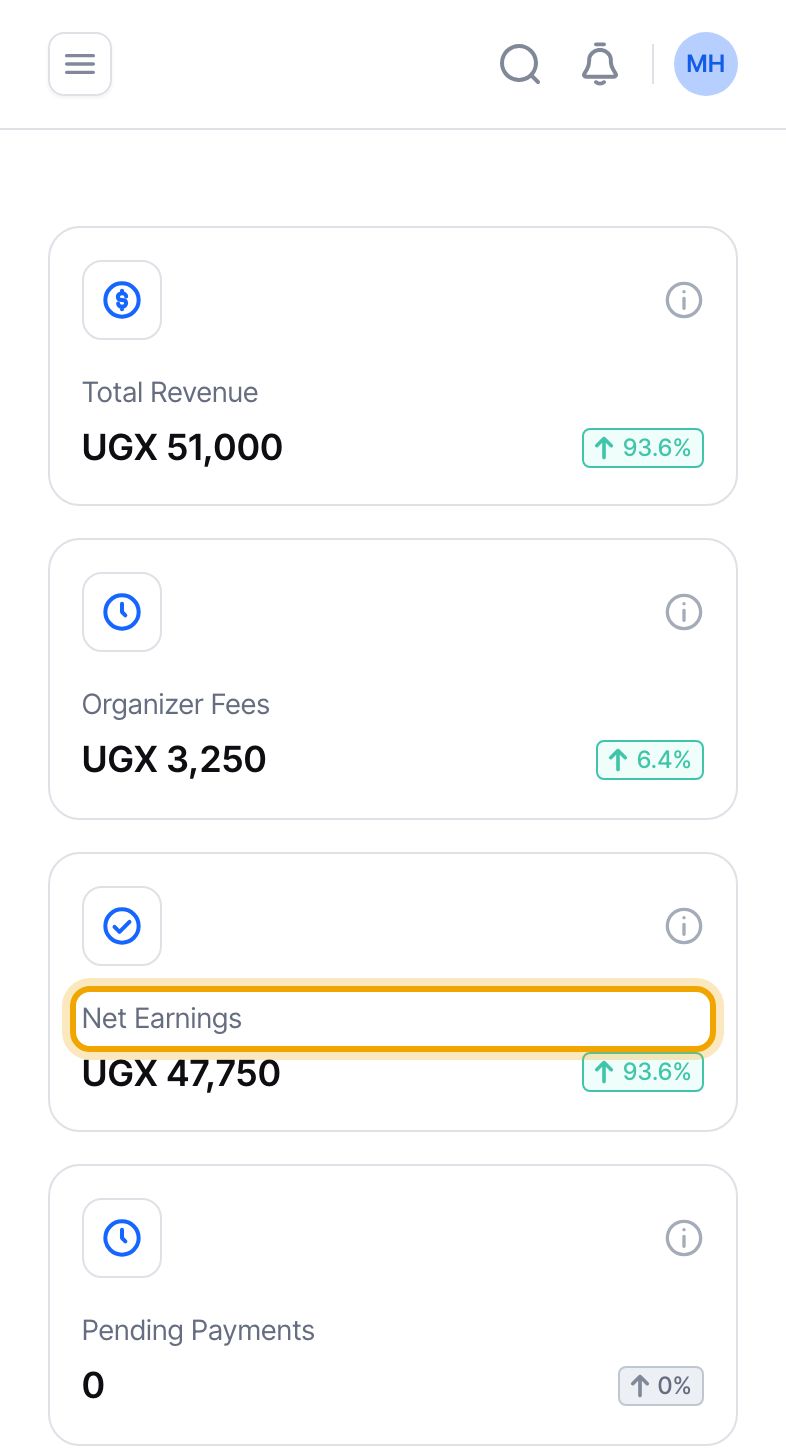
“Net Earnings” is what is yours: Total Revenue minus Organizer Fees. In our example UGX 51,000 minus UGX 3,250 is UGX 47,750. Only money that has been settled is counted. A payment that is not settled yet is left out, not estimated.
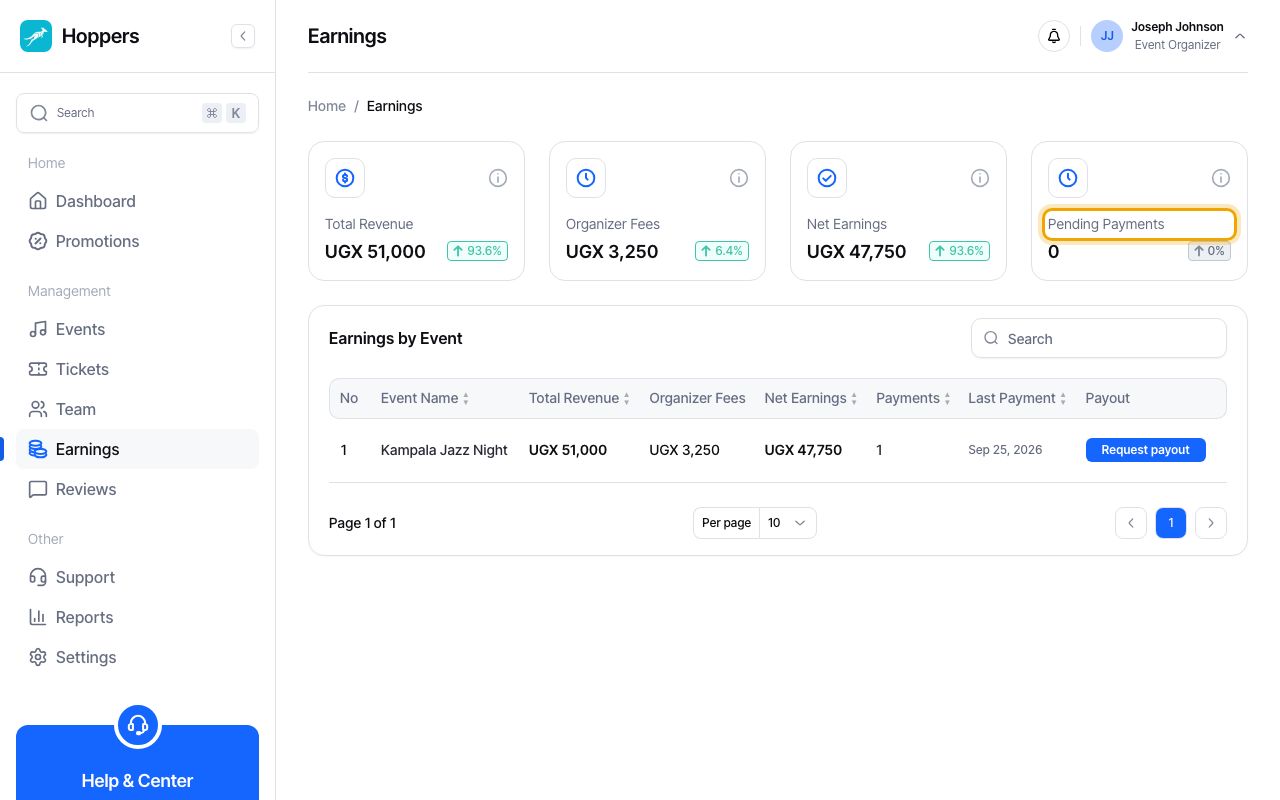
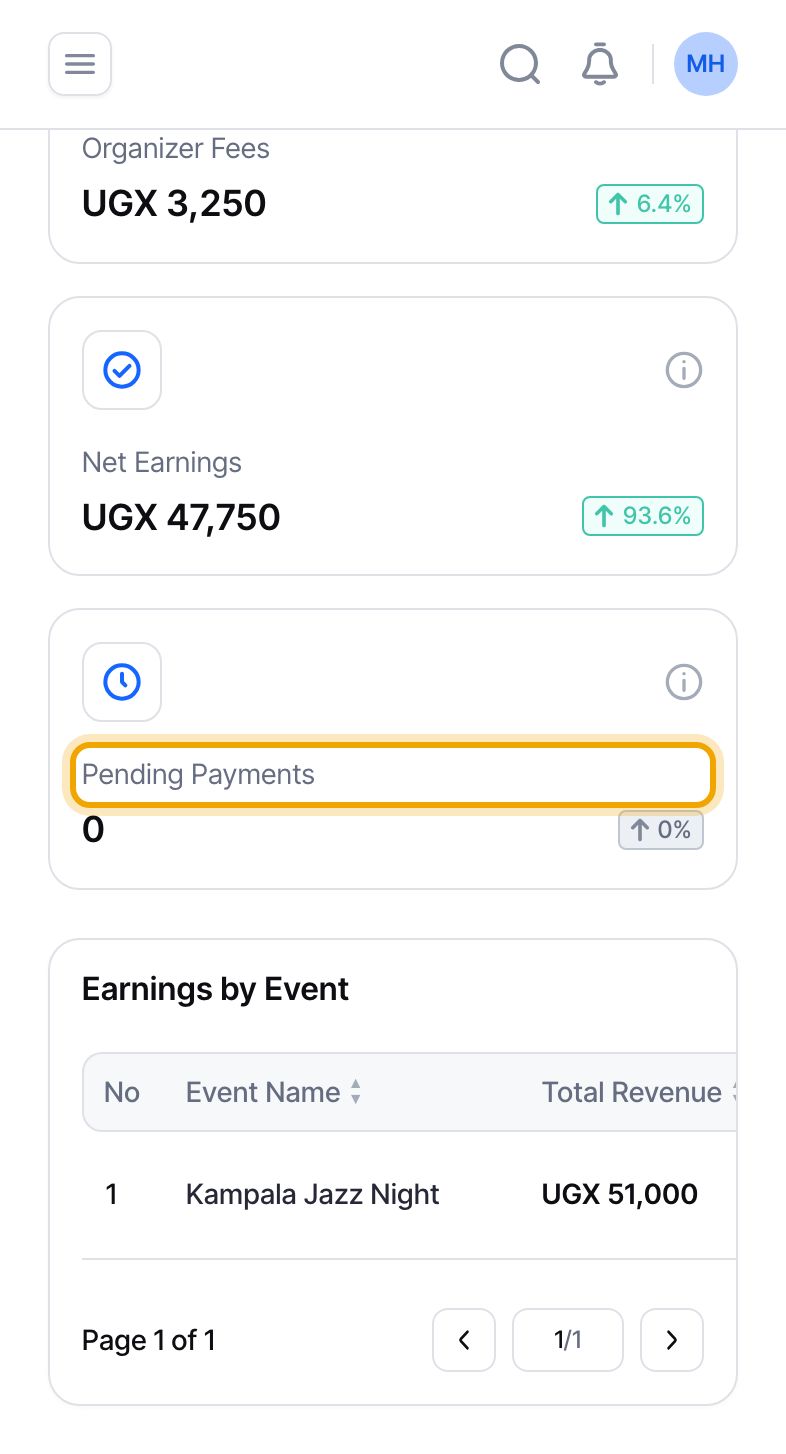
“Pending Payments” is a count, not an amount. It is the number of payments that are still pending or processing, for example a buyer who has not yet approved the mobile money prompt. That money has not arrived, so it is not in the other three figures. It joins them once the payment completes.
The example account has no pending payments, so this card reads 0.
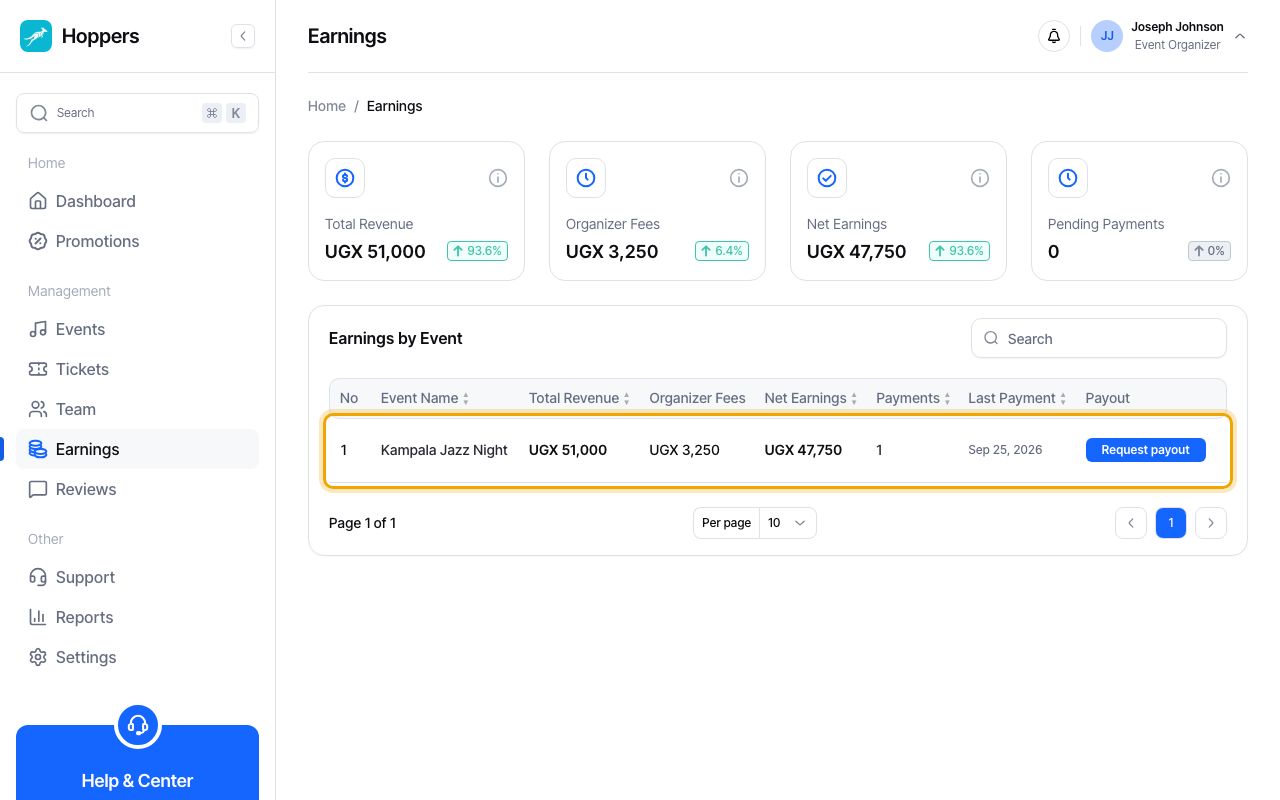
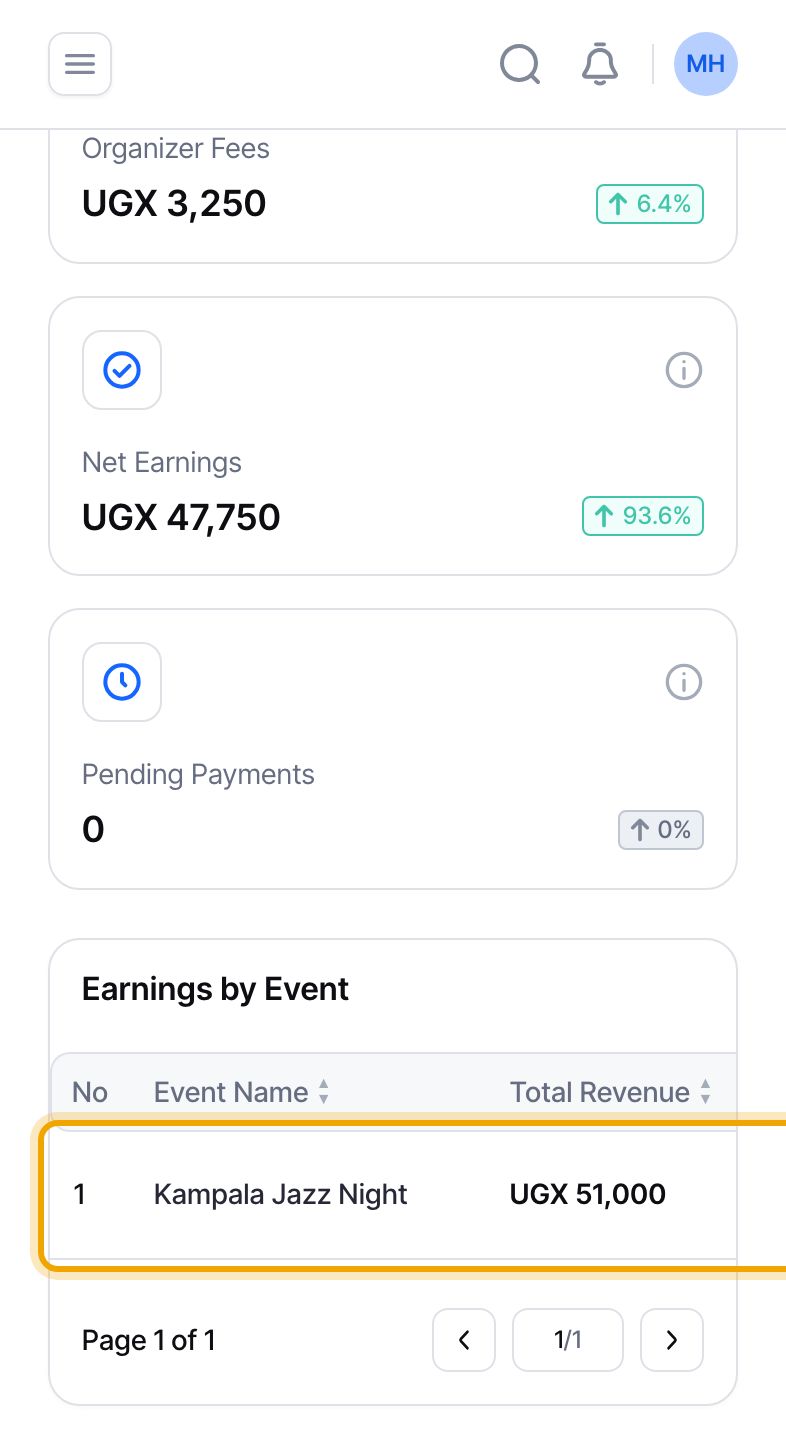
Each row is one event, with “Total Revenue”, “Organizer Fees”, “Net Earnings”, the number of “Payments” and the date of the “Last Payment”. The figures at the top add up these rows. Select a column heading to sort, or use the search box to find an event. The “Payout” column shows a “Request payout” button when an event has finished and its earnings are ready, “Add payout account” if you have not added one, or the status of your latest payout. A dash means the event has not finished yet.
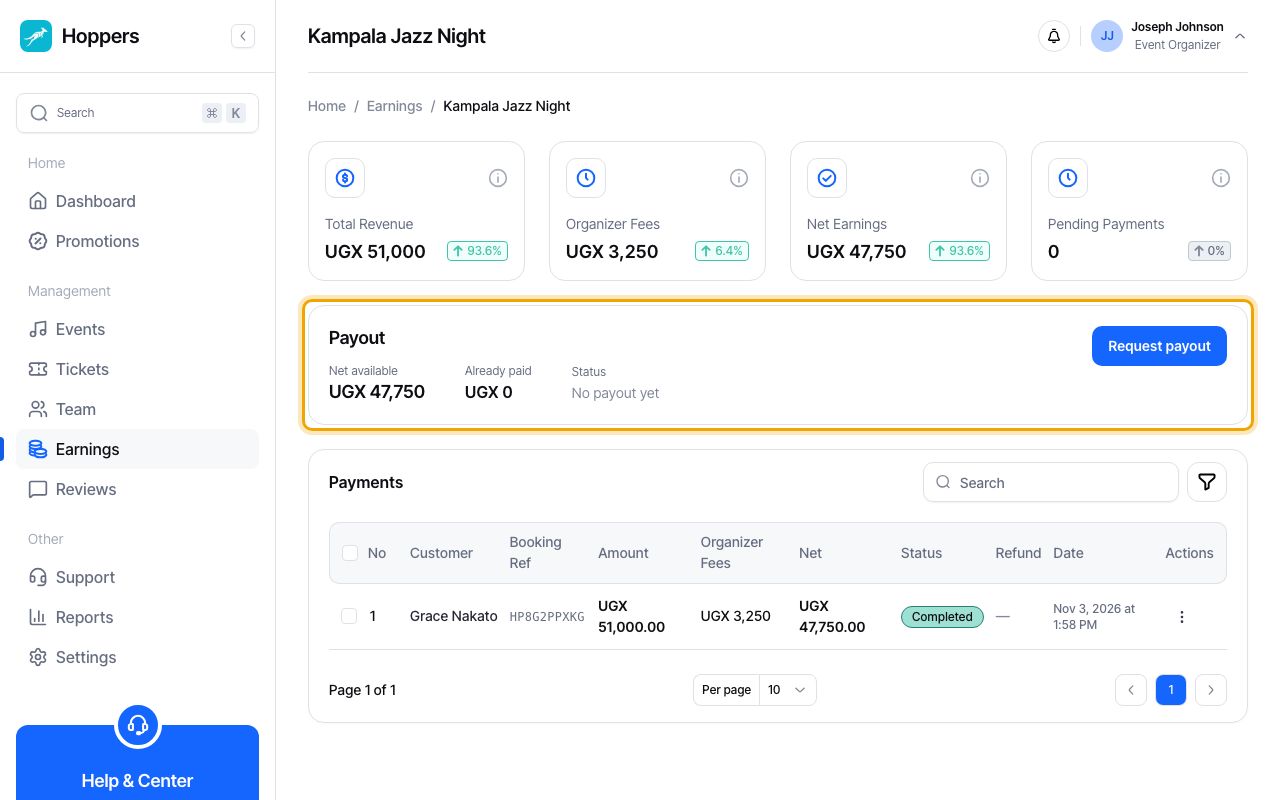
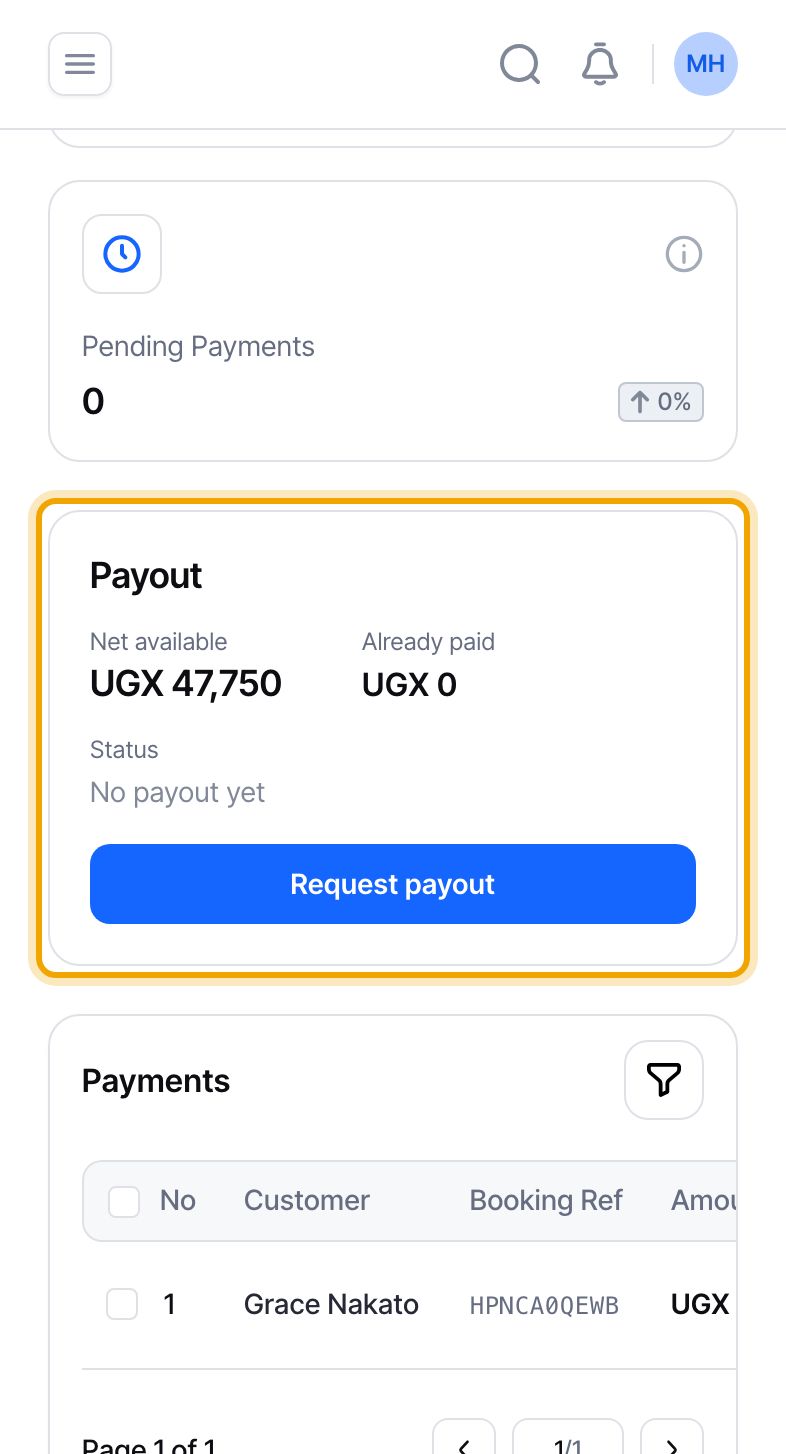
Select an event to see its own four figures and its “Payout” panel. “Net available” is what you can still ask to be paid. “Already paid” is money that a payout request has already claimed, including a request still waiting for review. “Status” is your latest payout request, or “No payout yet”.
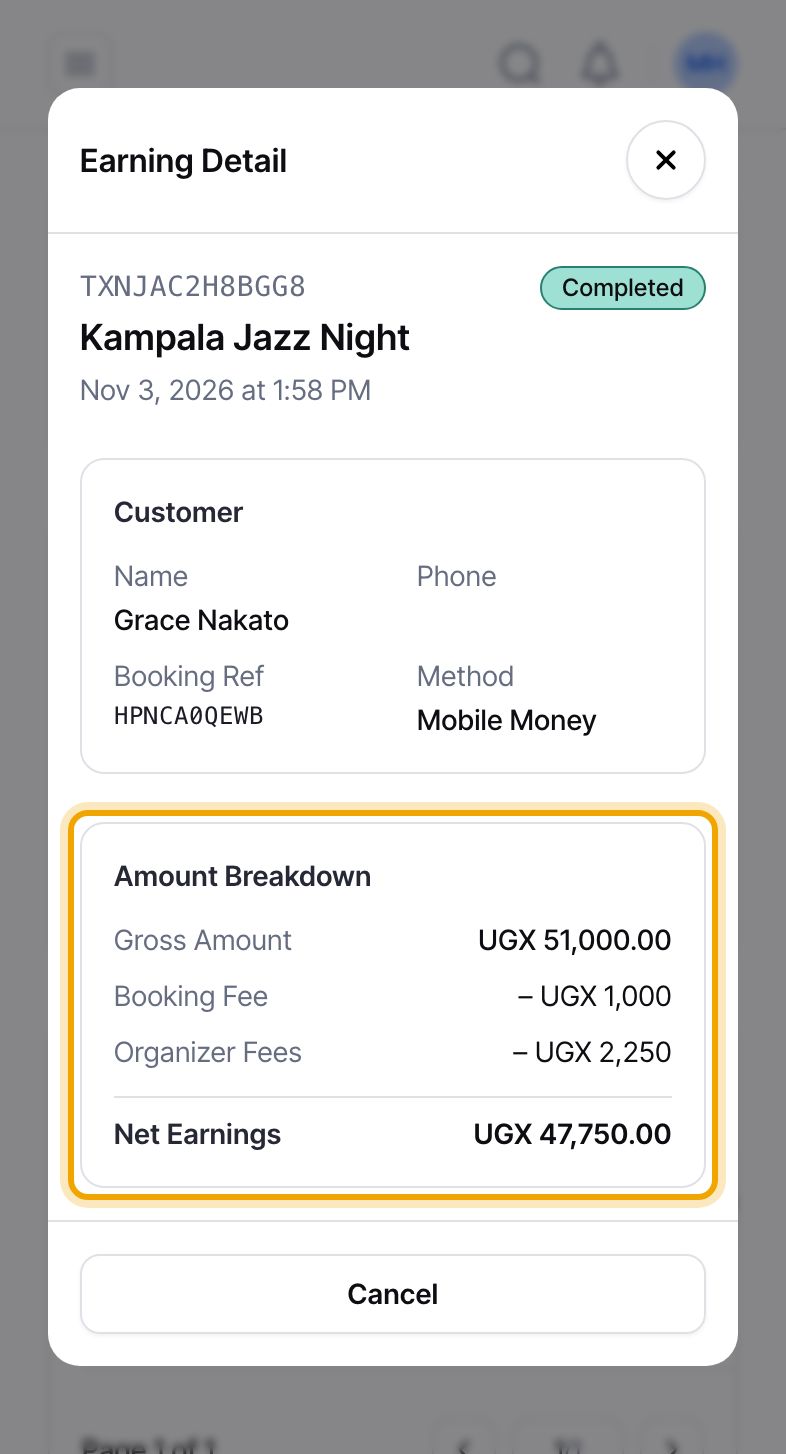
Select a payment in the “Payments” table. “Earning Detail” shows the “Gross Amount” the buyer paid, then the “Booking Fee”, the “Organizer Fees” and your “Net Earnings”. In our example: UGX 51,000, UGX 1,000, UGX 2,250 and UGX 47,750. This payment is one line in every total above.
If a payment was partly refunded, the panel adds a “Refunded to Buyer” line and shows one combined “Organizer Fees” figure.
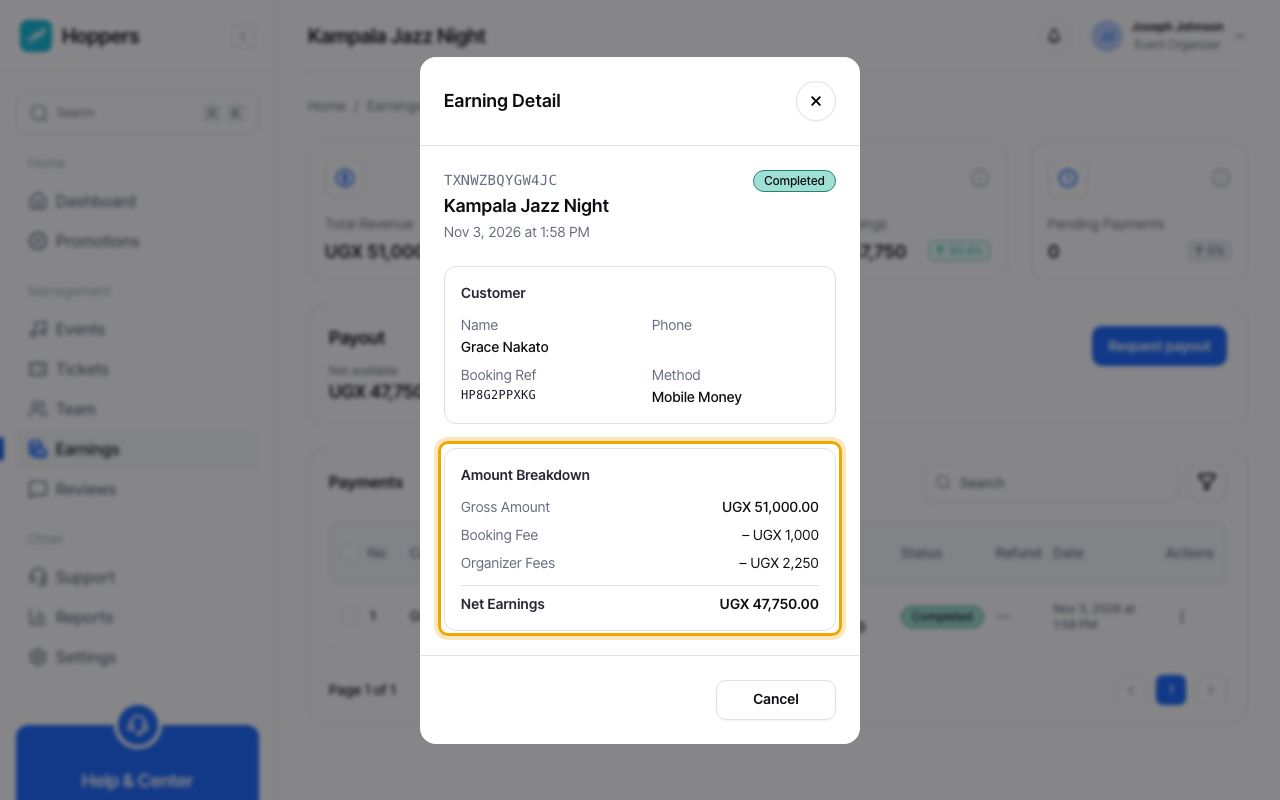
You earn what buyers pay for your tickets, minus Hoppers’ fees. The booking fee is paid by the buyer on top of the ticket price and Hoppers keeps it, so it does not reduce your ticket money. Hoppers also keeps the organizer fee, 4.50% of the ticket price on standard terms. On a UGX 50,000 ticket you earn UGX 47,750. Net Earnings on the Earnings page is the total of those amounts across your sales.
Start at the four figures at the top. Net Earnings is the money that is yours. Use the “Earnings by Event” table to see which events it came from, and open an event to see each payment. If a figure looks wrong, open the payment that made it: the “Earning Detail” panel shows exactly how that one sale was split.
Net Earnings stays in your Hoppers account until you ask for it. Add a payout account in Settings, wait until the event has finished, then select “Request payout” on that event in the Earnings table. See the guides “Set up your payout account” and “Request a payout”.
The dashboard can show an amount with .00 at the end, such as UGX 47,750.00. That is the same amount.
Net Earnings is the money you have earned. It reaches your mobile money or bank account only after a payout. The guide “Request a payout” shows how.
When you refund a buyer, Total Revenue drops by the amount refunded and Net Earnings drops by your share of it. The booking fee is not returned to the buyer. A payment refunded in full is no longer counted at all.
