Add the MTN, Airtel or bank account where Hoppers sends your earnings, and choose which one is your preferred account.
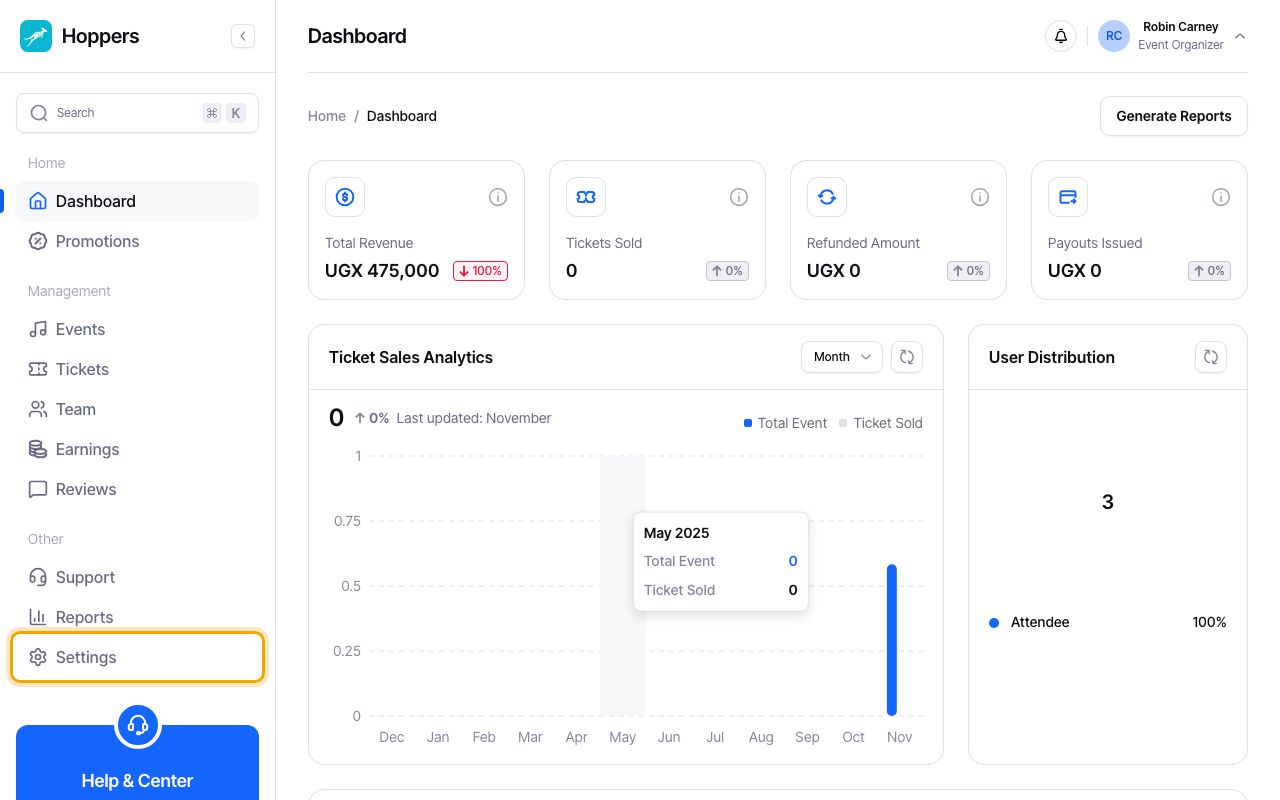
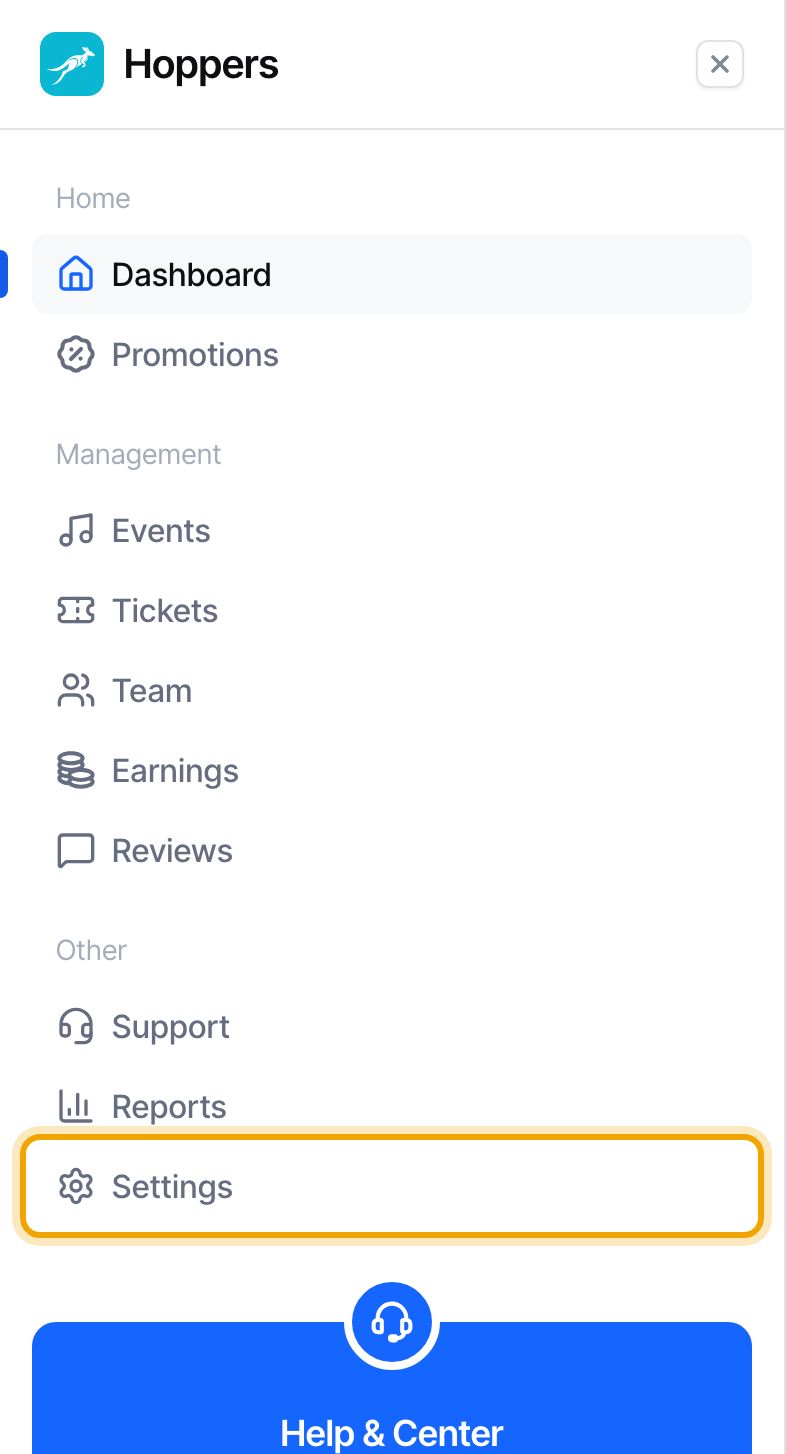
Sign in to the Hoppers dashboard and select “Settings” in the menu on the left. On a phone, tap the menu icon at the top left first.
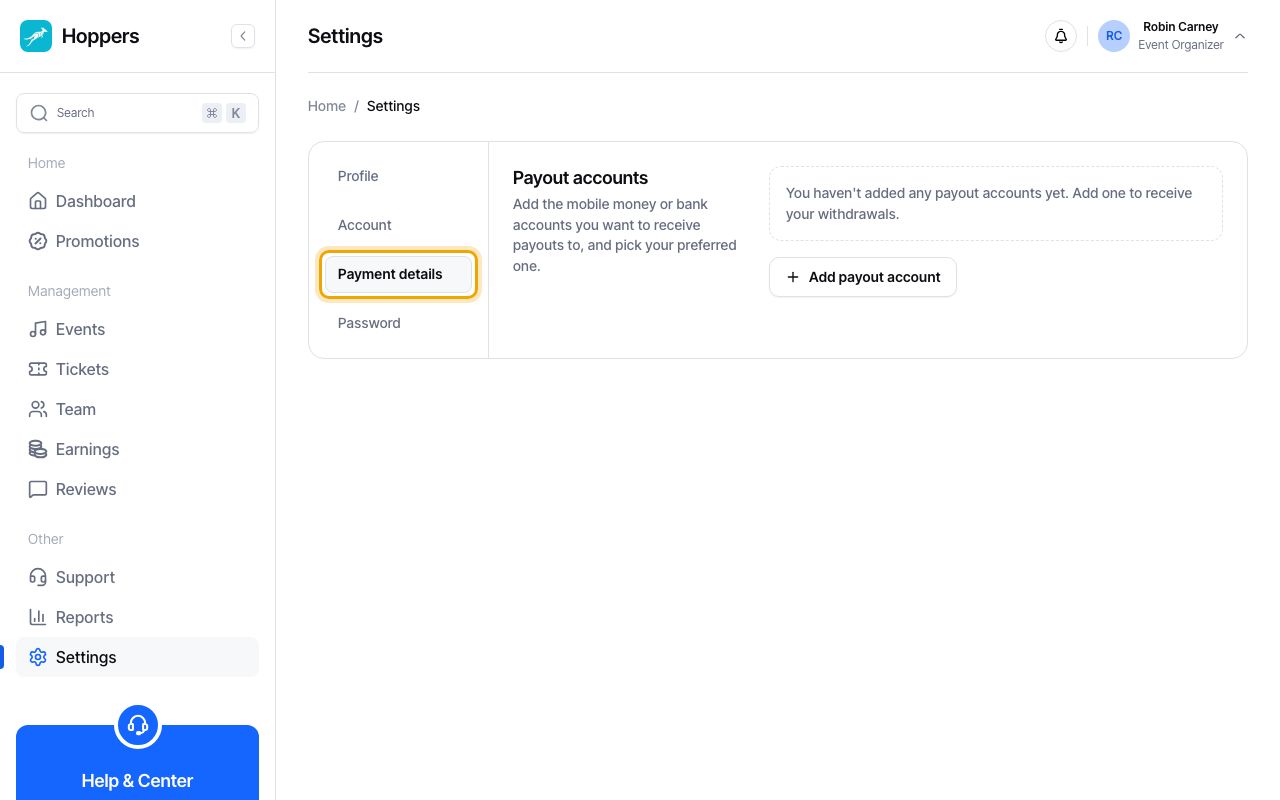
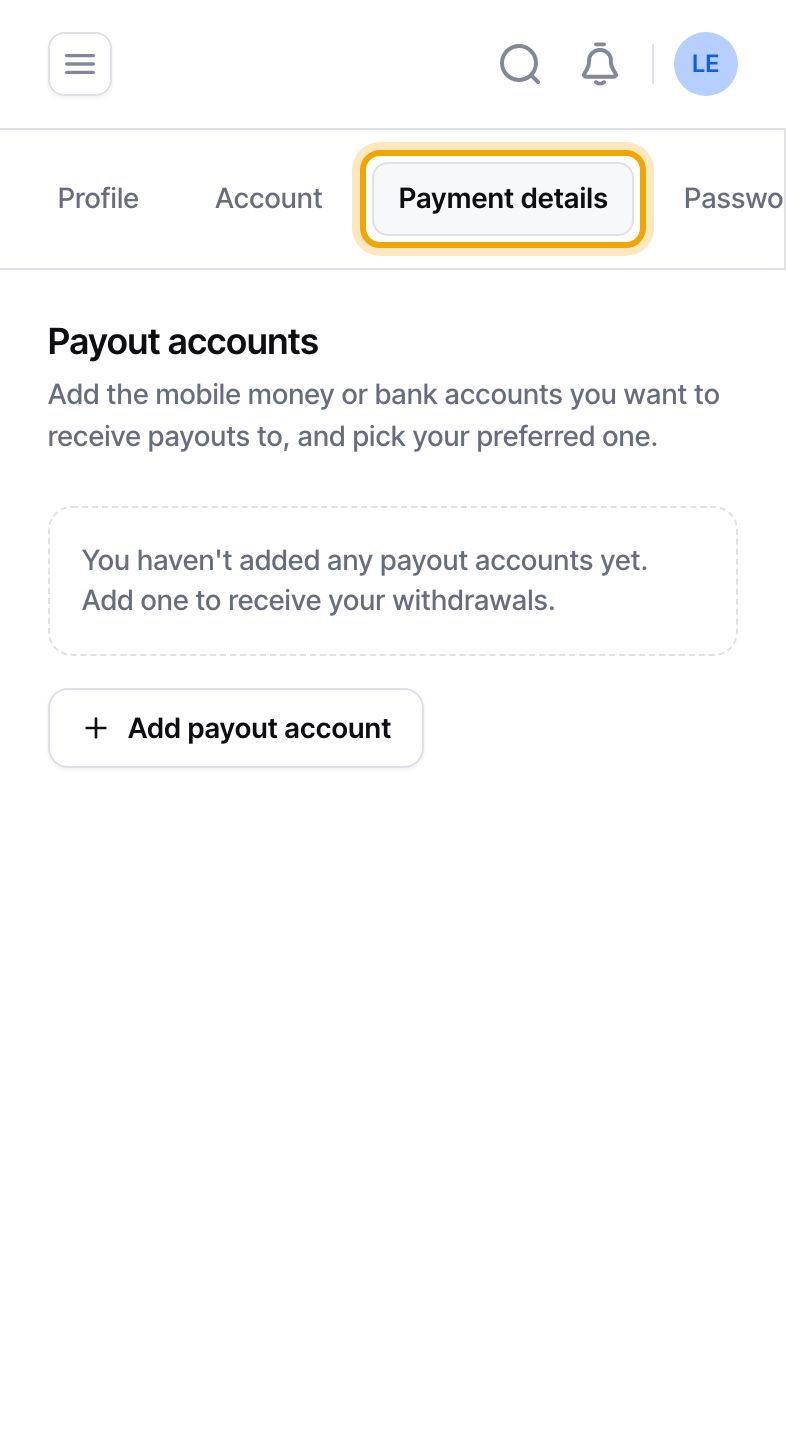
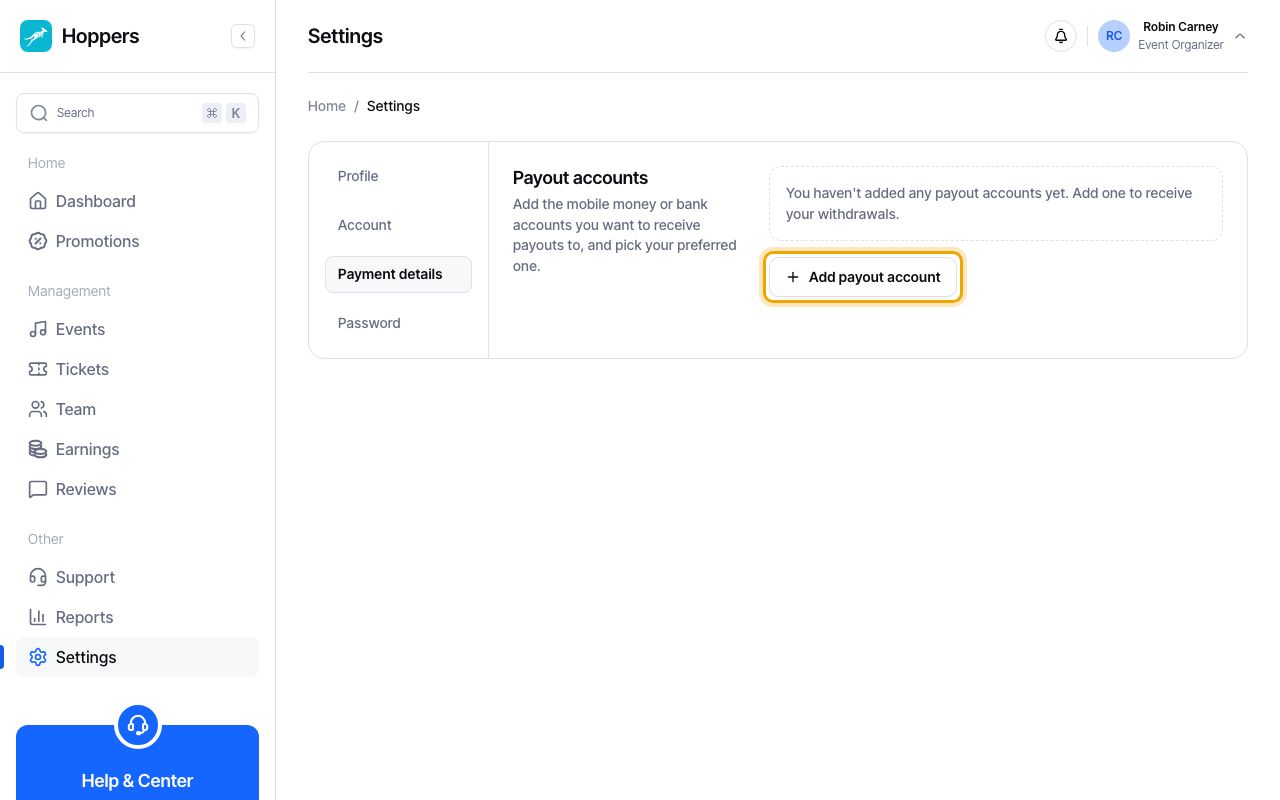
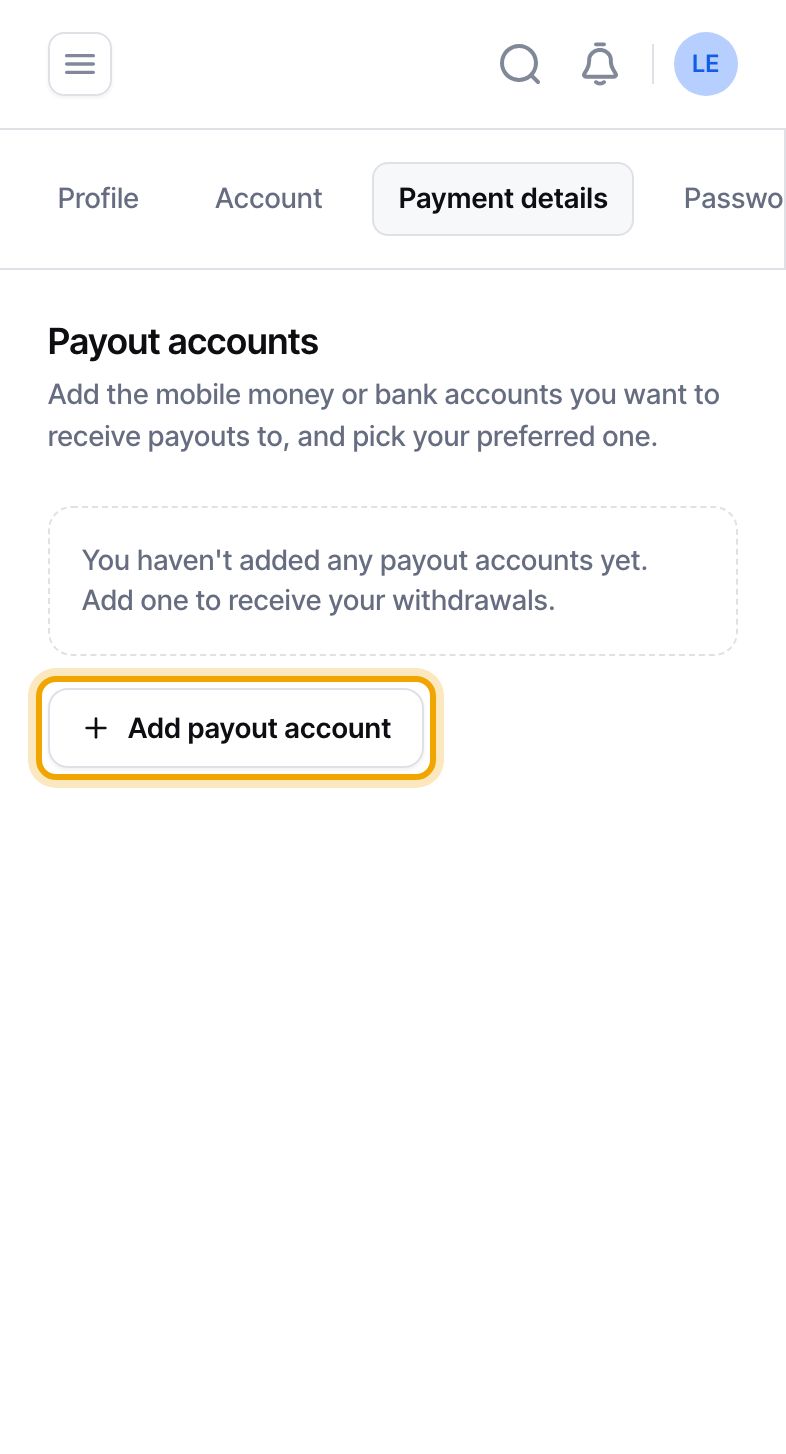
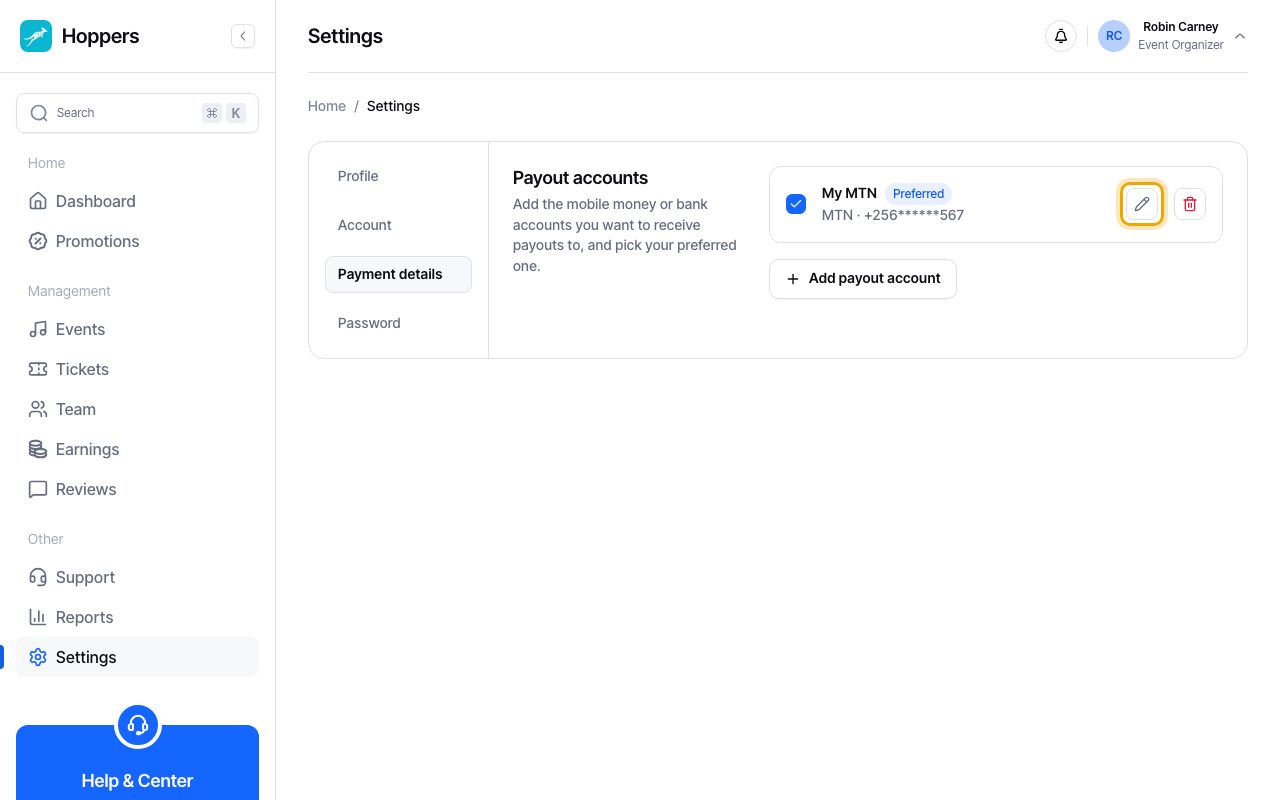
Select “Payment details”. The “Payout accounts” card lists the accounts you have added. If you have none yet it says that you have not added any payout accounts.
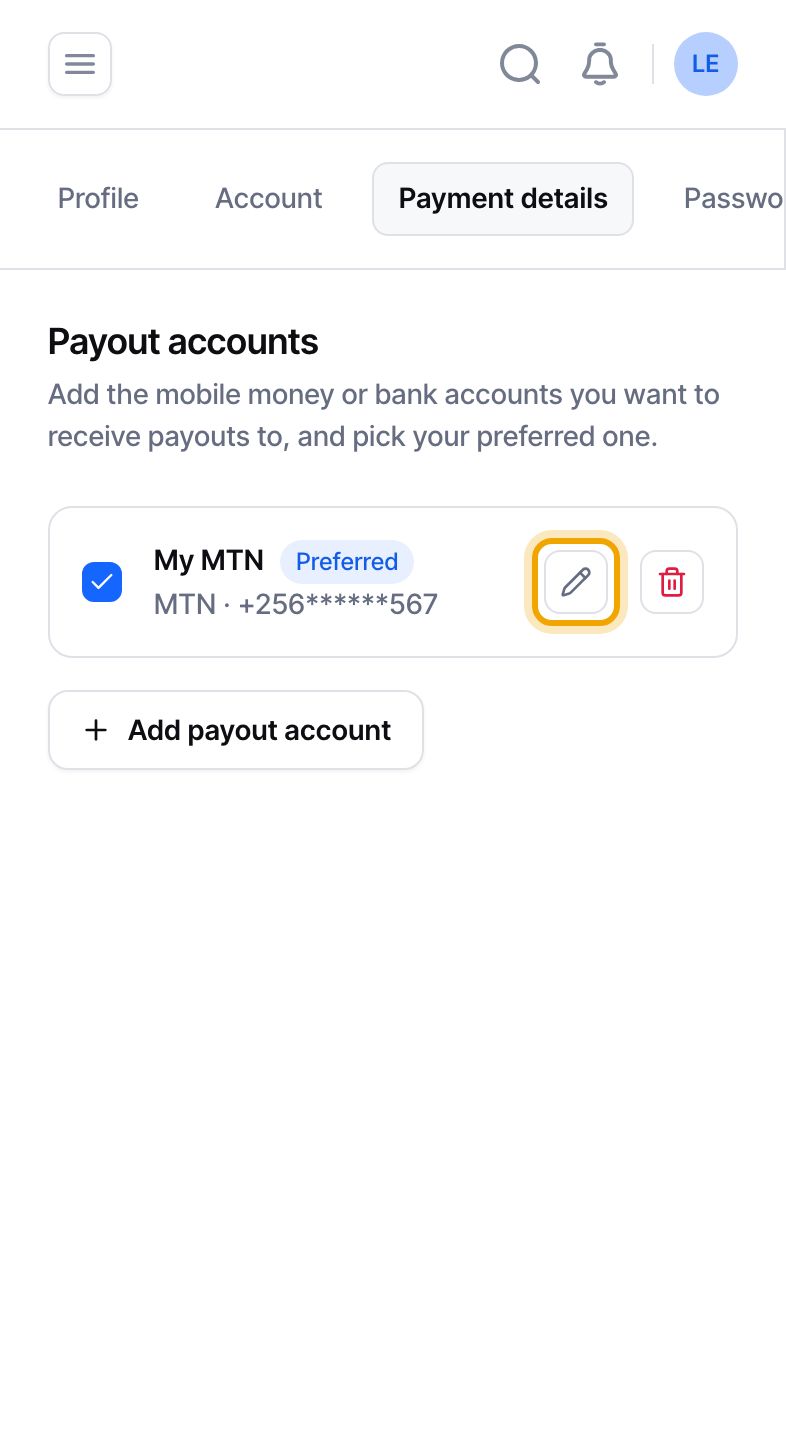
On a phone the tabs sit in a row that you can swipe sideways.
Select “Add payout account”. A window opens and asks “Where should we send your withdrawals?”.
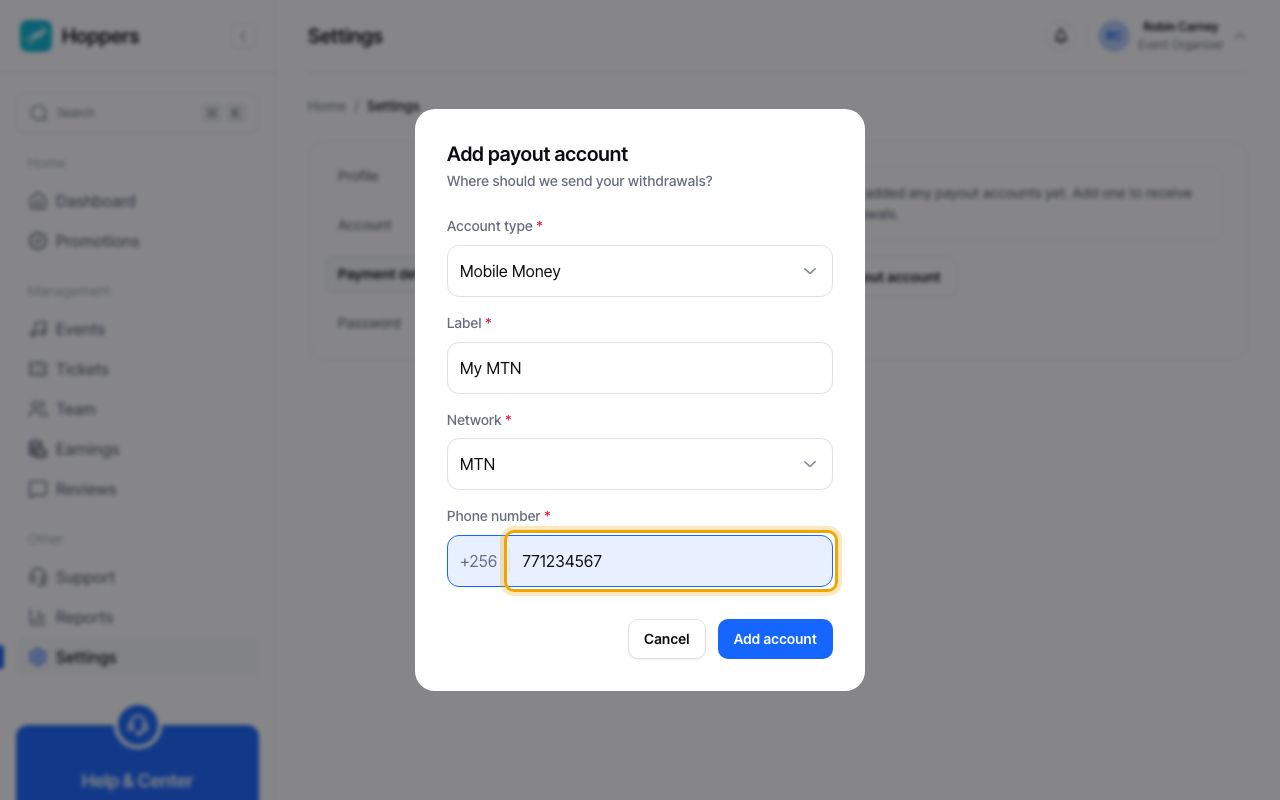
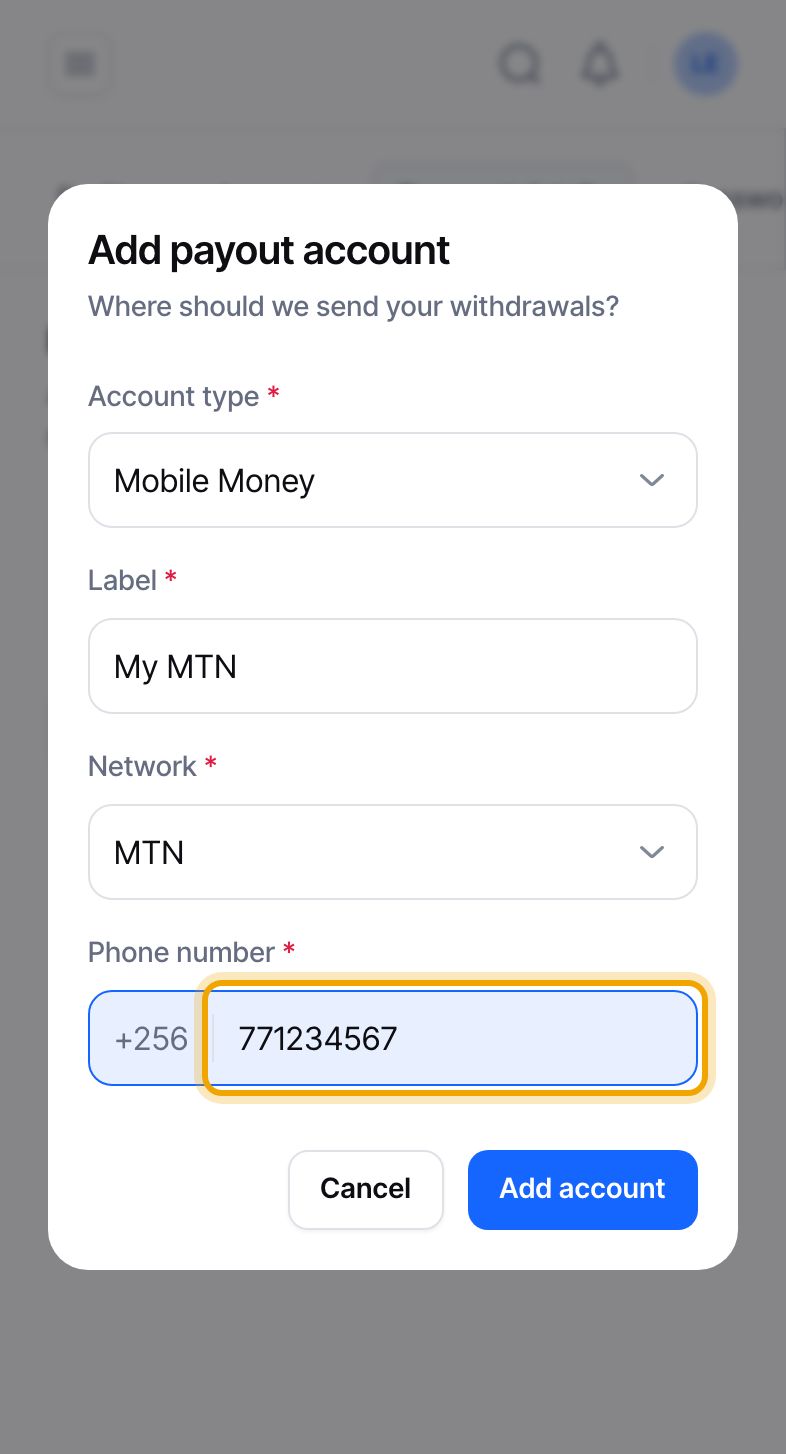
“Account type” already says “Mobile Money”. Give the account a short “Label”, such as “My MTN”. Choose the “Network”, MTN or Airtel, then type your phone number. The +256 is already there, so type the nine digits, for example 771234567.
The network must match the number. If you choose MTN for an Airtel number, you are asked to correct it. Payouts can only go to MTN or Airtel mobile money.
To be paid into a bank instead, change “Account type” to “Bank Transfer”. Fill in “Account name”, which is the name on the account, and “Account number”, then pick your “Bank”. Only if your bank is not in the list, enter its “SWIFT / BIC” code. “Transfer type” starts as EFT.
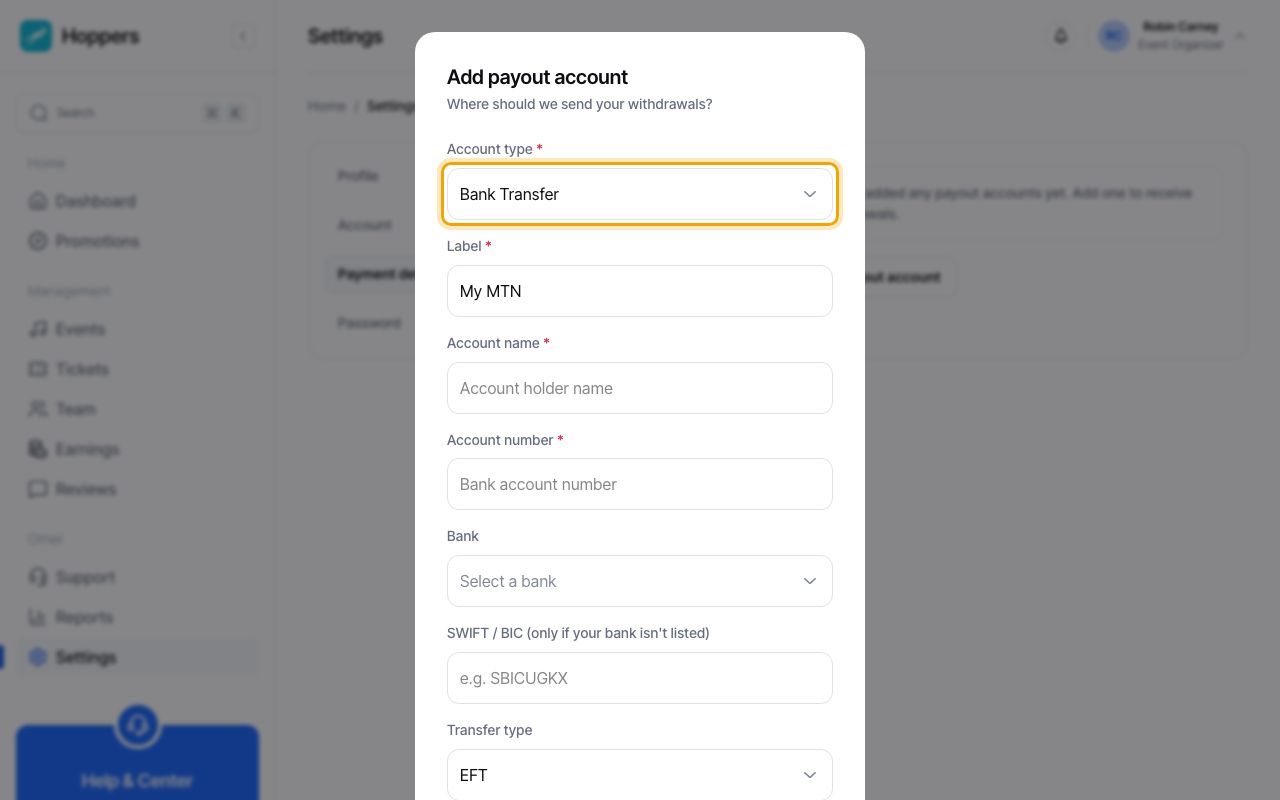
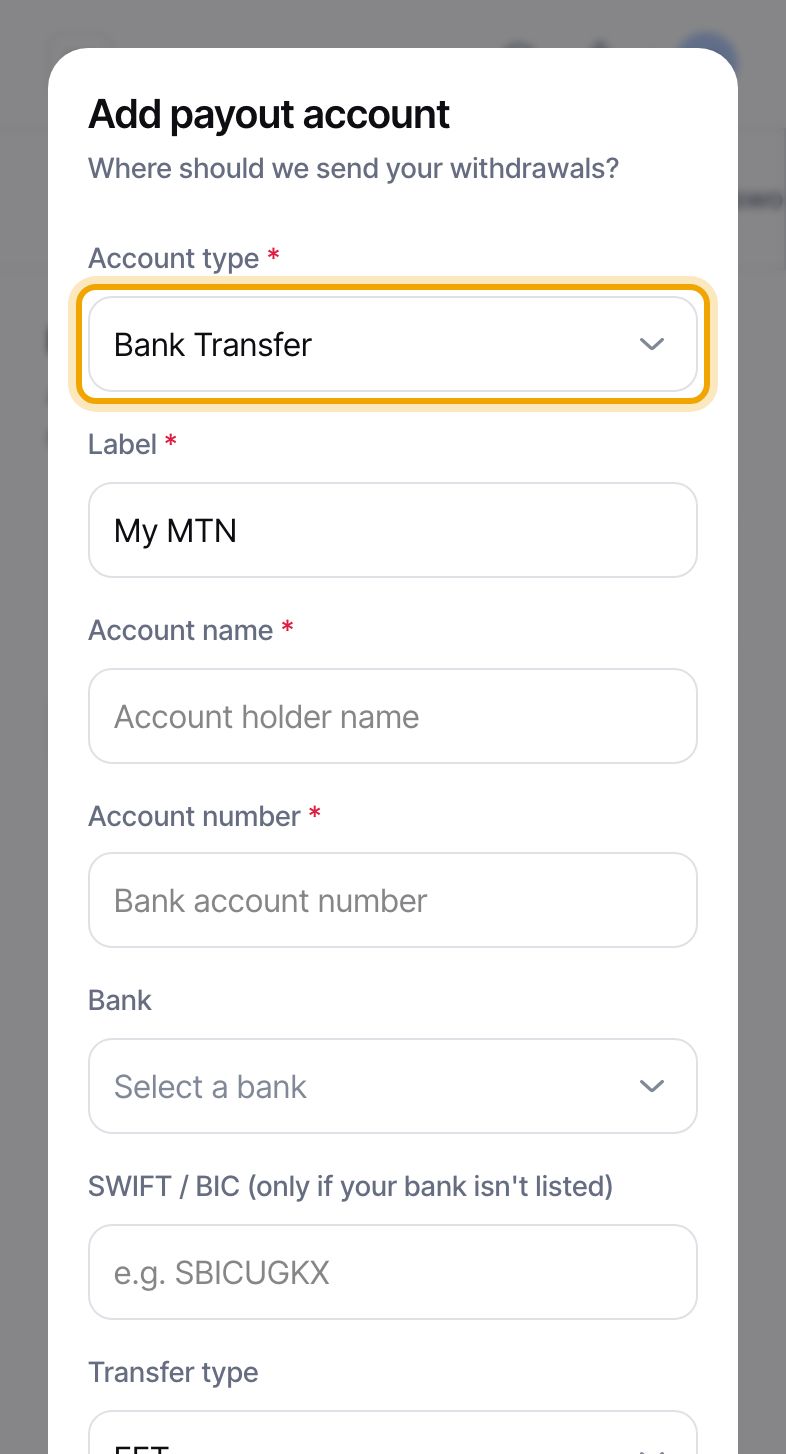
Select “Add account”. The account appears under “Payout accounts” with your label, the network and your phone number or bank details. Part of the number is hidden on screen. The first account you add is marked “Preferred” for you.
Check the number or account number before you save. Hoppers does not send a code to your phone or bank to confirm it.
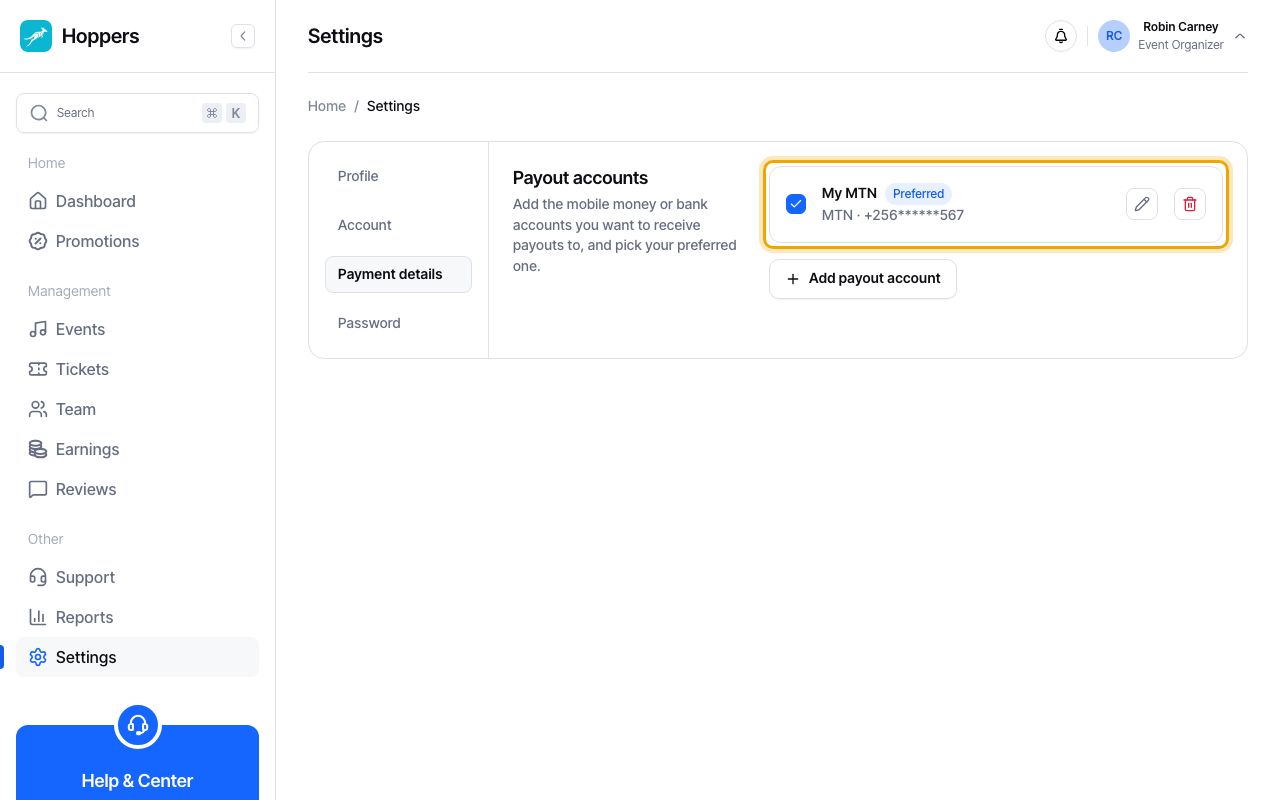
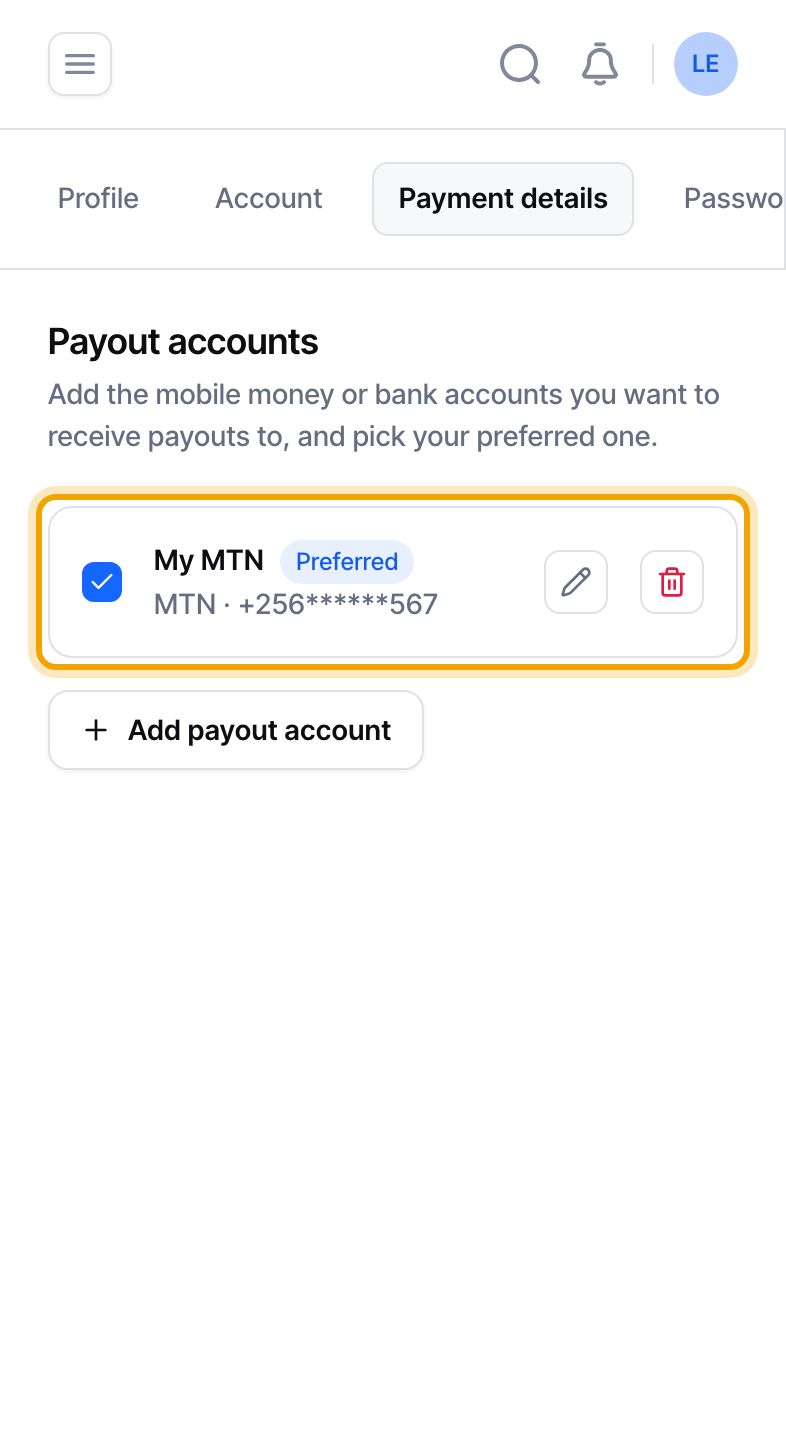
Use the pencil icon to edit an account and the bin icon to delete it. When you have more than one account, select the circle at the left of an account to make it your “Preferred” account. Payout requests start with that account selected, and requests that are still pending move to it.
An account with a payout in progress cannot be edited or deleted until that payout is finished. An account used in a past payout cannot be deleted.
When an event is marked completed and you already have a payout account, Hoppers creates a payout request for its earnings for you. If you have no account, we email you and send a notification asking you to add one. Either way you can request a payout yourself from the Earnings page once an account is saved.
Adding an account does not trigger a verification step. The Hoppers team sees the full destination details when it reviews a payout request, so an incorrect number or account number is the thing to avoid.
