See what the buyer pays, what Hoppers keeps and what reaches you, with a worked example from a UGX 50,000 ticket.
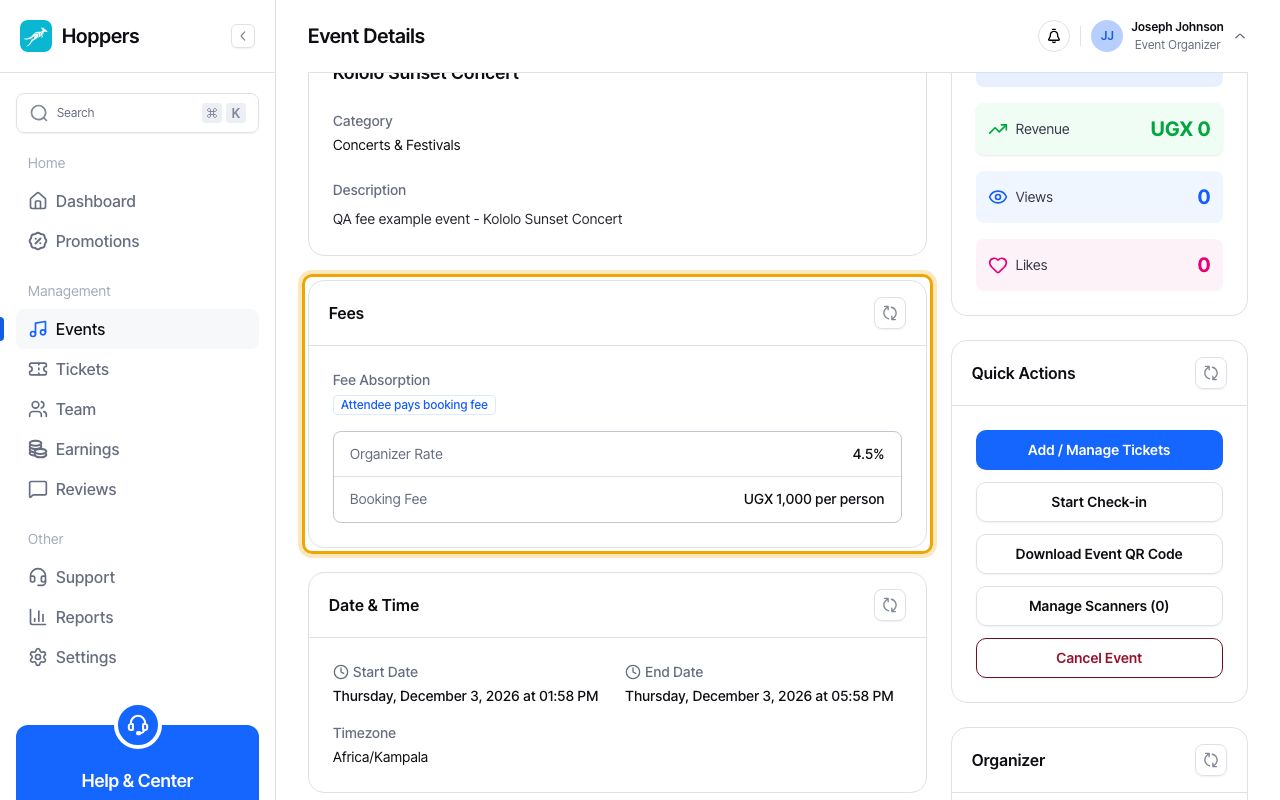
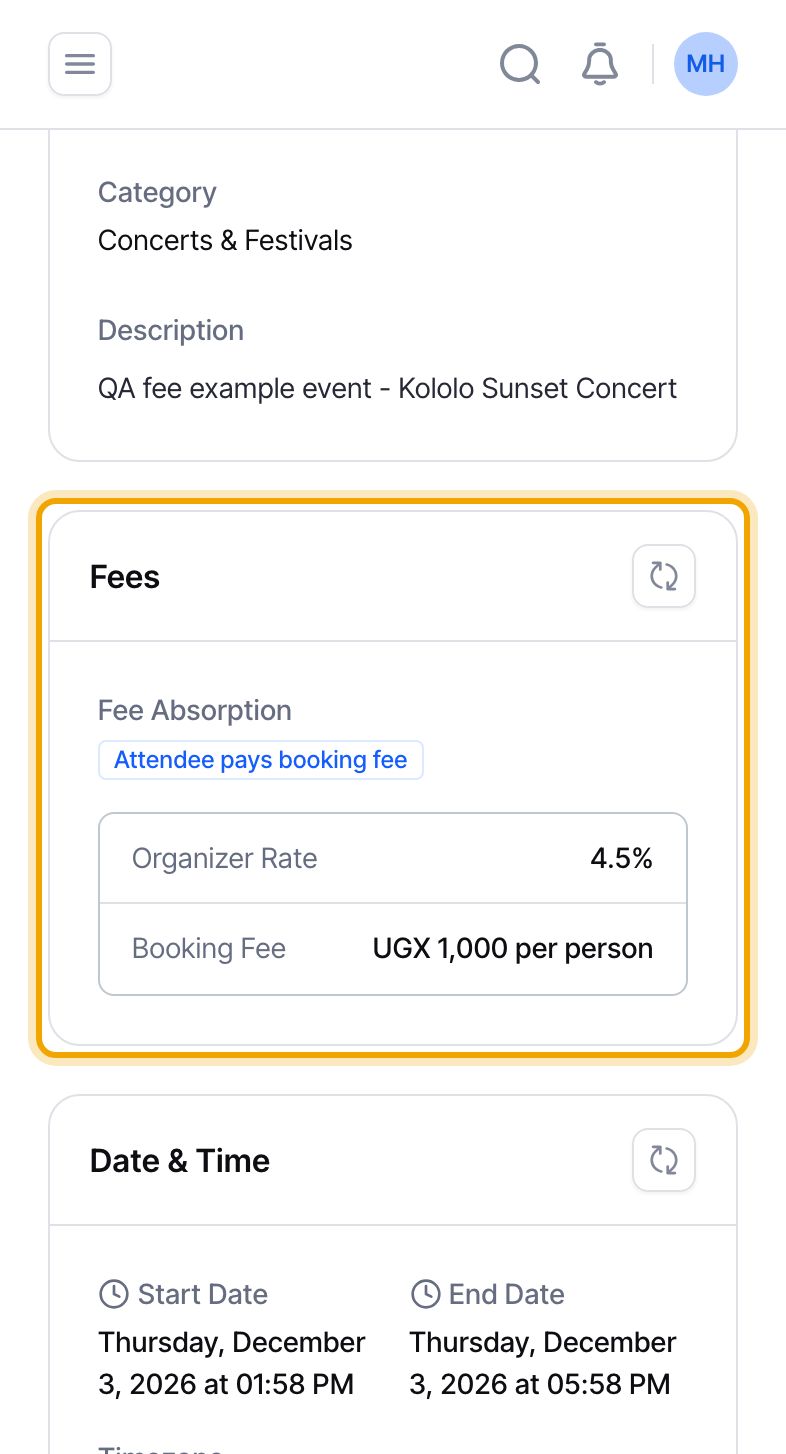
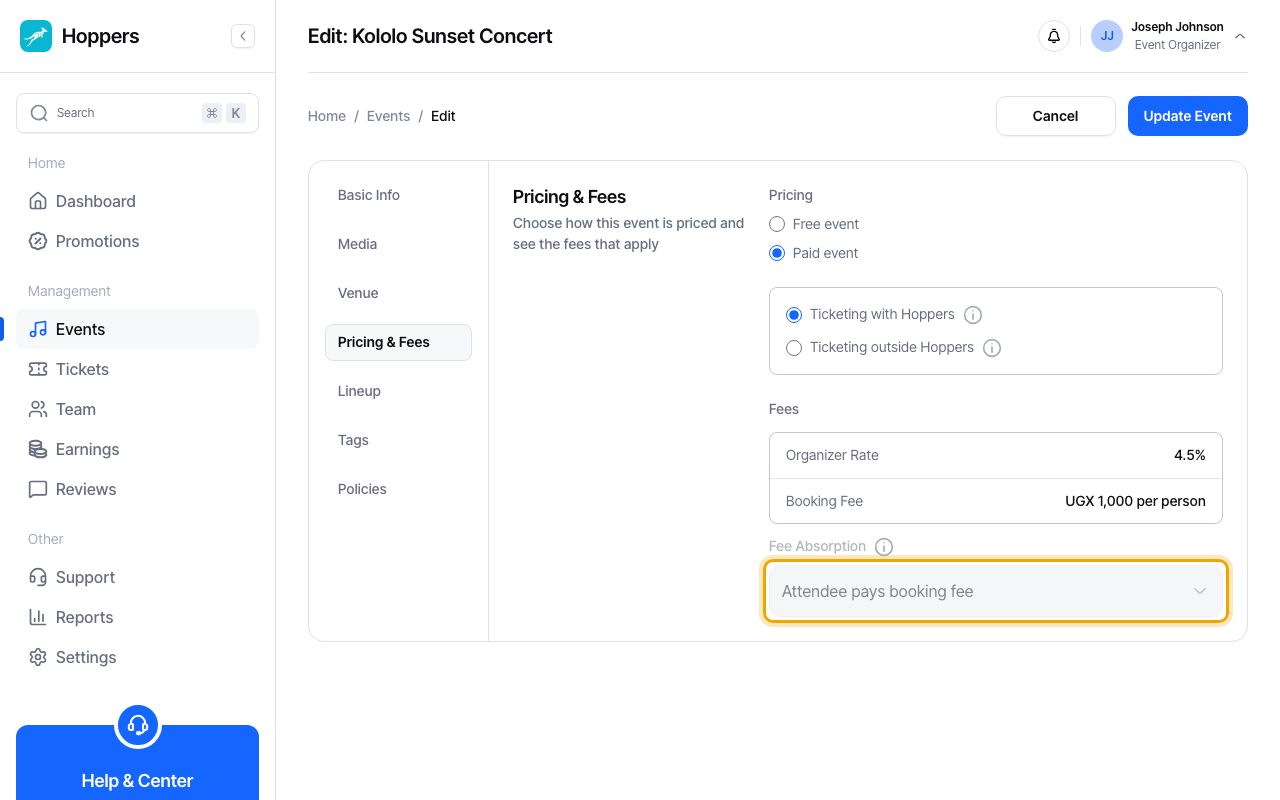
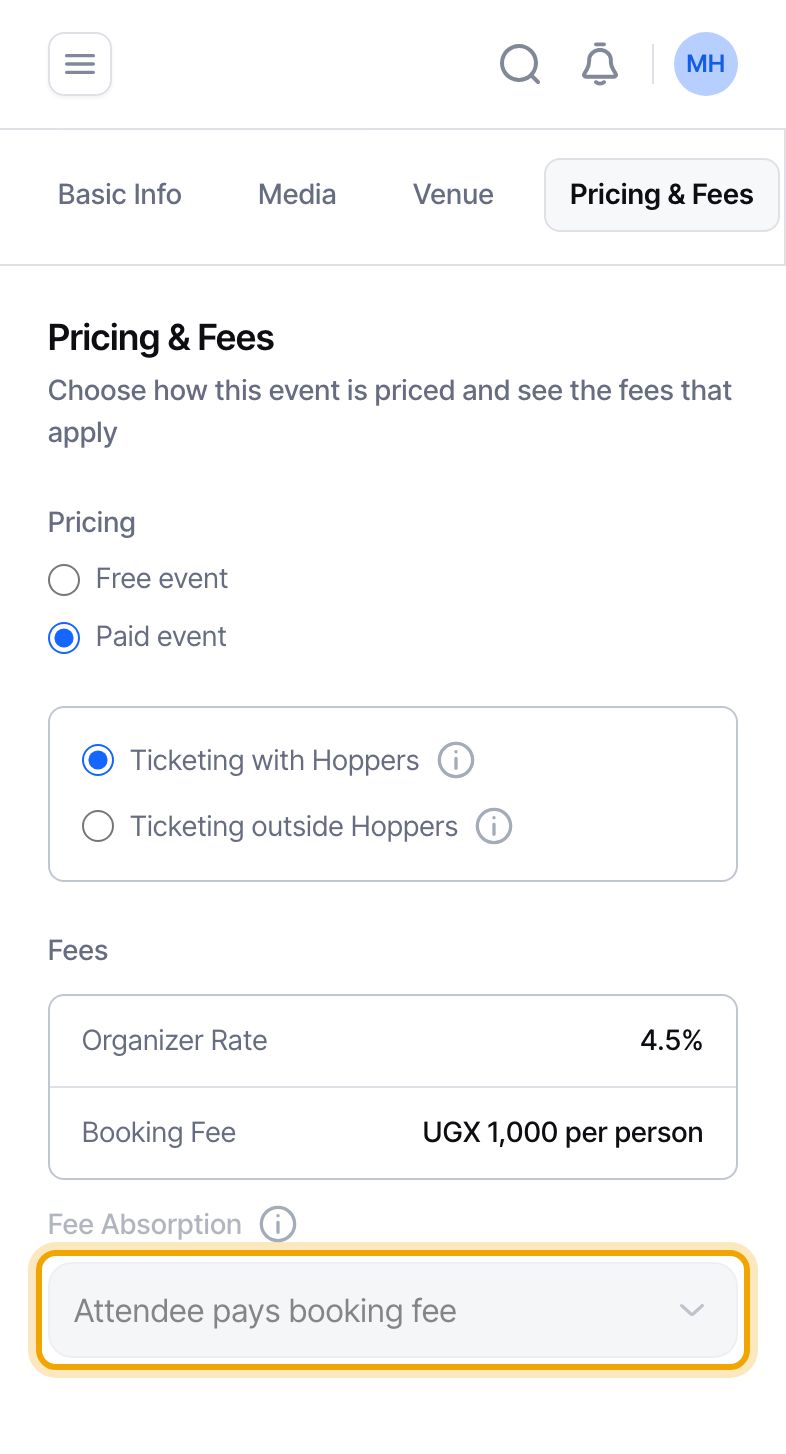
Open your event from “Events” in the menu. The “Fees” card shows who pays the booking fee (“Fee Absorption”), the “Organizer Rate” and the “Booking Fee”. The Organizer Rate is a percentage of each ticket price. The Booking Fee is a flat amount for each person admitted.
Free events, and events where tickets are sold outside Hoppers, show a short note instead of figures, because Hoppers does not charge on those.
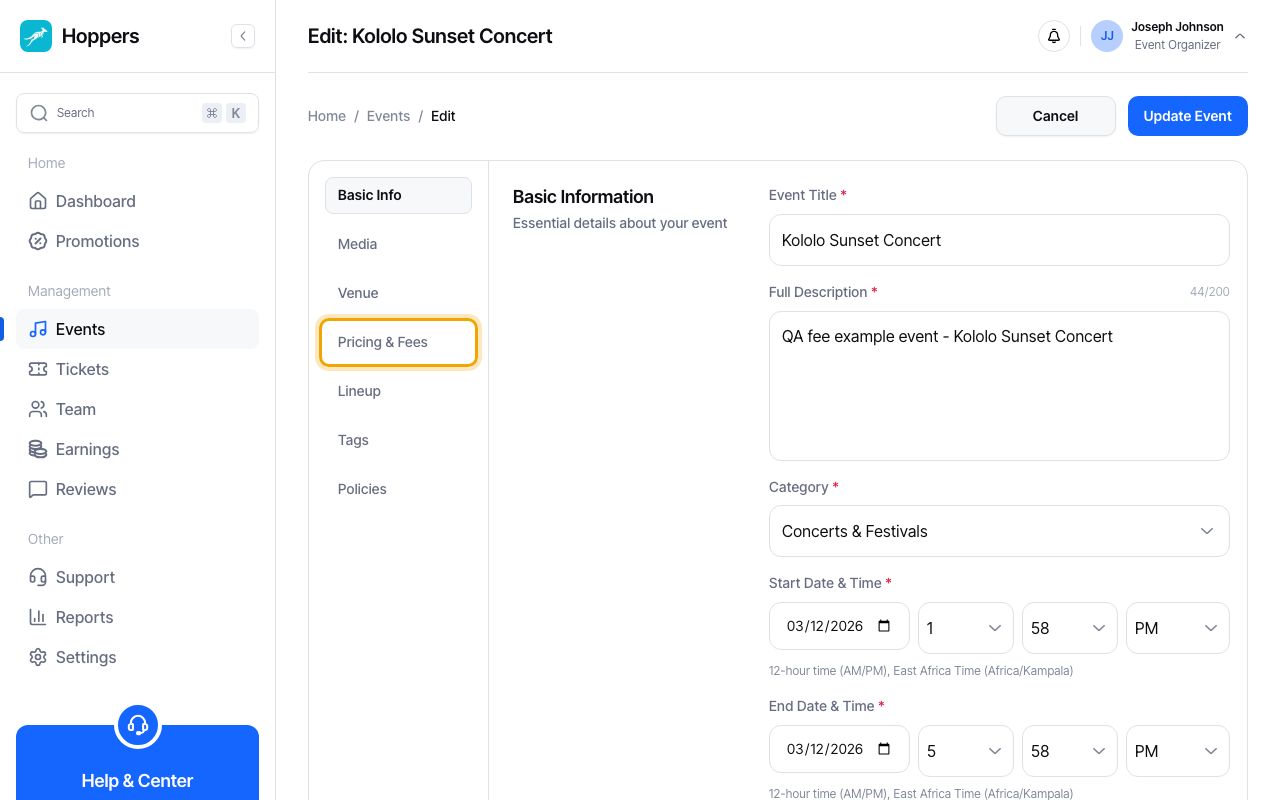
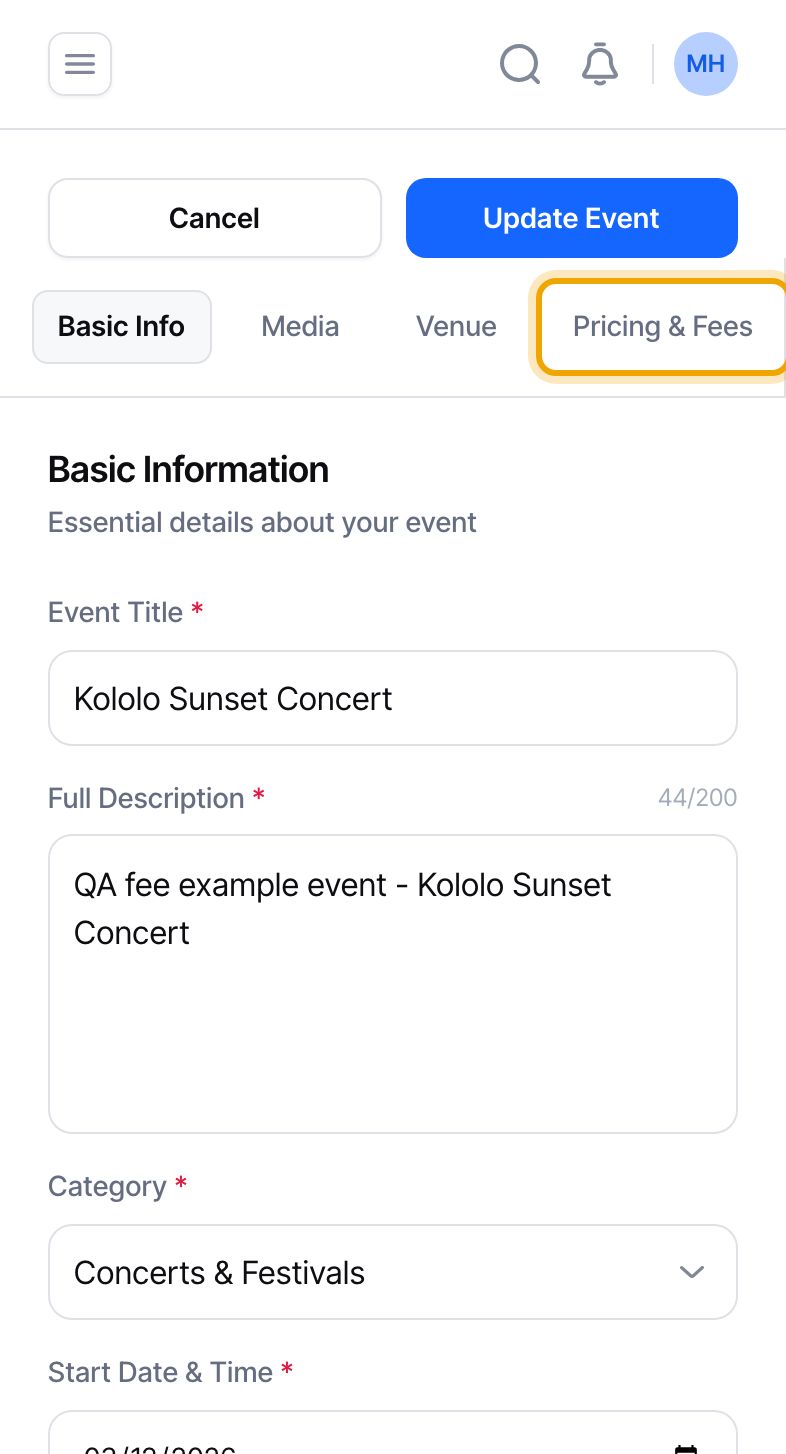
On the event page, select “Edit Draft” (or “Edit Event” once the event has been submitted), then open the “Pricing & Fees” tab. This is where you check the fees before you publish. On a phone the tabs sit in a row that you can swipe sideways.
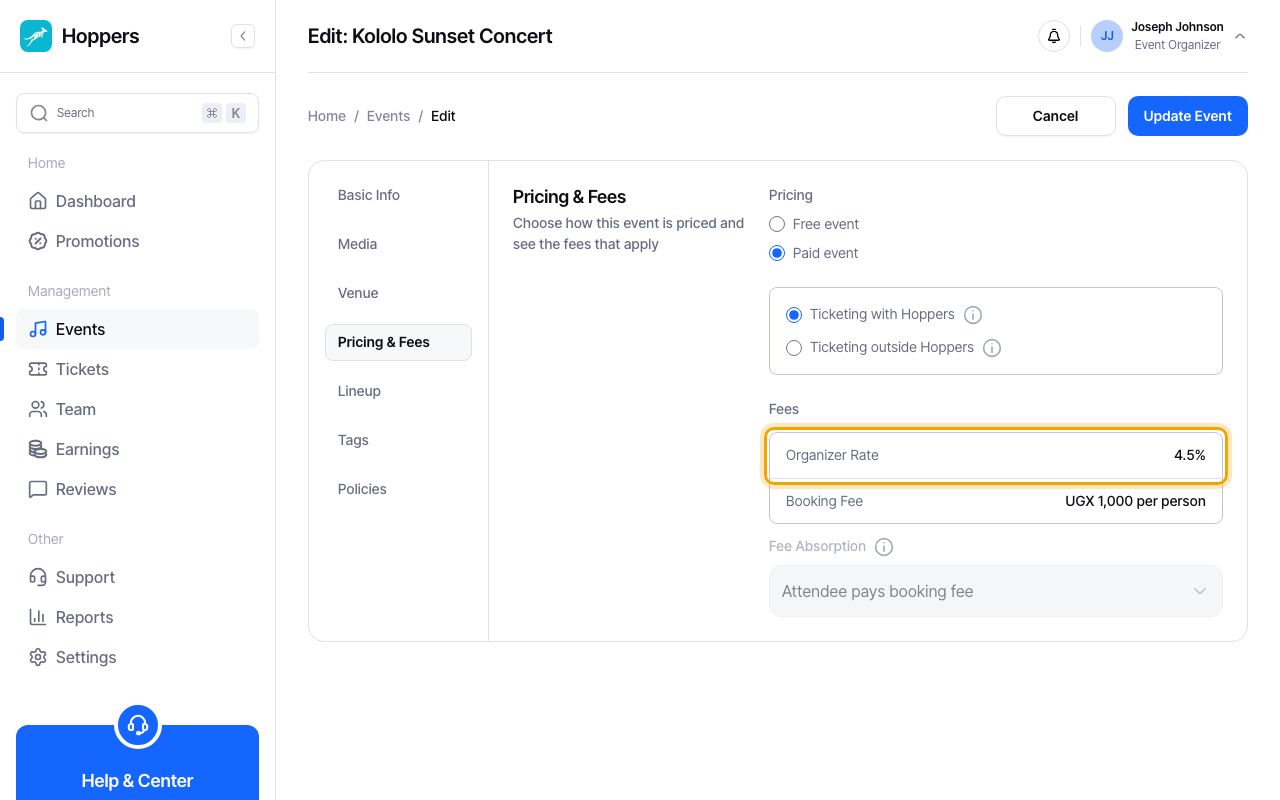
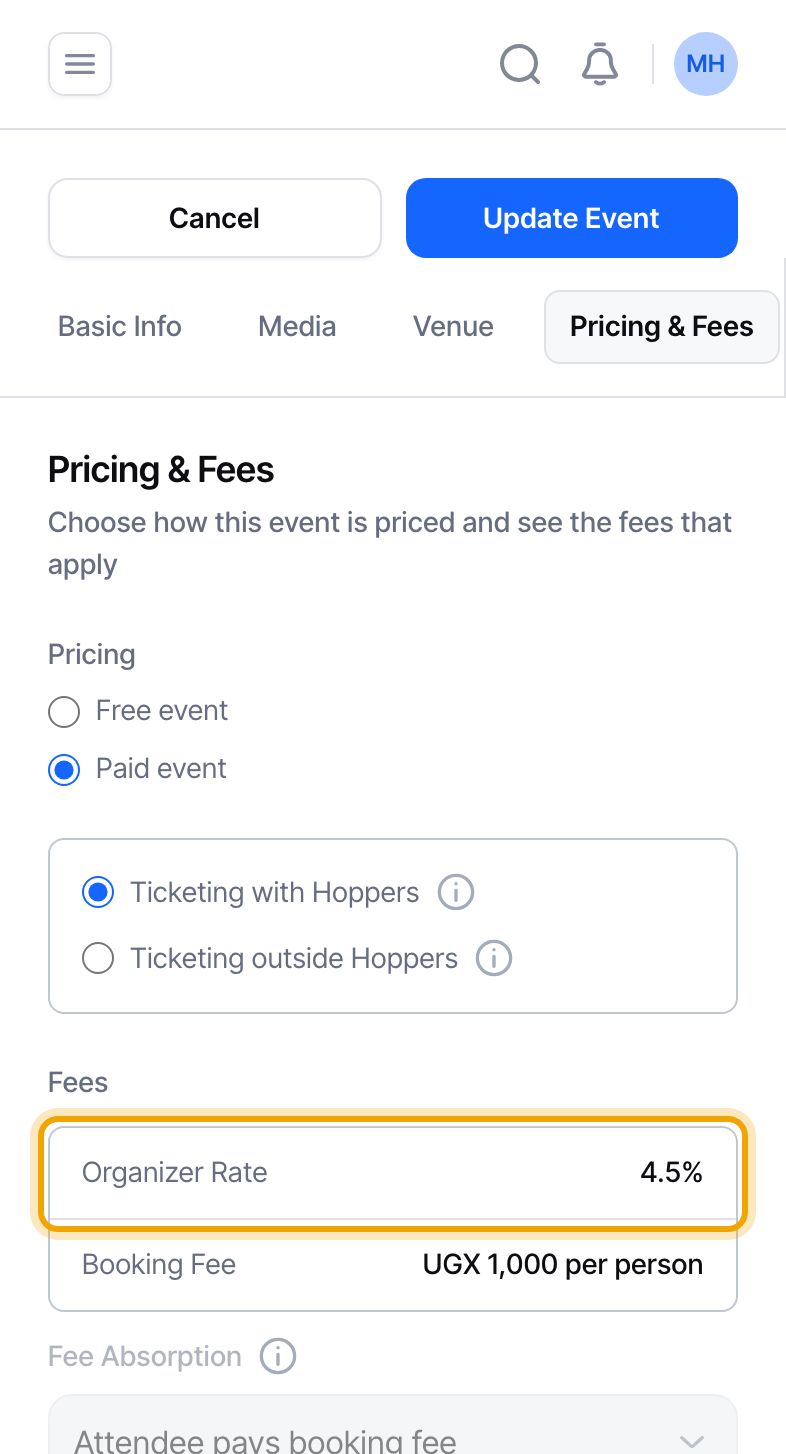
The “Organizer Rate” row shows your rate. On standard terms it is 4.50% of the ticket price, which the dashboard prints as 4.5%. It covers payment processing (4.13%) and Hoppers’ commission (0.37%). It is taken out of your ticket money after the sale. It is not added to what the buyer pays.
If you have agreed a different rate with Hoppers, this row shows your agreed rate.
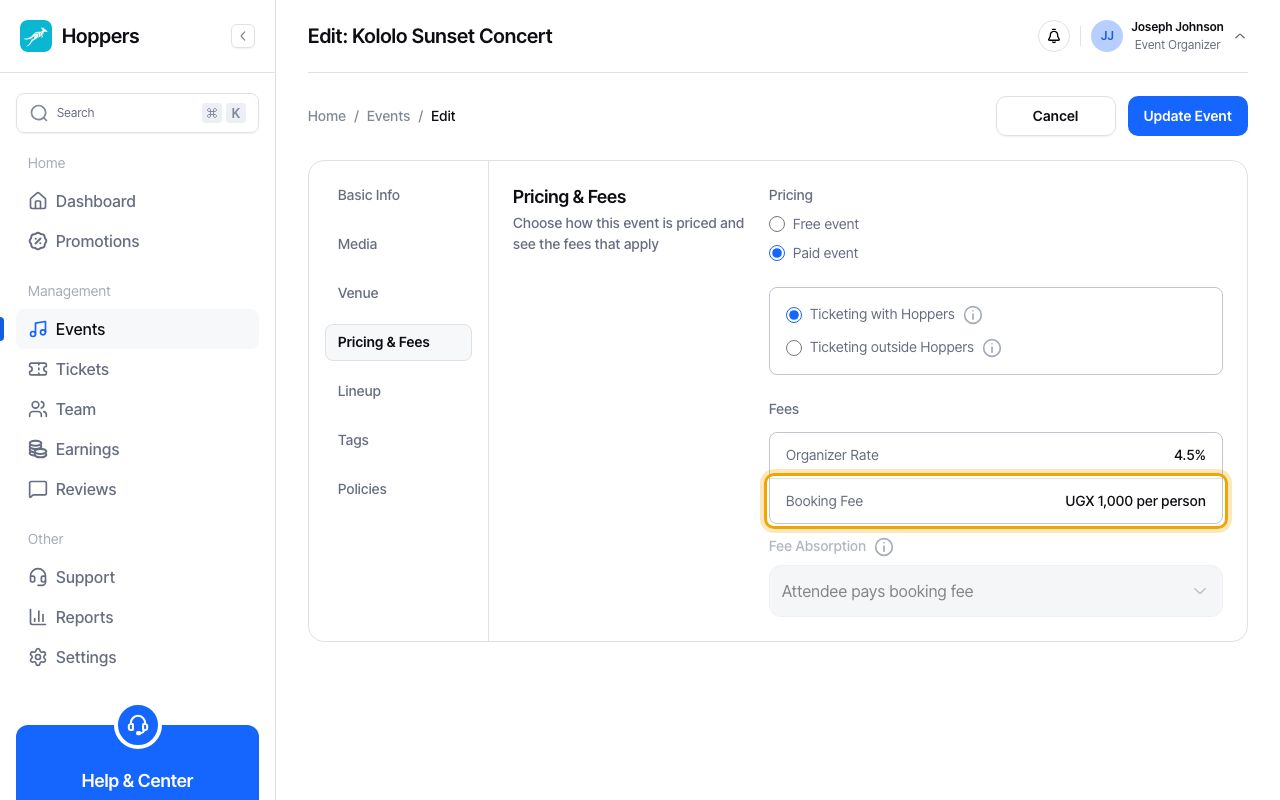
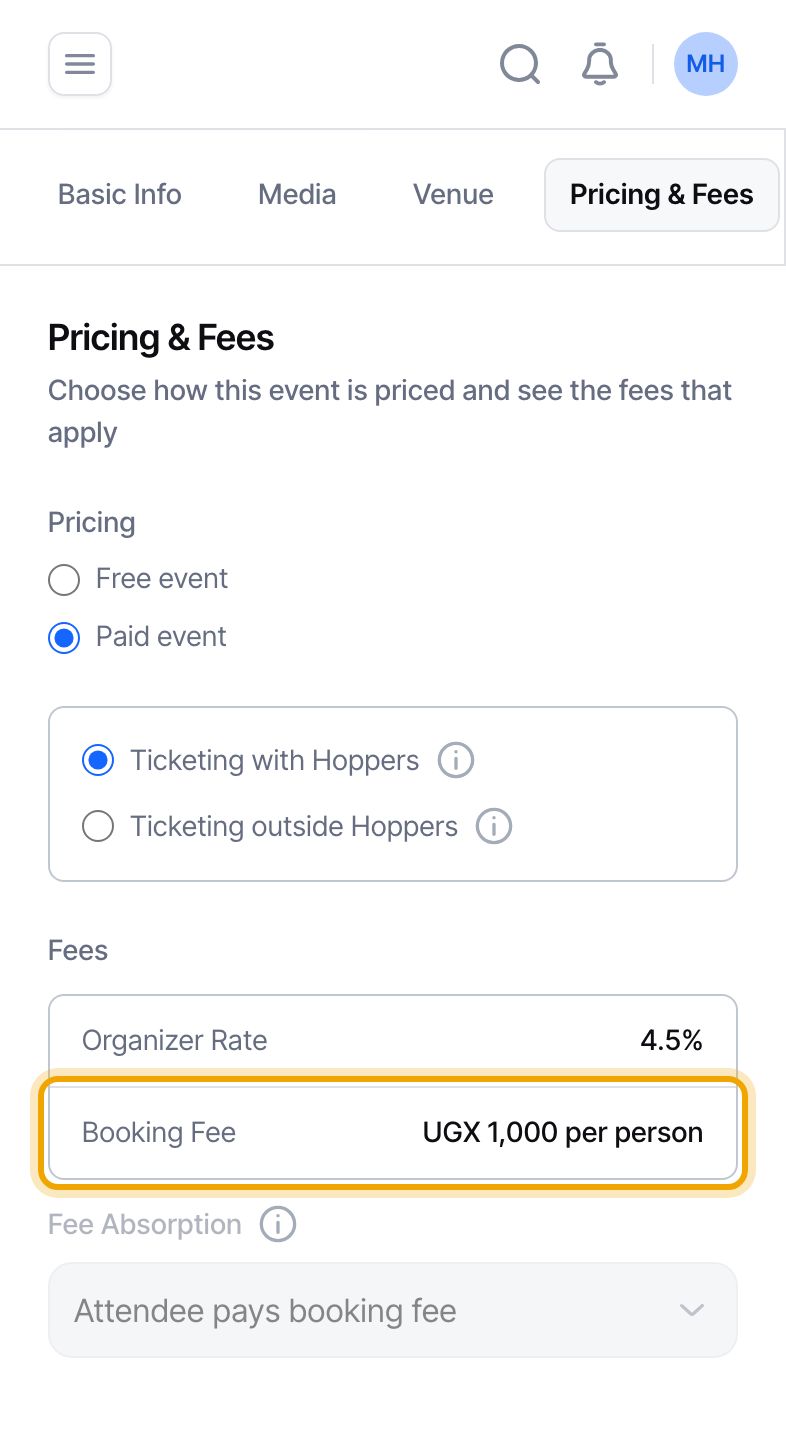
The “Booking Fee” row shows UGX 1,000 per person. It is charged for each person a ticket admits, so a ticket for two people carries two booking fees. By default the attendee pays it on top of the ticket price, so it does not reduce your ticket money.
“Fee Absorption” shows “Attendee pays booking fee”. The dashboard locks this field for now, so every event is set this way. Fee Absorption only decides who covers the booking fee. The Organizer Fee always comes out of the ticket price, whichever option is shown.
Questions about absorbing the booking fee for an event? Email [email protected].
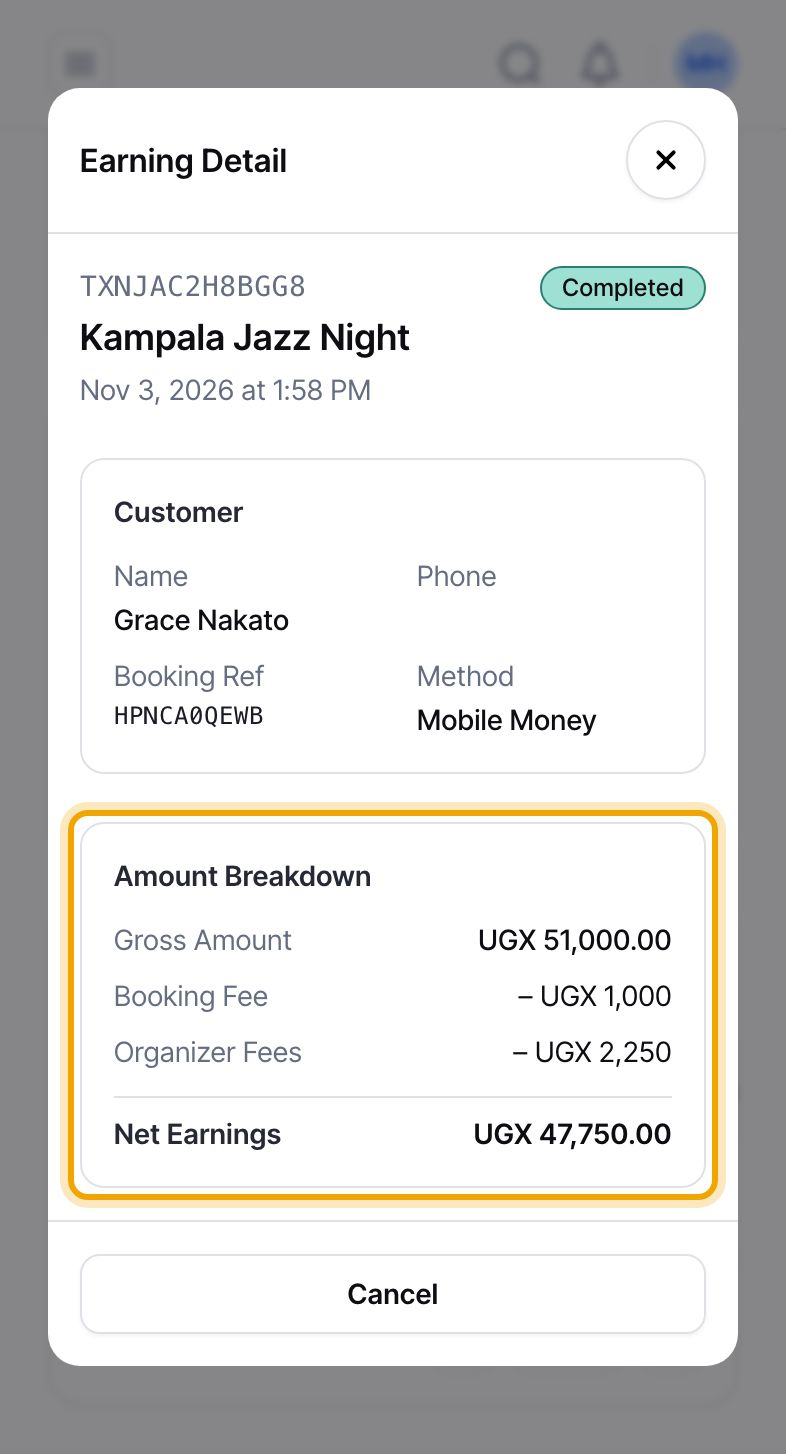
Open “Earnings”, open an event, then select a payment in the “Payments” table. The “Earning Detail” panel splits the payment into “Gross Amount”, “Booking Fee”, “Organizer Fees” and “Net Earnings”. In our example the buyer paid UGX 51,000, the booking fee is UGX 1,000, the organizer fee is UGX 2,250 and you earn UGX 47,750.
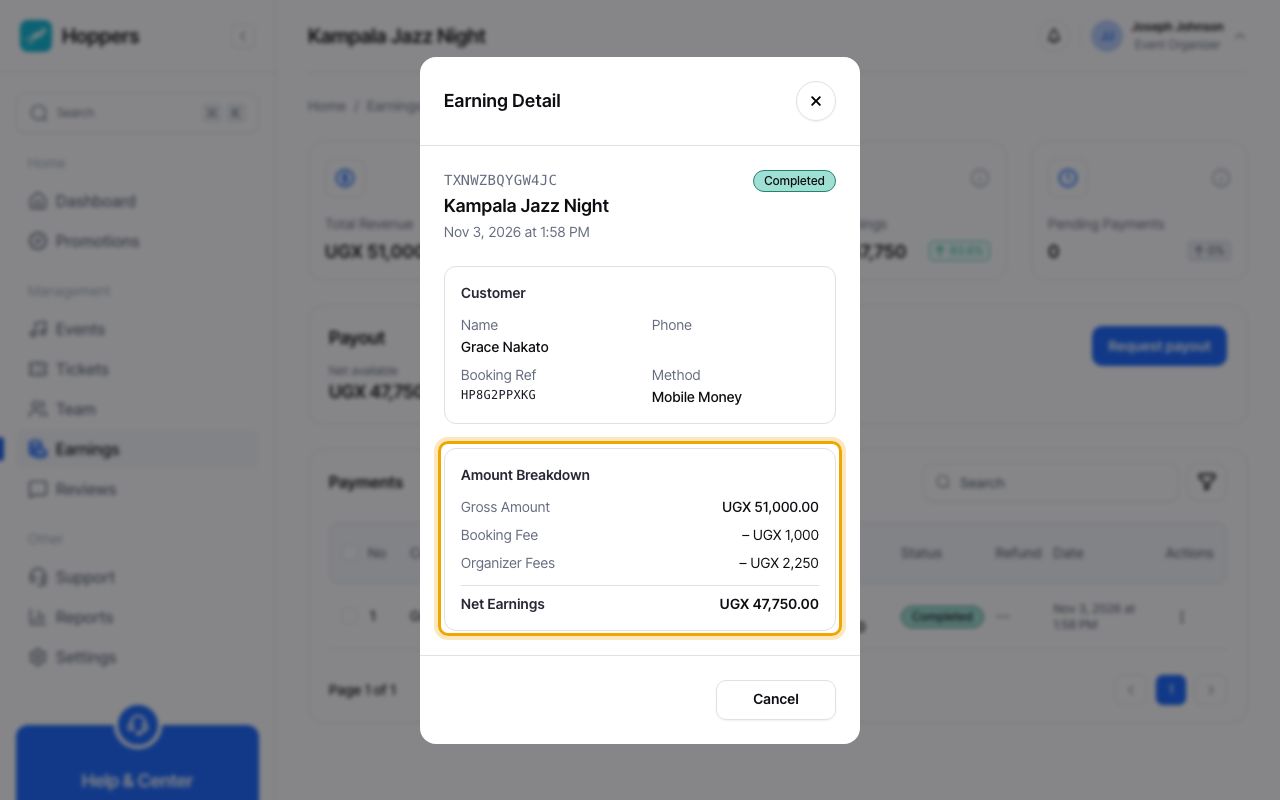
Take one ticket that costs UGX 50,000 for one person, on standard terms with the attendee paying the booking fee. The attendee pays UGX 50,000 plus the UGX 1,000 booking fee, which is UGX 51,000. Hoppers keeps the organizer fee, 4.50% of UGX 50,000, which is UGX 2,250, and the booking fee of UGX 1,000: UGX 3,250 in all. You receive UGX 50,000 minus UGX 2,250, which is UGX 47,750. On your Earnings page that sale reads Total Revenue UGX 51,000, Organizer Fees UGX 3,250 and Net Earnings UGX 47,750.
The dashboard does not offer this choice today, but this is how it works when an event is set up so that the organizer covers the booking fee. The attendee pays only the ticket price, UGX 50,000 in the example. The booking fee still applies, and it comes out of your earnings. Payment processing is not charged on it a second time, so it costs you UGX 958.70 rather than UGX 1,000. You receive UGX 50,000 minus UGX 2,250 minus UGX 958.70, which is UGX 46,791.30.
Hoppers can agree a different commission with you, for all your events or for a single event. The “Organizer Rate” on the Fees card always shows the rate that applies to that event. A different rate replaces only Hoppers’ commission. Payment processing is always added on top. The figures in this guide are the standard terms and can change, so the dashboard is always the place to check what applies to your event.
When a payment is refunded, the booking fee is not returned to the buyer, and neither is the payment processing share, which is the standard processing rate applied to what the buyer paid after the booking fee. The refunded amount also comes out of your earnings for that sale. The Earnings table’s “Organizer Fees” column adds the organizer fee and the booking fee together, so it reads higher than the Organizer Fee alone.
